


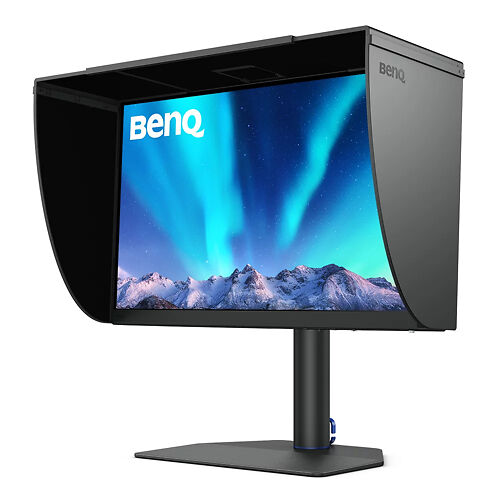
BenQ SW272U 27" 4K Monitor
BenQ's new flagship 27" colour accurate 4K (UHD) monitor.
▪ Free Courier Shipping to most locations! (See notes).Please note that we are open by appointment only (except for click and collect pickups once notified ready).
BenQ's new flagship 27" colour accurate monitor.


The BenQ SW272Q replaces the very popular BenQ SW270C model. It offers across the board improvements - very significant ones - and amazingly, comes in at $200 cheaper than the older model! We think this is the best lower budget colour accurate model on the market at time of writing (late 2023) - and is the level of monitor we think anyone wanting to work accurately with colour should aspire to.
Read our BenQ SW272Q Evaluation (you should also read our BenQ SW272U evaluation to get the whole picture!).
BenQ say:
Fine-coating Panel with TUV-Certification
Certified with TUV Rheinland Reflection-Free Certifications, SW272Q utilizes fine-coating panel to eliminate glare and reflection for simulated paper-texture visual experiences on screen under different types of ambient lighting to get perfect results.
The AQCOLOR Advantage
BenQ AQCOLOR technology delivers 'Accurate Reproduction.' This translates to the display of colour precisely as it is intended to appear. Led by a color expert, the BenQ team took part in the ICC* and ISO** to establish colour-related standards and implementation guidelines. With Delta E ≤ 1.5 and BenQ ICCsync, SW272Q offers out-of-the-box and easy-to-reach colour accuracy. The 16-bit 3D lookup table (LUT) improves colour blending for precise reproduction.
BenQ Uniformity Technology
Create with confidence. Enjoy consistent colour accuracy and brightness consistency throughout each panel.
Calman Verified, Pantone Validated, and 3rd-Party Video Calibration Software Supported
BenQ PhotoVue monitors are accredited with Calman Verified, Pantone Validated and Pantone SkinTone Validated certifications. Creative professionals demand color excellence, and BenQ delivers. Moreover, SW272Q supports world-leading video calibration software, Calman and ColourSpace. Adjust your display's 3D LUT (Lookup Table) for accuracy and consistency at all levels.
Palette Master Ultimate
Tune and maintain the colour performance of your monitors with Palette Master Ultimate software and get the optimal colour consistency in 3 steps.
Wide Colour Space Coverage
Whether you're designing web content in sRGB, editing 4K videos in DCI-P3, or retouching photos in Adobe RGB, BenQ SW272Q wide colour coverage showcases your talent, letting your finished work look the way you intended.
Paper Colour Sync
Paper Color Sync offers simulated images attuned to the colour settings, printer, and photo paper in use for easy and accurate photo preview before print.
GamutDuo
Preview the same image in two colour gamuts, side-by-side, for comparison in photo editing.
P3 Colour Space
Deliver accurate colours to videos with P3 colour space for your video projects.
Video Format Support
SW272Q helps pros get the best video results with HDR support and multiple video formats.
Select SDI to HDMI Device Compatibility
BenQ has tested select SDI to HDMI devices as compatible with SW272Q. Videographers can thus connect their SDI devices to the monitor for stable and non-compressed signal transmission and real quality video image.
HDR10
Thanks to SDI to HDMI Device Compatibility, SW272Q is also HDR10 compatible, making it perfect to preview the HDR effect of video content during the editing process for best results.
Chroma Sampling Support or Video Format
Combined with the above video format compatibilities, SW272Q supports 4:4:4, 4:2:2, and 4:2:0 sampling in determining monitor fidelity.
Pantone Connect Premium
Go digital with BenQ, the first brand to work with Pantone on a mobile app. As an existing owner or a new purchaser of BenQ professional monitors, you get one year of free Pantone Connect Premium for digitally mobile colour consistency and accuracy.
Expand Your Efficiency
Quick to transfer various data and deliver power.
Hotkey Puck G3
Cordless for unlimited convenience.
Convenient Design
Easy to access OSD, I/O port, and card reader efficiently.
Leatherette Base
Save the workspace for valuable items.
Shading Hood
The SW272Q includes a detachable shading hood that effectively reduces the screen glare resulting from ambient lighting, ensuring superb colour accuracy required for professional work. The shading hood can use landscape orientations.
CalMAN Certified
All BenQ PhotoVue monitors earn Calman Verified and Pantone Validated status. In close collaboration between BenQ and Portrait Displays, the Verified by CalMAN program ensures each display to be accurate out of the box and true to multiple industry-standard colour gamuts. The Verified by CalMAN mark is only given to the highest-grade of displays.
More information on the Verified by CalMAN program here.

Pantone Certified
As of 2019, BenQ announced that it's SW series of monitors became the world’s first stand-alone displays to earn the Pantone Validated status, ensuring colour-matched inter-operability with a plethora of production-grade colour output devices qualified by Pantone. Pantone Validated provides designers and photographers confidence in the Pantone colours rendered on-screen throughout their creative process, to better align materials in Pantone colours or simulations using Pantone-licensed output solutions.
Rigorously evaluated and approved by Pantone colour experts, BenQ SW monitors offer integrated colour correction and BenQ-exclusive AQCOLOR technology to guarantee superior fidelity in colour accuracy, including tested quality in achieving Pantone Matching System (PMS) colours. In use by virtually every colour-critical industry and manufacturer worldwide, the PMS system is a universal language of colour that allows creative professionals to specify and match specific colours, regardless of the equipment and materials used to produce the exact colour.
You can read more information on BenQ becoming Pantone Verified here.
World's First Pantone SkinTone Validated Certification
As of 2022, the BenQ SW series became the world's first stand-alone displays to achieve Pantone SkinTone Validated certification. Pantone SkinTone Validated supports the Pantone SkinTone guide, the first of it's kind for matching and reproducing a wide range of human skin tones that accurately reflects the diversity of our multicultural society.
For more information about BenQ becoming Pantone SkinTone Validated, see here.

* International Color Consortium **International Organization of Standardization

Panel Size / Ratio
27" / 16:9 (1.78:1)
Native Resolution
2560 * 1440

Panel Technology
IPS

Supports
Direct Hardware Calibration?

In Built Sensor?

Gamut
Wide
100% sRGB,98% P3,Adobe RGB 99%
This monitor supports Direct Hardware Calibration and comes with a license for a full version of BenQ's excellent Palette Master Ultimate software to achieve this.
However a calibration sensor is not included, and needs to be purchased to take advantage of this system.
We recommend the ColorChecker Display Pro / Plus (AKA i1Display Pro / Pro Plus).
Calibrite Display Plus/HL (AKA i1 Display Plus)These calibrators are either simply not compatible, or do not measure current monitor technologies reliably. If you have one of these, it's time for an upgrade!
i1 Display V1 & V2Please note: Specifications are provided as a guide only.
We try very hard to keep these up to date and correct, but if a particular specification is really critical to you, then please double check the specification directly with the manufacturer. Some features may of course have caveats not fully described here.
To get more information about a particular specification, use the arrow to get a 'Specxplanation'.
Monitor panel sizes are measured across the diagonal, in inches.
They are approximate only, so the actual measurement might be 27.1" for example. Note that panel size in inches is only one part of the story - the other being the aspect ratio. For example a 24" monitors doesn't sound much bigger than a 23" monitor, but 24" monitors are normally 16:10 versus most 23" monitors being 16:9. This means a 24" monitor is much taller than a 23" and the working size is much greater than one inch difference would suggest.
The panel ratio gives the relative size of the horizontal to the vertical. Older monitors were 4:3, but most modern monitors are widescreen, with 16:10 or 16:9 being the common ratios. 16:10 is distinctly taller, and common with 24 and 30 inch monitors. 23 and 27 inch monitors are normally 16:9 - the same ratio as widescreen televisions. For monitors 24 inches and below, we recommend going with a 16:10 monitor if you can. Once you're over 24 inches you've got sufficient vertical working space it doesn't matter so much.
Native resolution is simply the number of pixels a monitor has, stated as horizontal x vertical.
LCD monitors really want to receive their native resolution and look pretty terrible when scaling other resolutions to the native resolution of the panel.
Most modern computers have no trouble outputting up to 2560 by 1600 (e.g. all Mac Pros/Macbooks/Minis/Airs etc. from the last 5 years or so can do this without issue, usually to 2 or more displays simultaneously). The only time it becomes particularly important is with older machines, particularly laptops, many have a maximum external display resolution of 1920 by 1200. If in doubt send us the full model number of your laptop and we can double check this for you!
There are three major types of monitor panels. IPS (aka PLS) - are the best for image makers. They have the best colour accuracy and uniformity characteristics. The can sometimes have weaker blacks, so gamers and video editors sometimes lean towards PVA monitors. However these days good IPS panels have excellent blacks so we recommend that all image makers use an IPS panel. The latest panel type, TN, is generally only used in laptops and low end devices and should avoided for imaging work at all costs!
The two major types of backlighting are CCFL (Flourescent tube based) and LED. CCFL is the older type of light source and offers good uniformity and it has been traditionally easier to engineer colour accuate monitors with flourescent tubes. However recent LED backlit monitors can be excellent - very uniform, and of course they use much less power. The latest LED backlit monitors from the good makers now offer excellent colour accuracy - at least as good as the older CCFL models.
LEDs also uses significantly less power (although CCFL monitors are already much better than old CRTs of course!) - and tend to have better uniformity.
There are two main technologies for modifying the brightness of output from a monitor:
PWM (AKA TLM) Modulation
PWM Pulse Width Modulation (AKA TLM Temporal Light Modulation) - uses extremely fast cycling of the LED backlights (up to thousands of times per second) - with the duration of the on cycles vs the off cycles determining the perceived brightness. This very rapid on/off cycling (or low/high brightness cycling) is imperceptible to the naked eye.
DC Modulation
With DC modulation the amount of electrical current sent to the pixels is varied, thus changing the brightness of their output.
Which is better?
For most people, it is irrelevant which technology is used. Both are very effective at achieving the basic functionality of controlling a monitor's brightness.
However, people with known eye/visual/headache sensitivities may want to avoid monitors that use PWM to modulate brightness.
All other things being equal, DC modulation is preferred, since you then simply avoid the issue - but the reality is very few people are PWM sensitive (and many many phones/tablets/monitors/TVs etc use PWM, so you are really quite likely to know already if you're one of the few people who are sensitive!).
(If you think you might be PWM sensitive, please get in touch and you can come and try different models to see how they affect you!)
Whether or not the unit needs a fan for cooling. Most monitors fortunately don't need a fan, rather using passive cooling through heatsinks and vents.
However, some monitors do require a fan, which can be of concern given the monitor's proximity to your ears. Generally the fan will be a low dB fan not audible above a typical computer fan, but if ambient noise is of concern to you the we suggest you choose a monitor without a cooling fan.
Direct Hardware
Calibration is the process of calibrating directly into the monitor's hardware. This is both more accurate, and typically more easy to do, than traditional software calibration. See the 'Calibration Information' section above for more details about this monitor and calibration.
In built correction sensors come in two forms:
Until around 2010, almost all monitors were 'standard gamut' - meaning they could display a moderate range of colours (roughly around the size of the sRGB colour space). In recent years we've seen the development of wide gamut monitors that can display a much wider range of saturated colours (about 25% more) - equivalent to approximately the gamut of AdobeRGB.
We recommend wide gamut monitors for all image makers, but especially for anyone working regularly with saturated colour. Wide gamut monitors can also emulate standard gamut monitors very well, so it's more future proof to choose a wide gamut model, and there really aren't any disadvantages (apart from the generally higher price of wide gamut models!).
Does the monitor accept a 10 bit incoming video signal? 10 bit video signals allow for more tonal level separation (i.e. smoother gradients).
PC: 10 bit is well supported and relatively easy to achieve with 'workstation' graphic cards (short version: buy an NVIDIA Quadro video card!). Since about 2020, even most modern consumer video cards now support 10 bit, but the consumer cards with their gaming optimised drivers do tend to be a lot more buggy.
Mac: 10 bit has been supported across the Mac lines since around 2016.
Note that there are often caveats to this support - such as 10 bit being available only on DisplayPort and not HDMI for UHD inputs, for example.
Do make sure you check the manufacturer's specifications very carefully if you have a particular requirement - like e.g. 10 bit over HDMI at 4K/60Hz.
Our comprehensive article on 10 bit support has more details. Important to note, also, that whilst 10 bit is definitely 'better' - in 20 years of professional imaging work, we have never really seen it make a practical difference to typical tasks (with the possible exception of HDR grading work).
In general, in the context of colour accurate monitors, there are two types of '10 bit' monitors - i.e. monitors that can display more than a billion different colours (versus 8 bit monitors which can display 16.7 million, and 6 bit monitors that are, frankly, garbage).
8 Bit Plus FRC - 'Simulated 10 Bit'
Panels that are natively 8 bit can use extremely fast LED cycling to achieve the equivalent of 10 bit display - by cycling pixel colours (thousands of times per second!) - your eye will perceive the colours as the appropriate intermediate shades. (Just about all high quality monitors, including even top of the line ones like Eizo CG monitors, were 8 bit + FRC, up until ~2020 or so, i.e. since colour accurate LCD monitors came along).
True 10 Bit
True 10 bit monitors can natively disable over 1 billion colours directly, without this cycling technique.
Which is better?
All other things being equal, true 10 bit display is theoretically better, of course - but it's extremely hard to visually detect any difference in practise. 8 bit plus FRC is an excellent and effective technology and many award winning monitors, up to and including in the year 2024, use this technology.
We have a longer article on 10 bit monitors with more thoughts on this specification and why very often it's better to choose the better quality 8 bit/FRC monitor than a lower quality true 10 bit monitor.
The maximum achievable ratio of the brightness of a monitor's white to the depth of it's black. The stated figure is a maximum, achieved only when the monitor is running at high brightness in a darkened room.
A high contrast ratio makes things looks more contrasty (i.e. more 'pop') and is particularly of note with gaming, video, and image display scenarios. For example, if you're selling photos to clients straight off your screen, then high contrast has more wow factor.
However, for print work, it is typical practice to dramatically reduce the monitors contrast to as low as, say, 200:1 to better simulate paper. This is best done with monitors that feature direct hardware calibration support and allow you to specify the desired contrast ratio.
The maximum achievable brightness of the monitor in candellas per metre squared.
It is VERY unusual to run a monitor at maximum brightness, especially for imaging work.
Does the monitor have 'true blacks'. Generally, this is essentially the same as having a contrast ratio noticeably over 1000:1.
The DCI (Digital Cinema Initiative) specifications for 'true blacks' requires a (post-calibration) contrast ratio ~ 1500:1 or more.
Most LCD monitors do not yet offer True Blacks support. This doesn't mean they have bad blacks in typical viewing environments, but it does mean you may experience some 'glow' in your blacks if you're viewing in a very dim environment.
Achieving very high contrast ratios is difficult and a combination of technologies is used - changes to the panel, light retardation film and backlight are all required. In 2024, we're beginning to see the term 'IPS Black' to describe these sorts of blacks-improved panels.
This is really particularly of relevance in video work - in still image work, and particularly for print, it is common practise to actually raise the monitor's black point above the minimum to better simulate the printed output. A very low black point makes a monitor more suitable for video editing in a dim environment.
The wider the better! But as usual, on paper specifications tell you just about nothing about the actual performance.
Viewing angle is the maximum angle at which a display can be viewed with 'acceptable visual performance'. In the context of this specification, all that means is that the 'contrast ratio remains above 10:1' (which is laughably low). This is really a meaningless specification with regards to the colour accuracy of a monitor when viewed off angle.
Thus, we don't place any credence in the manufacturer stated numbers. Simply though, IPS panels have the best viewing angles by far, and all IPS panels sold here all have (relative to low quality monitors) excellent viewing angles for this type of monitor, so you won't see significant variance as you move you head around under normal circumstances (movements of 15 or so degrees, say). In general you and a colleague could sit side by side (closely) and work acceptably together on an image. Beyond that, though, like all LCD monitors, accurate display will drop off very quickly once you move off angle. That is simply a fact of life with LCDs, even the best ones.
Ironically, monitors with lower black points tend to be slightly worse in this area (e.g. the CGX range from Eizo) - as often part of achieving the low blacks is the use of a polarising film over the panel. As anyone who has ever used a polarising filter with a camera knows, the effect of such a filter is highly directional. Thus as you move off axis, you will therefore see change more quickly.
How quickly a pixel can change colour, in milliseconds (usually measured as grey-to-grey, but there's no real standard).
Basically, any value 16 or under is generally fine for all normal uses. Exceptions are high end gaming and possibly video production - but it's rare anything below 10 makes a significant difference, and monitors with very low response times typically sacrifice a lot of colour quality to achieve this.
Can the monitor play back a 24p video signal (i.e. 24 frames a second) - without visible motion artefacts?
Typical desktop monitors either refuse a 24p signal altogether, or force all inputs to 60hz, remapping different frame rates like 24p to 60 frames per second (usually using a technique known as 3:2 pull-down). Unfortunately, because 60 is not evenly divisible by 24, this causes significant visible motion artefacts.
A monitor with 24p support is able to play back 24p sources at either the native 24 frames a second, or using simple frame doubling/tripling to play back these sources as 48 or 72Hz. This results in smooth motion without new artefacts (n.b. - artefacts inherent to 24p, like some juddering during slow pans, remains of course, as this is inherent in the low frame rate of the original filming - but it's this low frame rate that gives the 'film like' look.
More about 24p on Wikipedia.
The bit depth of the colour Look Up Tables. These are used to map incoming values from your computer to actual colours on the monitor's screen - so are of course crucial to colour accuracy. 8 bit is standard (although some appalling screens are only 6 bit!), but 10 bit or more is desirable, and the best monitors are now 14 or 16 bit. Ideally combined with 3D LUTs that can transform colours in more than one table at once.
Put simply the higher the bit depth of the LUT, the greater the capacity for accuracy.
3D Look Up Tables allow colour transformations to occur on R,G and B simultaneously, which increases speed and accuracy. Basically, a 3D LUT means better, more accurate calibrations. You want one even if it sounds like gibberish!
LCD Monitors coming off a production line typically exhibit some uniformity issues. Uniformity corrected monitors are broken into zones, measured, and each zone calibrated to be even with its neighbours (and you often get a written report of this process with very high end monitors like the Eizo CG series). Called DUE by Eizo, and most likely something else by others, it's an important part of the process of high end LCD making.
The process occurs at the begining of the monitor's life and there is currently no user system for correcting uniformity after the monitor is out in the field, although it is theoretically possible. Fortunately, moden monitors that leave the factory in a very uniform state tend to then remain uniform for many years of use.
Monitors that are not uniformity corrected may exhibit some visible artefacts like a change in density or colour across the field of the monitor. Wtih brands like Eizo and NEC, the non uniformity tends to be minor.
The input ports a monitor has. We have a comprehensive article about these (with pictures!) - here.
We've listed them here in our generally recommended order - that is, we recommend USB-C / DisplayPort / HDMI / Other...in that order, if the computer and monitor have the appropriate options.
Note that for USB-C ports that offer power delivery back to your laptop, we just list an approximate figure here - normally the monitor description text above has more details (e.g. this specification might say approximately 60W, when in fact it is 50W or 70W, say).
Other connections the monitor offers - such as card readers, audio connectors (for audio going in and/or out) - and USB ports.
Up here indicates an upstream port - meaning when you run a connection from your computer to the monitor.
Down indicates a downstream port - meaning you can plug something into this port (like e.g. a mouse, or a USB card reader).
Note, USB-C ports can be both upstream and downstream, and are thus often listed both ways, although there may be just one physical port.
A good way of double checking the ports on offer is to cycle through the product images above - we try and make sure each monitor listing has a picture of the available ports as well as the information here.
Some USB ports/hubs also act as proper 'KVMs' - meaning you can plug your mouse and keyboard into the monitor, then the monitor into two separate computers and easily share your peripherals and screen between the two machines. If proper 'KVM' support is something you need, review the manufacturer specs (linked below) to be sure this monitor can support your intended use case.
If a monitor hood is not included, then there are [LINK] aftermarket hoods available.
Monitor hoods stop direct light falling on the monitor which can make, in particular, shadow details harder to perceive. While not essential, once you get used to having one it's hard to go back to a screen without one - they improve the picture generally and provide a real 'window in to your image' effect.
Most colour accurate monitors don't have in built speakers.
Those that do offer speakers usually connect via 3.5mm jack (see connections), and the speaker output is usually around the 1-2w range. Fine for basic system sounds but not great for music etc.
Can the monitor be rotated on its stand 90 degrees and used in portrait orientation? Particularly useful if you're doing portrait work on smaller screens!
If the monitor & stand support this then you just rotate the screen physically and instruct your video card to flip the image 90 degrees (if you bind this to an F key on your keyboard it can be a very simple process!).
Please Note:
We keep these details up to date to the best of our knowledge.
However if a particular item is of special importance to you please also check the manufacturer's listing for the product.
You will get:
Confused about something, or just want some human to human advice?
Send us a question about this product.
We answer all enquiries, and promptly too!
You're also very welcome to ring us on 03 9329 4522 if you prefer.
Note this form is for pre-purchase enquiries, or support enquiries if you have bought this product from us. If you have bought this product from another supplier then please contact that supplier for support.
Selected by Image Science, tested as compatible.


Hand curated articles, links and downloads to help you get the best from your BenQ SW272Q 27" 2.5K Monitor.
Need technical support? Use the form to above send us an enquiry or if it's urgent, call us on 03 9329 4522.
