



Please note that we are open by appointment only (except for click and collect pickups once notified ready).

Designed and Made in Japan by Eizo

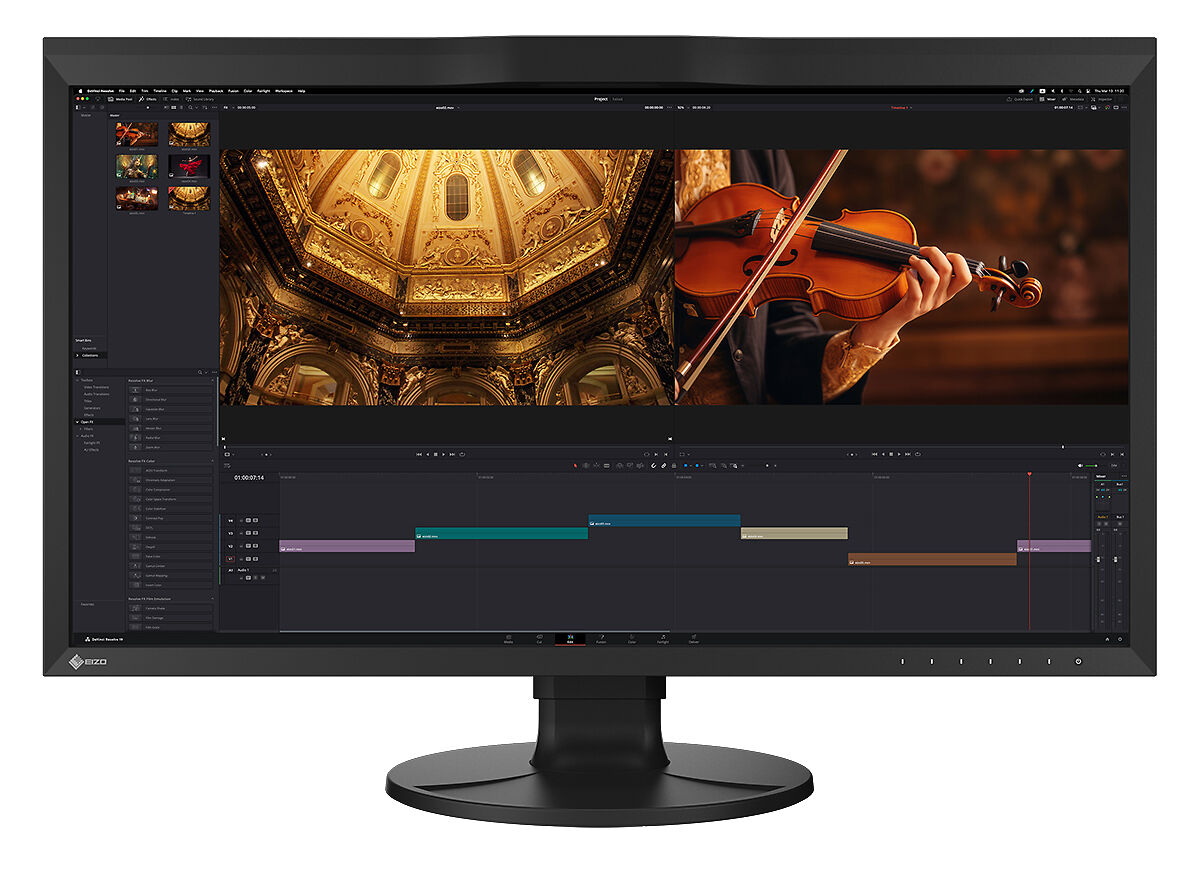
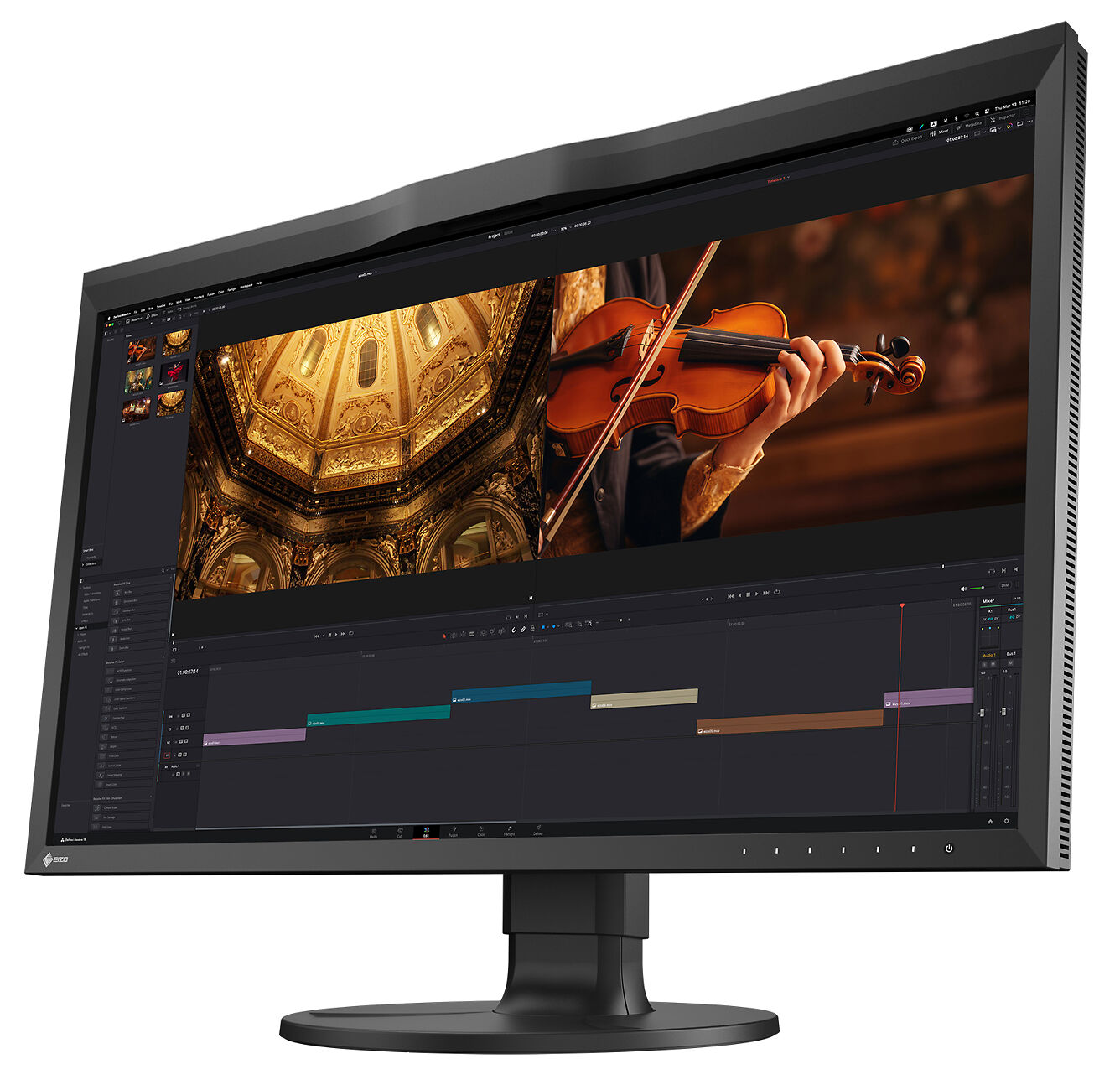
Eizo ColorEdge CG3100X 4K 30.5" Monitor

[MPN: CG3100X-BK] [IS SKU: HECG_CG3100X]
$8,199 RRP $9,405   (Save $1,206!)

The pinnacle of colour-accurate display technology, the Eizo CG3100X is trusted by leading imaging professionals around the globe.

N.B. This Product is on Back-Order.
▪ We expect to start shipping these soon.
Free Courier Shipping to most locations! (See notes).

Description

The Eizo CG3100X is a 30.5-inch professional-grade monitor featuring stunning DCI 4K (4096 x 2160) resolution, 500 cd/m2 high brightness, HDR gamma support, and versatile USB Type-C® connectivity. Whether you’re creating, editing, or working in a live environment, display your content in exceptional detail for an immersive experience and truly captivating results.

Features for Working in 4K HDR
Enhanced Display Quality

The CG3100X offers exceptional visual performance with high brightness, high contrast, and HDR support. Featuring a brightness level of 500 cd/m2 and a contrast ratio of 1800:1*, the monitor meets DCI standards to ensure content is displayed clearly with added depth and detail.

For HDR content, the monitor supports the gamma (EOTF) compatible hybrid log-gamma (HLG) transfer function for broadcasting and perceptual quantization (PQ) curve for production of films and streamed content. Additionally, users can set any camera log using ColorNavigator 7 to view the camera log video on the monitor during filming.
*Typical value when DUE Priority is set to "Brightness".

DCI 4K Resolution Across a 30.5-inch Screen
The CG3100X displays at DCI 4K resolution (4096 x 2160) which is more than four times that of Full HD (1920 x 1080). This makes it an optimal solution for creating, editing, and referencing 2D and 3D CGI, VFX, compositing, and colour grading.

Colour Precision
Industry Standard Colour Reproduction with Broadcast and Cinema Presets

The monitor's wide colour gamut covers 99% of the DCI-P3 standard used in digital cinema and supports the BT.2020 standard used in broadcasting for exceptionally faithful reproduction of colour. It also covers 97% of the Adobe RGB colour space so images and video shot in Adobe RGB will be displayed correctly. Colour mode presets can easily be changed via the switches on the front of the monitor, enabling straightforward colour management for each project.

10-Bit Simultaneous Display
The monitor offers 10-bit simultaneous display* from a 24-bit look-up-table (LUT) which means it can show more than one billion colours simultaneously. This is 64 times more colours than you get with 8-bit display, resulting in smooth colour gradations and reduced Delta-E between two adjacent colours.
*A graphics board and software which support 10-bit output are also necessary for 10-bit display. Equipment that supports DeepColor is required for 10-bit display when connected via HDMI® port.

3D LUT for Accurate Colour Display
The monitor is equipped with a 3D LUT (look-up table) which adjusts colours on an RGB cubic table. Using ColorNavigator 7's film emulation function, users can emulate film colour properties using a 3D LUT file.

Built-In Sensor to Automate Your Workflow
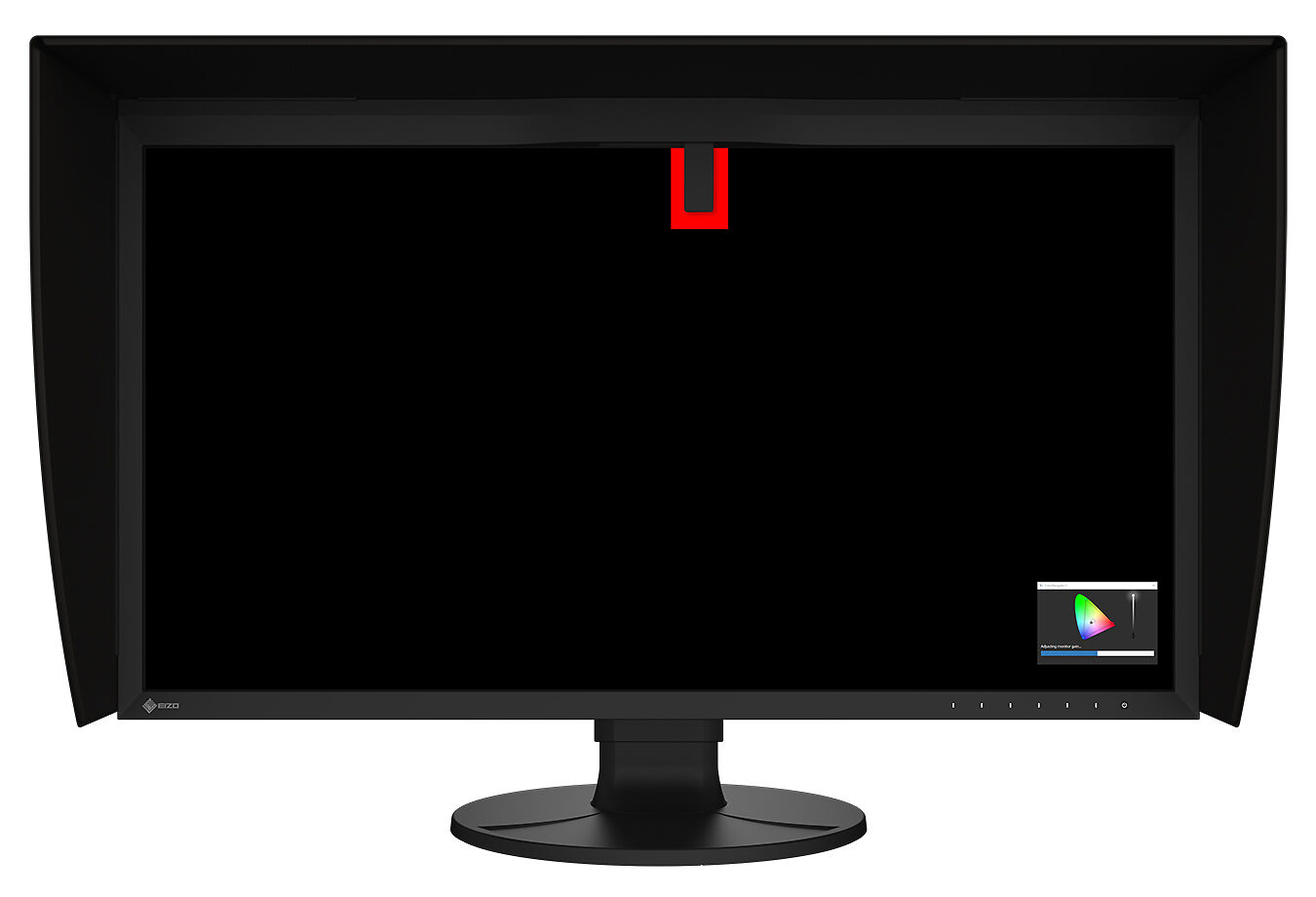
The monitor's built-in sensor can be set to calibrate the monitor automatically at designated times. This eliminates the need for a third-party calibration device and ensures your screen stays colour-accurate. In addition, the sensor swings onto the screen, taking up minimal space and allowing you to continue working even during calibration.

ColorNavigator 7 Colour Management Software
EIZO's proprietary free ColorNavigator 7 software is the complete colour management solution for reliable calibration and quality control of ColorEdge monitors. It offers multiple preset colour modes, simultaneous calibration of all modes, and automatic recalibration to ensure consistent colour accuracy. It also allows calibration targets to be set for brightness, white point, gamma (EOTF), and colour gamut for more fine-tuned control.

ColorNavigator Network Quality Control Software
EIZO's ColorNavigator Network provides centralized quality control of ColorEdge monitors for studios with multiple creators and editors working on shared projects. An administrator can set the color modes, schedule automatic self-calibration for monitors with built-in sensors, register or adjust asset management settings, and more - all carried out remotely over the network. For large-scale projects, this ensures that the appropriate colour standards are used at every step and saves hundreds of hours spent on calibration and maintenance.

Comfortable Design, Advanced Connectivity
Sleek Design, Quite Operation

The CG3100X features a sleek design with punched metal on the back, enhancing airflow for effective heat management. Its internal fan operates at just 20 dB, ensuring a quiet workstation environment.

DCI 4K/60p Support
The monitor's DisplayPort™ and HDMI inputs support up to DCI 4K at 60p 4:4:4 10-bit and 12-bit, respectively. This ensures smooth and fluid motion with precise colour representation for video editing and post production work.

FRL Support for High-Speed Transmission
The CG3100X supports Fixed Rate Link (FRL), the latest signal technology supported in the latest HDMI specification. FRL is required to receive 12-bit signals, handle higher uncompressed high-resolution data, such as 4K, and take advantage of high-speed bandwidths for compressed video transport over an HDMI connection. The monitor comes bundled with an Ultra High Speed HDMI Cable for reliable 4K performance.

Single Cable Connection with USB Type-C
The monitor is equipped with a USB Type-C port for streamlined connection with laptops or creative workstations. With a single cable, users can display video, access the monitor’s multi-port USB hub, and charge their device with up to 94W of power delivery. This helps maintain a tidier workspace by keeping the area free of excess cable clutter. It also offers stable network access for sharing creative assets and files via the monitor’s built-in LAN port.

Headphone Jack for Direct Audio Output
The CG3100X features a headphone jack for conveniently checking audio content.

Light-Shielding Hood
The monitor comes bundled with a light shielding hood that effectively prevents glare on the screen caused by ambient lighting. The hood is designed to be lightweight and easily attaches to the monitor magnetically without needing to connect separate parts.

Functions for Editing and Post Production
Pixel Inspection

Working within the wrong parameters affects editing decisions, potentially requiring significant rework of projects and causing costly delays in production schedules. Pixel Inspection, operated through the monitor's OSD, shows the colour information of a pixel from the source input data and the data as it is displayed on the monitor.

System managers can use this information to verify that the creator's technical settings match the current project's predefined colour parameters. This is especially helpful when creators are working remotely and system managers cannot verify settings directly. By ensuring that creators are working under the appropriate technical conditions, studios can reduce the likelihood of project rework due to mismatched technical settings.

Check PQ Contents at Any Brightness Level
The monitor offers an optional PQ gamma curve (EOTF) function that allows the input signal to be clipped or compressed to fit within the luminance value of the monitor. This allows users to simulate how the signal will appear in other display environments. The Auto setting under PQ Option menu automatically adjusts the PQ curve according to the monitor's current brightness.

Sync Signal
The monitor's Sync Signal function automatically switches the colour settings - brightness, gamma (EOTF), and colour gamut - according to the metadata of the input signal. This eliminates the need to manually switch colour settings when working on multiple projects, so users can be confident that they are always working with the correct settings.

Nearest Neighbour Interpolation
The ColorEdge CG3100X offers Nearest Neighbour interpolation setting as an option for image scaling and resampling. When upscaling, Nearest Neighbour copies and aligns pixels to the closest adjacent position, maintaining colour fidelity. When Nearest Neighbour is turned off, the monitor uses an interpolation method that balances gradation of the surrounding pixels for smooth colour tone. Editors can easily choose the interpolation method best suited to the project via the monitor's OSD menu to ensure content looks as intended when upscaling to 4K.

Luminance Warning
The PQ Option function allows you to check PQ content at any brightness level and shows the areas of the image that are clipped when displayed at a specified brightness level. These areas are marked in yellow or magenta to easily distinguish them within the image.

4K Zoom
The 4K zoom function allows users to enlarge areas of the screen to check fine details and accuracy of the focus in the scene. This function is quickly and easily accessible using the monitor's front switches.

BT.709 Out-of-Gamut Warning
The monitor includes a Gamut Warning mode that indicates areas of a BT.2020 image that cannot be reproduced in the BT.709 colour space, which is the standard for Full HD broadcasts, by displaying them in shades of grey. An additional mode called BT.709 Clipping allows the editor to view BT.2020 images within the BT.709 colour space, simulating how it would look in an HDTV environment.

Markers for Information Overlay
The CG3100X features a marker function to ensure that content, such as text or graphics, is properly positioned on the screen. The Safe Area Marker marks an area of the screen within which captions or other information will appear to ensure they are visible during broadcast. The position and size of the markers can be specified to suit the current project.

Stable Image Display
Adjusted at the Factory for Smooth Colour Gradations

The gamma level for each ColorEdge monitor is adjusted at the factory by measuring the R, G, and B gamma values from 0 - 1023. The monitor's 16-bit look-up-table (LUT) is then used to select the 1024 most appropriate tones and achieve the desired value. This ensures the smoothest colour gradations in your images.

Uniformity Across the Screen
LCD monitors commonly exhibit fluctuations in brightness and chromaticity across the screen, affecting colour accuracy. To counter this, ColorEdge monitors are equipped with EIZO's patented digital uniformity equalizer (DUE) technology which corrects deviations in every tone across the screen to ensure stable display.

Stable Display Using Industry-First AI
The colour and brightness of an LCD monitor can shift due to changes in ambient temperature. ColorEdge CG Series monitors are equipped with a temperature sensor that measures the temperature inside the monitor and estimates the ambient room temperature. Using this technology, the monitor adjusts in real time to maintain accurate gradation, colour, brightness, and other characteristics.

In addition, the monitor uses AI (Artificial Intelligence) in its estimation algorithm to detect and distinguish patterns in temperature changes for more precise calculations to ensure stable and accurate display.

Stable Colour in Just 3 Minutes
A typical monitor takes 30 minutes or more for its brightness, chromaticity, and tone characteristics to stabilize. ColorEdge monitors take a mere 3 minutes* so you get reliable colour display soon after turning the monitor on.

*Based on EIZO's internal testing.

Verified Accuracy with Factory Report
Included in the box of every CG3100X is a Factory Report which shows the measurement results at the time of production. The report includes uniformity, gamma, gamut coverage, and colour temperature measurements which verify every unit's accuracy.

Commitment to Quality
5-Year Manufacturer's Warranty

ColorEdge monitors are backed by a manufacturer's 5-year warranty that covers all components including the LCD panel*. EIZO manufactures its products at its own factories to allow close control over production quality and ensure each monitor is built to last. 

Zero Bright Pixels
EIZO guarantees this product will be free from bright sub-pixels for six months from the purchase date.

Sustainable Future
Low Environmental Impact Materials

The CG3100X's housing is made of more than 85% recycled plastic. This contributes to reducing the amount of plastic waste entering the environment, conserves resources, and promotes the reuse of materials to preserve our natural ecosystems.

Eco-Conscious Packaging
EIZO is committed to reducing its environmental impact by transitioning away from plastic and other environmentally unfriendly materials in product packaging. The CG3100X is securely packaged using molded pulp made from recycled cardboard and newspaper, and its cables are contained within a cardboard structure instead of plastic bags.

Panel Size / Ratio - 32" / 16:9 (1.78:1)

Panel Size / Ratio

32" / 16:9 (1.78:1)

Native Resolution - 4096 * 2160 (DCI 4K)

Native Resolution

4096 * 2160 (DCI 4K)

Panel Technology - IPS

Panel Technology

IPS

Supports Direct Hardware Calibration? - Yes

Supports
Direct Hardware Calibration?

In Built Sensor? - Yes (Full calibrator)

In Built Sensor?


(Full calibrator)

Gamut - Wide<br>Adobe RGB: 97%, DCI-P3:99%

Gamut

Wide
Adobe RGB: 97%, DCI-P3:99%

Calibration Information

This monitor supports Direct Hardware Calibration and includes a built-in full calibration sensor.

This is the ideal way to calibrate a monitor - it's easy, fully automatic, and can be scheduled to occur even when you're not present and your computer is switched off! Simply set it up once and enjoy accurate colour with no further intervention for years to come!

An external calibrator is not required. However, if you wish to, you can cross correlate with an external calibrator. We list recommended models here. You would only do this under special circumstances.

Compatible Calibrators

We recommend the ColorChecker Display Pro / Plus (AKA i1Display Pro / Pro Plus).

Calibrite Display Plus/HL (AKA i1 Display Plus)
Calibrite Display Pro/HL (AKA i1 Display Pro)
i1 Pro (any version)
ColorChecker Studio (AKA i1 Studio)
ColorMunki Photo/Design
Spyder X/X2 (any version)
Incompatible / Not Recommended Calibrators

These calibrators are either simply not compatible, or do not measure current monitor technologies reliably. If you have one of these, it's time for an upgrade!

i1 Display V1 & V2
ColorChecker Display (AKA i1 Display Studio)
ColorMunki Display
Spyder 5 (any version)
Spyder 4 (any version)
Spyder 1, 2 and 3 (any version)

Specifications

Please note: Specifications are provided as a guide only.

We try very hard to keep these up to date and correct, but if a particular specification is really critical to you, then please double check the specification directly with the manufacturer. Some features may of course have caveats not fully described here.

To get more information about a particular specification, use the arrow to get a 'Specxplanation'.

  • Panel Size
    32"

    Monitor panel sizes are measured across the diagonal, in inches.

    They are approximate only, so the actual measurement might be 27.1" for example. Note that panel size in inches is only one part of the story - the other being the aspect ratio. For example a 24" monitors doesn't sound much bigger than a 23" monitor, but 24" monitors are normally 16:10 versus most 23" monitors being 16:9. This means a 24" monitor is much taller than a 23" and the working size is much greater than one inch difference would suggest.

  • Panel Ratio
    16:9 (1.78:1)

    The panel ratio gives the relative size of the horizontal to the vertical. Older monitors were 4:3, but most modern monitors are widescreen, with 16:10 or 16:9 being the common ratios. 16:10 is distinctly taller, and common with 24 and 30 inch monitors. 23 and 27 inch monitors are normally 16:9 - the same ratio as widescreen televisions. For monitors 24 inches and below, we recommend going with a 16:10 monitor if you can. Once you're over 24 inches you've got sufficient vertical working space it doesn't matter so much.

  • Native Resolution
    4096 * 2160 (DCI 4K)

    Native resolution is simply the number of pixels a monitor has, stated as horizontal x vertical.

    LCD monitors really want to receive their native resolution and look pretty terrible when scaling other resolutions to the native resolution of the panel.

    Most modern computers have no trouble outputting up to 2560 by 1600 (e.g. all Mac Pros/Macbooks/Minis/Airs etc. from the last 5 years or so can do this without issue, usually to 2 or more displays simultaneously). The only time it becomes particularly important is with older machines, particularly laptops, many have a maximum external display resolution of 1920 by 1200. If in doubt send us the full model number of your laptop and we can double check this for you!

  • Panel Technology
    IPS

    There are three major types of monitor panels. IPS (aka PLS) - are the best for image makers. They have the best colour accuracy and uniformity characteristics. The can sometimes have weaker blacks, so gamers and video editors sometimes lean towards PVA monitors. However these days good IPS panels have excellent blacks so we recommend that all image makers use an IPS panel. The latest panel type, TN, is generally only used in laptops and low end devices and should avoided for imaging work at all costs!

  • Backlight Technology
    Wide Gamut LED

    The two major types of backlighting are CCFL (Flourescent tube based) and LED. CCFL is the older type of light source and offers good uniformity and it has been traditionally easier to engineer colour accuate monitors with flourescent tubes. However recent LED backlit monitors can be excellent - very uniform, and of course they use much less power. The latest LED backlit monitors from the good makers now offer excellent colour accuracy - at least as good as the older CCFL models.

    LEDs also uses significantly less power (although CCFL monitors are already much better than old CRTs of course!) - and tend to have better uniformity.

  • Cooling Fan?

    Whether or not the unit needs a fan for cooling. Most monitors fortunately don't need a fan, rather using passive cooling through heatsinks and vents.

    However, some monitors do require a fan, which can be of concern given the monitor's proximity to your ears. Generally the fan will be a low dB fan not audible above a typical computer fan, but if ambient noise is of concern to you the we suggest you choose a monitor without a cooling fan.

  • Direct Hardware Calibration Support?

    Direct Hardware Calibration is the process of calibrating directly into the monitor's hardware. This is both more accurate, and typically more easy to do, than traditional software calibration. See the 'Calibration Information' section above for more details about this monitor and calibration.

  • In Built Sensor?

    (Full calibrator)

    In built correction sensors come in two forms:

    • Full Calibration Sensors - behave just list external calibration sensors and can build full colour profiles for your monitor. These are designed to allow for fully automatic regular calibation with no user intervention.
    • Correction Sensors - these can not make colour profiles, so you will still need access to a compatible external sensor about twice a year, but the correction sensor is used to keep the monitor as close to the profile as possible inbetween calibrations.
  • Gamut
    Wide
    Adobe RGB: 97%, DCI-P3:99%

    Until around 2010, almost all monitors were 'standard gamut' - meaning they could display a moderate range of colours (roughly around the size of the sRGB colour space). In recent years we've seen the development of wide gamut monitors that can display a much wider range of saturated colours (about 25% more) - equivalent to approximately the gamut of AdobeRGB.

    We recommend wide gamut monitors for all image makers, but especially for anyone working regularly with saturated colour. Wide gamut monitors can also emulate standard gamut monitors very well, so it's more future proof to choose a wide gamut model, and there really aren't any disadvantages (apart from the generally higher price of wide gamut models!).

  • 10 Bit Input Support?

    Does the monitor accept a 10 bit incoming video signal? 10 bit video signals allow for more tonal level separation (i.e. smoother gradients).

    PC: 10 bit is well supported and relatively easy to achieve with 'workstation' graphic cards (short version: buy an NVIDIA Quadro video card!). Since about 2020, even most modern consumer video cards now support 10 bit, but the consumer cards with their gaming optimised drivers do tend to be a lot more buggy.

    Mac: 10 bit has been supported across the Mac lines since around 2016.

    Note that there are often caveats to this support - such as 10 bit being available only on DisplayPort and not HDMI for UHD inputs, for example.

    Do make sure you check the manufacturer's specifications very carefully if you have a particular requirement - like e.g. 10 bit over HDMI at 4K/60Hz.

    Our comprehensive article on 10 bit support has more details. Important to note, also, that whilst 10 bit is definitely 'better' - in 20 years of professional imaging work, we have never really seen it make a practical difference to typical tasks (with the possible exception of HDR grading work).

  • Panel Bit Depth
    10 bit

    In general, in the context of colour accurate monitors, there are two types of '10 bit' monitors - i.e. monitors that can display more than a billion different colours (versus 8 bit monitors which can display 16.7 million, and 6 bit monitors that are, frankly, garbage).

    8 Bit Plus FRC - 'Simulated 10 Bit'

    Panels that are natively 8 bit can use extremely fast LED cycling to achieve the equivalent of 10 bit display - by cycling pixel colours (thousands of times per second!) - your eye will perceive the colours as the appropriate intermediate shades. (Just about all high quality monitors, including even top of the line ones like Eizo CG monitors, were 8 bit + FRC, up until ~2020 or so, i.e. since colour accurate LCD monitors came along).

    True 10 Bit

    True 10 bit monitors can natively disable over 1 billion colours directly, without this cycling technique.

    Which is better?

    All other things being equal, true 10 bit display is theoretically better, of course - but it's extremely hard to visually detect any difference in practise. 8 bit plus FRC is an excellent and effective technology and many award winning monitors, up to and including in the year 2024, use this technology.

    We have a longer article on 10 bit monitors with more thoughts on this specification and why very often it's better to choose the better quality 8 bit/FRC monitor than a lower quality true 10 bit monitor.

  • Contrast Ratio
    1800:1

    The maximum achievable ratio of the brightness of a monitor's white to the depth of it's black. The stated figure is a maximum, achieved only when the monitor is running at high brightness in a darkened room.

    A high contrast ratio makes things looks more contrasty (i.e. more 'pop') and is particularly of note with gaming, video, and image display scenarios. For example, if you're selling photos to clients straight off your screen, then high contrast has more wow factor.

    However, for print work, it is typical practice to dramatically reduce the monitors contrast to as low as, say, 200:1 to better simulate paper. This is best done with monitors that feature direct hardware calibration support and allow you to specify the desired contrast ratio.

  • Maximum Brightness
    500 cd/m2

    The maximum achievable brightness of the monitor in candellas per metre squared.

    It is VERY unusual to run a monitor at maximum brightness, especially for imaging work.

  • True Blacks?

    Does the monitor have 'true blacks'. Generally, this is essentially the same as having a contrast ratio noticeably over 1000:1.

    The DCI (Digital Cinema Initiative) specifications for 'true blacks' requires a (post-calibration) contrast ratio ~ 1500:1 or more.

    Most LCD monitors do not yet offer True Blacks support. This doesn't mean they have bad blacks in typical viewing environments, but it does mean you may experience some 'glow' in your blacks if you're viewing in a very dim environment.

    Achieving very high contrast ratios is difficult and a combination of technologies is used - changes to the panel, light retardation film and backlight are all required. In 2024, we're beginning to see the term 'IPS Black' to describe these sorts of blacks-improved panels.

    This is really particularly of relevance in video work - in still image work, and particularly for print, it is common practise to actually raise the monitor's black point above the minimum to better simulate the printed output. A very low black point makes a monitor more suitable for video editing in a dim environment.

  • Viewing Angles
    178 Degrees

    The wider the better! But as usual, on paper specifications tell you just about nothing about the actual performance.

    Viewing angle is the maximum angle at which a display can be viewed with 'acceptable visual performance'. In the context of this specification, all that means is that the 'contrast ratio remains above 10:1' (which is laughably low). This is really a meaningless specification with regards to the colour accuracy of a monitor when viewed off angle.

    Thus, we don't place any credence in the manufacturer stated numbers. Simply though, IPS panels have the best viewing angles by far, and all IPS panels sold here all have (relative to low quality monitors) excellent viewing angles for this type of monitor, so you won't see significant variance as you move you head around under normal circumstances (movements of 15 or so degrees, say). In general you and a colleague could sit side by side (closely) and work acceptably together on an image. Beyond that, though, like all LCD monitors, accurate display will drop off very quickly once you move off angle. That is simply a fact of life with LCDs, even the best ones.

    Ironically, monitors with lower black points tend to be slightly worse in this area (e.g. the CGX range from Eizo) - as often part of achieving the low blacks is the use of a polarising film over the panel. As anyone who has ever used a polarising filter with a camera knows, the effect of such a filter is highly directional. Thus as you move off axis, you will therefore see change more quickly.

  • Response Time
    15ms

    How quickly a pixel can change colour, in milliseconds (usually measured as grey-to-grey, but there's no real standard).

    Basically, any value 16 or under is generally fine for all normal uses. Exceptions are high end gaming and possibly video production - but it's rare anything below 10 makes a significant difference, and monitors with very low response times typically sacrifice a lot of colour quality to achieve this.

  • 24p Smooth Playback Support?

    Can the monitor play back a 24p video signal (i.e. 24 frames a second) - without visible motion artefacts?

    Typical desktop monitors either refuse a 24p signal altogether, or force all inputs to 60hz, remapping different frame rates like 24p to 60 frames per second (usually using a technique known as 3:2 pull-down). Unfortunately, because 60 is not evenly divisible by 24, this causes significant visible motion artefacts.

    A monitor with 24p support is able to play back 24p sources at either the native 24 frames a second, or using simple frame doubling/tripling to play back these sources as 48 or 72Hz. This results in smooth motion without new artefacts (n.b. - artefacts inherent to 24p, like some juddering during slow pans, remains of course, as this is inherent in the low frame rate of the original filming - but it's this low frame rate that gives the 'film like' look.

    More about 24p on Wikipedia.

  • Colour LUT Bit Depth
    24 Bit

    The bit depth of the colour Look Up Tables. These are used to map incoming values from your computer to actual colours on the monitor's screen - so are of course crucial to colour accuracy. 8 bit is standard (although some appalling screens are only 6 bit!), but 10 bit or more is desirable, and the best monitors are now 14 or 16 bit. Ideally combined with 3D LUTs that can transform colours in more than one table at once.

    Put simply the higher the bit depth of the LUT, the greater the capacity for accuracy.

  • 3D LUT?

    3D Look Up Tables allow colour transformations to occur on R,G and B simultaneously, which increases speed and accuracy. Basically, a 3D LUT means better, more accurate calibrations. You want one even if it sounds like gibberish!

  • Uniformity Corrected?

    LCD Monitors coming off a production line typically exhibit some uniformity issues. Uniformity corrected monitors are broken into zones, measured, and each zone calibrated to be even with its neighbours (and you often get a written report of this process with very high end monitors like the Eizo CG series). Called DUE by Eizo, and most likely something else by others, it's an important part of the process of high end LCD making.

    The process occurs at the begining of the monitor's life and there is currently no user system for correcting uniformity after the monitor is out in the field, although it is theoretically possible. Fortunately, moden monitors that leave the factory in a very uniform state tend to then remain uniform for many years of use.

    Monitors that are not uniformity corrected may exhibit some visible artefacts like a change in density or colour across the field of the monitor. Wtih brands like Eizo and NEC, the non uniformity tends to be minor.

  • Video Inputs
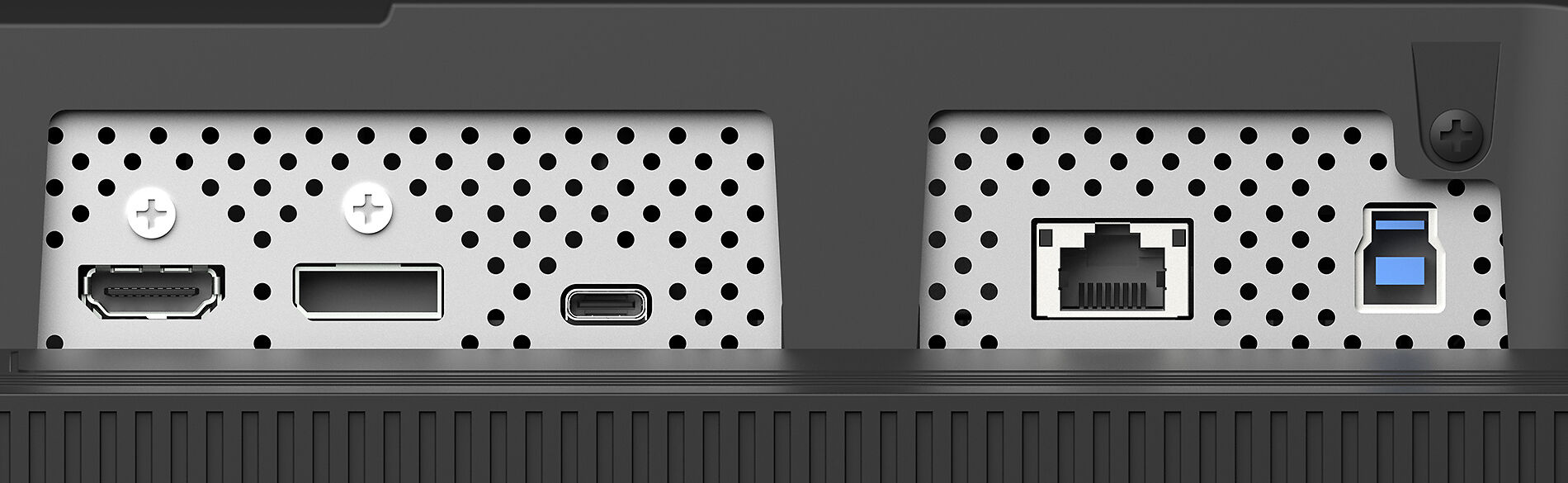
    1 x DisplayPort
    1 x HDMI
    1 x USB-C (~90W Power Delivery)

    The input ports a monitor has. We have a comprehensive article about these (with pictures!) - here.

    We've listed them here in our generally recommended order - that is, we recommend USB-C / DisplayPort / HDMI / Other...in that order, if the computer and monitor have the appropriate options.

    Note that for USB-C ports that offer power delivery back to your laptop, we just list an approximate figure here - normally the monitor description text above has more details (e.g. this specification might say approximately 60W, when in fact it is 50W or 70W, say).

  • Other Connections
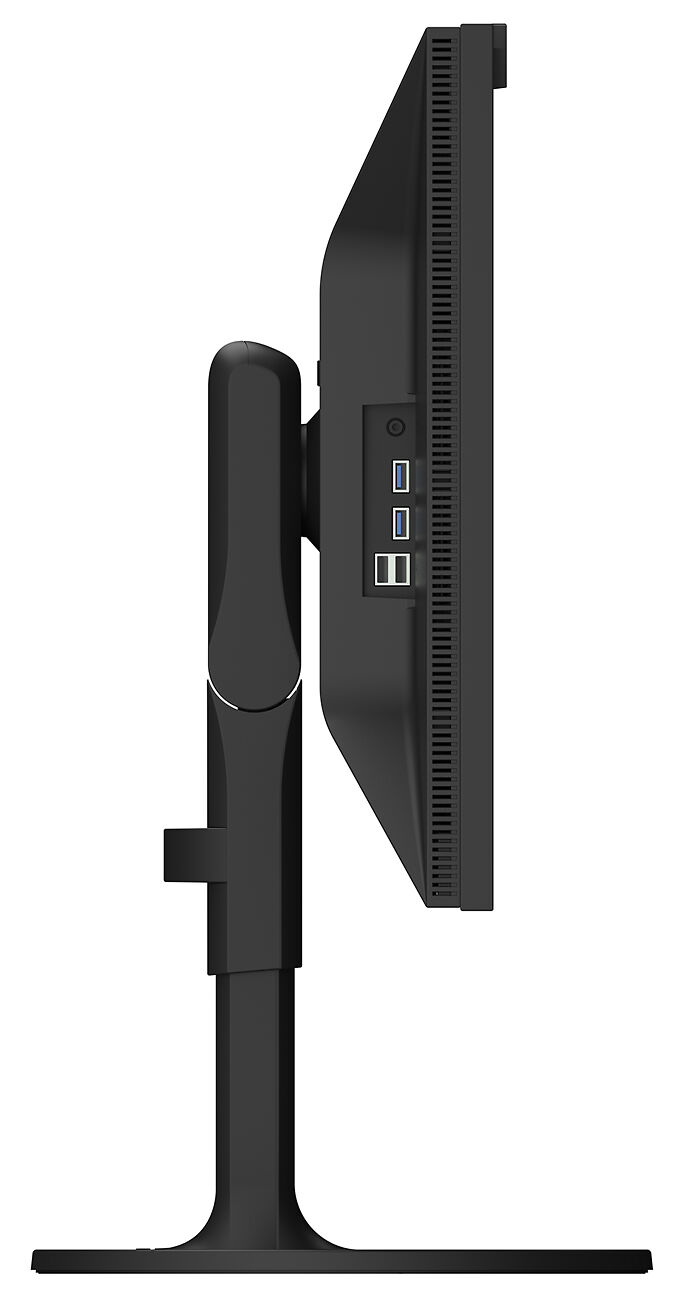
    2 x USB 2 (Down, Type A)
    1 x USB 3.2 (Up, Type B)
    2 x USB 3.2 (Down, Type A)
    1 x LAN (RJ45)
    1 x Audio Out (3.5mm)

    Other connections the monitor offers - such as card readers, audio connectors (for audio going in and/or out) - and USB ports.

    Up here indicates an upstream port - meaning when you run a connection from your computer to the monitor.

    Down indicates a downstream port - meaning you can plug something into this port (like e.g. a mouse, or a USB card reader).

    Note, USB-C ports can be both upstream and downstream, and are thus often listed both ways, although there may be just one physical port.

    A good way of double checking the ports on offer is to cycle through the product images above - we try and make sure each monitor listing has a picture of the available ports as well as the information here.

    Some USB ports/hubs also act as proper 'KVMs' - meaning you can plug your mouse and keyboard into the monitor, then the monitor into two separate computers and easily share your peripherals and screen between the two machines. If proper 'KVM' support is something you need, review the manufacturer specs (linked below) to be sure this monitor can support your intended use case.

  • Power Use
    270w (Max, On)
    1.2w (Standby)
  • Hood Included?

    If a monitor hood is not included, then there are [LINK] aftermarket hoods available.

    Monitor hoods stop direct light falling on the monitor which can make, in particular, shadow details harder to perceive. While not essential, once you get used to having one it's hard to go back to a screen without one - they improve the picture generally and provide a real 'window in to your image' effect.

  • In Built Speakers?

    Most colour accurate monitors don't have in built speakers.

    Those that do offer speakers usually connect via 3.5mm jack (see connections), and the speaker output is usually around the 1-2w range. Fine for basic system sounds but not great for music etc.

  • Supports 90 Degree Pivot?

    Can the monitor be rotated on its stand 90 degrees and used in portrait orientation? Particularly useful if you're doing portrait work on smaller screens!

    If the monitor & stand support this then you just rotate the screen physically and instruct your video card to flip the image 90 degrees (if you bind this to an F key on your keyboard it can be a very simple process!).

  • Dimensions
    72.1cm (W)
    29 cm (D)
    42.8 - 58.3cm (H)
  • Full Specs.

In The Box

Please Note:
We keep these details up to date to the best of our knowledge.

However if a particular item is of special importance to you please also check the manufacturer's listing for the product.

You will get:

  • Eizo CG3100X 4K Monitor
  • Eizo Monitor Hood
  • Australian power cord
  • HDMI Cable
  • USB Type-C 2m Cable
  • USB Type-A - USB Type-B 2m Cable
  • Setup guide
  • Factory Report
  • Warranty Card

Also In This Range

Eizo ColorEdge CG2700X 27" 4K Monitor
27 inch, 4K version of Eizo's flagship CG self-calibrating monitors. The best choice for creative professionals working in the visual arts.
N.B. This Product is on Back-Order.
▪ We expect to start shipping these early July.
Free Courier Shipping to most locations! (See notes).
$4,779 RRP $5,335   (Save $556!)
  • Panel Size / Ratio27" / 16:9 (1.78:1)
  • Native Resolution3840 * 2160 (UHD 4K)
  • Panel TechnologyIPS
  • Direct Hardware Calibration Support?
  • In Built Sensor? (Calibrator)
  • GamutWide
More info
Eizo ColorEdge CG2700S 27" Monitor
27 inch, 2.5K version of Eizo's flagship CG self-calibrating monitors. For creative professionals in any graphic arts/video field.
N.B. This Product is on Back-Order.
▪ We expect to start shipping these early July.
Free Courier Shipping to most locations! (See notes).
$3,529 RRP $3,927   (Save $398!)
  • Panel Size / Ratio27" / 16:9 (1.78:1)
  • Native Resolution2560 * 1440
  • Panel TechnologyIPS
  • Direct Hardware Calibration Support?
  • In Built Sensor? (Calibrator)
  • GamutWide
More info