Please note that we are open by appointment only (except for click and collect pickups once notified ready).

Calibrating BenQ SW Series Monitors with Palette Master Elements

IMPORTANT - NEW SOFTWARE! 
If you have a modern BenQ SW monitor (SW242Q, SW240, SW270C, SW271C, SW321C, SW272U, SW272Q or newer - you should be following our new guide to Palette Master Ultimate instead of this one.
 

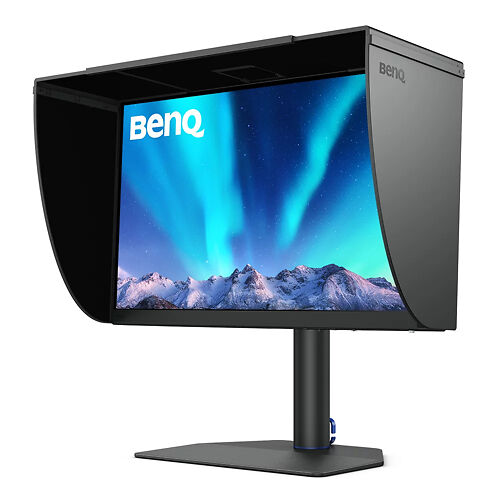
This is the Image Science guide to getting the best out of your BenQ SW Series monitor through BenQ's direct hardware calibration system, called Palette Master Elements. We take you through the process from front to back and explain all the settings along the way. 
 

Of course if you have any questions after you've reviewed this guide, don't hesitate to get in touch for extra advice.

(N.B. This guide is only for older BenQ SW series monitors - if you monitor's model number instead starts with a PG or PV instead, follow this guide instead!)

(Prefer a video? We've got one - see the bottom of this guide for a video of a full calibration walk-through using the BenQ SW271 and Palette Master Elements).


Let's Get Set Up

Before we start the actual calibration, we need to make sure all aspects of our system are Ready To Go.

Please first follow our guide to getting ready for monitor calibration - once  you're done there, come back here for the rest (and don't skip this bit  as this covers the areas where most folks run into issues!).

Connect The Calibrator

Calibrite Display Plus HL
A professional-level display calibration tool featuring a new high-luminance sensor capable of measuring up to 10,000 cd/m2 (nits)!
▪ Get up to 20% off RRP in our Calibrite EOFY Sale! See here for sale details.
$515 RRP $639.59   (Save $124.59!)
More info

Once you have made the USB connection to the monitor, then connect your calibrator.

The most reliable approach is to now connect your calibrator to one of the downstream USB ports on the monitor itself.  (Sometimes the BenQ software can be fussy about recognising the calibrator if you instead have it attached to a USB port on your computer - so if you have any issues in this area, try the ports on your monitor).

Palette Master Elements is compatible with, and comes with drivers for, Calibrite Display Plus HL/Pro HL, X-Rite/Calibrite Display Pro/Plus, and Datacolor Spyder 4,5 and X calibrators.  (If you don't have a calibrator yet, we strongly recommend the Calibrite Display Plus HL - it's the de facto industry standard calibrator and an excellent, reliable, accurate device).

Setup

Make sure your monitor has properly warmed up before you start calibrating - with BenQ monitors just five minutes of switched on time is enough.

When PME first opens, you will be greeted with an initial setup screen. This screen should correctly identify your monitor and the calibrator you are using (if you forgot to plug in your calibrator before starting PME, plug it in now and choose 'Check Sensor' to confirm PME can find it).

We also choose Advanced Mode on this screen as we of course want to get the most out of our excellent monitor hardware.

When all looks right, hit 'Start' to begin the calibration process. 

You'll see a screen with two choices - just choose Profiling and hit Next.

PME Display Settings

On this page we choose appropriate settings for the profiling and calibration to follow.

You can set the following things, and here we provide some basic recommendations, but feel free to ask for more advice if you need it.  

Whitepoint - The industry standard whitepoint is 6500K (AKA D65).  You should probably use this if you are using a typical photo lab for your printing, or entering images into your camera club etc.  Alternatively, if you're doing your own printing (or printing with us here), you will probably find a warmer whitepoint gives you a noticeably better screen to print match.  We use 5800K here, which has become a de facto standard for many working in fine art print.

RGB Primaries - BenQ monitors are wide gamut monitors, and we want so see and use all that lovely colour, so we choose Panel Native here.  If you want to constrain the gamut of the monitor, or are aiming to work to a video standard, you could choose e.g. sRGB or DCI-P3 here as appropriate.

Luminance - For most print work, somewhere in the range of 80 to 120 cd/m2 is typically appropriate.  After calibration, if you find e.g. your prints are always darker than you expect, re-calibrate and set a lower figure here (or vice versa if prints are lighter, use a higher figure here).  100 cd/m2 is a good starting point, so that's what we have set here.   If you're doing video work, and you are trying to simulate TVs etc, you will probably want to use a higher figure, or even Maximum for the luminance.

Gamma
- For almost all still imaging work, this should be 2.2.  In the video space, different gammas are often used, such as 2.4.  Set as appropriate.

Black Point - (NB Updated November 2020 thanks to the new contrast feature in PME!) This setting depends on whether you want the deepest possible black, or the most accurate black.  Absolute here means 'use the full native contrast ration of the panel and set the black to the lowest possible point'.  However, this means your very deep shadows will be less accurate in colour terms.  Otherwise, and especially if you want to control contrast (as you generally would want to do, if your goal is specifically to do print work - you want to reduce contrast in that case so that your monitor is a better match for paper) - you would set an actual black point.  Contrast is white divided by black, so e.g. if you have set a whitepoint of 100 cd/m2, then if you set a black point of 0.5 cd/m2 (= '0.5 nits') - then you are specifying a contrast range of 100/0.5 or 200:1 - which is about right for most print work, and much better than using the maximum contrast.

(Setting a specific black point value is new in Palette Master Elements version from November 2020 on, so if you can't see this option, please update to the latest version!).  

When you're happy with all your settings, hit Next to continue.

Measurement Settings

Now, we set up the measurement and profile settings.  Here we have chose options for maximum quality and compatibility.

Note you can load two or three separate calibrations in most SW models.  Once loaded into the monitor after the calibration process, you can switch between your different calibrations using the mode button on your monitor.  So you can, for example, create a general target for sRGB and web use, and a separate calibration for printing, and easily switch between these as needed.

Here, we've chosen to load this calibration into mode Calibration 1

ICC Profile Name is up to you - you can go with the technical numbers the software auto generates, or you can call it something more human like 'My Fine Art Print Calibration'.

System Level - this should always be checked, I really can't think of a scenario where you wouldn't want this to be checked to be honest.

Profile Version - V2 ICC profiles are the most generally compatible and there's really no actual practical benefit to V4 profiles, so go with V2 here.

Profile Type - The most accurate is 16 Bit LUT, so we have chosen that.

Patch Set Size - We chose large, which means measure and correct more patches.  It takes longer, but the final result is more accurate.

When you're happy with your settings, hit Start Measurement to begin the actual measurement process.

The Measurement Stage

Follow the on-screen instructions and mount your calibrator on the screen, then hit continue to get the ball rolling.  Your screen will flash various for a while, with various brightness levels and colours, and the process can take some time (up to 30 minutes - but usually it is more like 10 minutes).

When the process is complete, you will see the basic results screen.

Basic results - to learn more, proceed to validation...

Validation and Extended Results

Whilst there is a solid argument to be made that validating a calibration with the same measuring instrument you made it with is conceptually flawed (measurement errors that occur during calibration are likely to be repeated during validation), there's no real harm in it, so hit Validate Calibration and you will get a more comprehensive results screen

Look at those lovely low delta E scores (= accurate colour!)

Calibration Complete!

At this point your BenQ SW monitor is calibrated, and you can finish here if you like, or go back and set up more calibrations for different working scenarios.  

You should now be able to enjoy gorgeous, accurate colour on your now calibrated display!  We recommend you re-run the calibration every month or so.

Below we link to an article that lists some suggested calibration targets for different scenarios, such as fine art printing or video editing work.

We have lots of other content you may find useful as an SW owner, here are a few of particular relevance:

Or, browse all our colour accurate monitor articles:

The BenQ SW Series

BenQ SW272Q 27" 2.5K Monitor
BenQ's new flagship 27" colour accurate monitor.
Free Courier Shipping to most locations! (See notes).
▪ Get a FREE Ergo Arm worth $169 when you purchase an eligible BenQ monitor! See full details here.
$1,439 RRP $1,449   (Save $10!)
  • Panel Size / Ratio27" / 16:9 (1.78:1)
  • Native Resolution2560 * 1440
  • Panel TechnologyIPS
  • Direct Hardware Calibration Support?
  • In Built Sensor?
  • GamutWide
More info
BenQ SW272U 27" 4K Monitor
BenQ's new flagship 27" colour accurate 4K (UHD) monitor.
Free Courier Shipping to most locations! (See notes).
▪ Get a FREE Ergo Arm worth $169 when you purchase an eligible BenQ monitor! See full details here.
$2,789 RRP $2,799   (Save $10!)
  • Panel Size / Ratio27" / 16:9 (1.78:1)
  • Native Resolution3840 * 2160 (UHD 4K)
  • Panel TechnologyIPS
  • Direct Hardware Calibration Support?
  • In Built Sensor?
  • GamutWide
More info
BenQ SW242Q 24" Monitor
The most affordable high quality colour accurate monitor on the market. Great accuracy with direct hardware calibration support.
Free Courier Shipping to most locations! (See notes).
▪ Get a FREE Ergo Arm worth $169 when you purchase an eligible BenQ monitor! See full details here.
$799
  • Panel Size / Ratio24" / 16:10 (1.6:1)
  • Native Resolution2560 * 1600
  • Panel TechnologyIPS
  • Direct Hardware Calibration Support?
  • In Built Sensor?
  • GamutWide
More info

Palette Master Elements and the SW271 - Video Walk-Through

Walk through of why & how to calibrate - BenQ SW271 with Palette Master Elements