Custom Printer Profiling
This is a page from our Custom ICC Profile Service Instructions.
Please see the panel to the right for a guide through these instructions.
Part 1
Preparing For ICC Profiling
These instructions are for preparing for printing your custom printer profile target for our Image Science profiling service.
Profiling is a process that requires you to follow the instructions very carefully. If you fail to do so precisely, the process will not work!
Processing custom printer profiles involves us reading a colour
target as supplied and producing the corresponding printer profile. If
the process fails because the target was not printed correctly (and this is the only point of failure in the process) - then you can
send us another target and we will remake your profile for you, however please note there is a $25 fee for this as we must repeat the entire process.
It's
actually fairly simple, but do follow the instructions carefully and if
in doubt ask a computer savvy friend for assistance, or contact us with
your questions (and screenshots if you have them).
Following ALL steps below is ESSENTIAL and must not be skipped.
Self Diagnostics
Please run ALL self diagnostic tests your printer has, and make sure it is operating perfectly, before you print your profiling targets.
Notes on specific tests to run are below.
Nozzle Check

Perform a nozzle check and make certain it is 100% perfect.
Take care to check that ALL channels are present (count them!) and check that each printed pattern is perfect.
Please include a perfect nozzle check (made immediately before your print) - with each of your target(s), when you deliver them to us.
Do a nozzle check right before you do your profile target print (i.e. if printing multiple targets repeat the nozzle check between each target print) - and check it very carefully.
This is critically important.
Often clogs (particularly in light colours) will not result in obvious streaking in your prints, but will result in subtle colour shifts. When the clog later clears, your printer will start to output different colour, and this will invalidate the profile you've had made - there's simply no point profiling a clogged machine.
Adequate Paper Supply
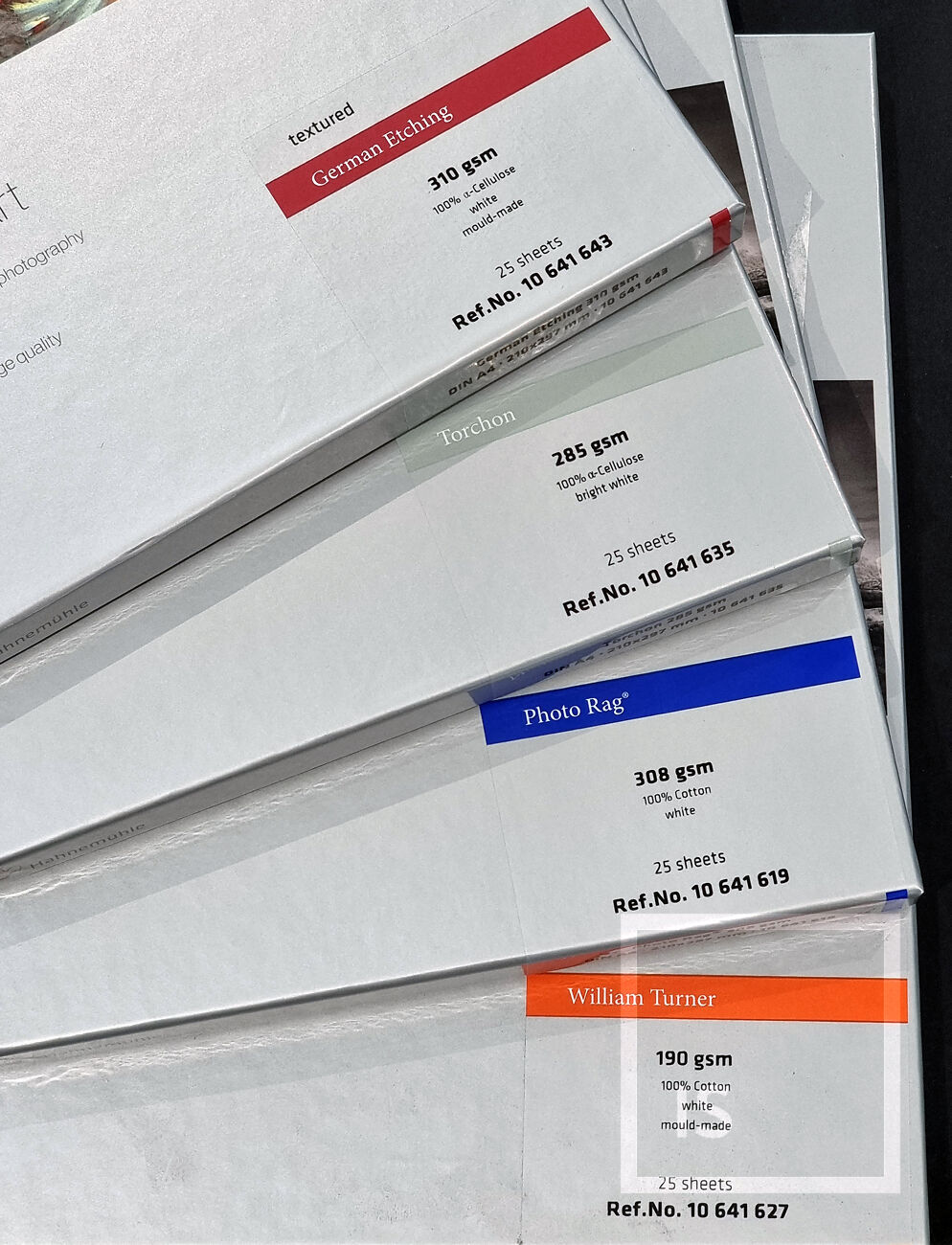
Make sure you have a few sheets of the paper you are having profiled ready and standing by.
Profiles are paper specific so the target must of course be printed on the actual paper you are having profiled (it’s of course OK to use e.g. an A3 sheet for your target print, as long as it is exactly the same paper type).
Check The Driver In Use
If you are using a Mac, manually confirm you are NOT using the AirPrint driver!!!
See our article AirPrint Must Die for information about this.
If you ARE using the AirPrint driver, this MUST be replaced before you can continue. This is not negotiable!
(AirPrint is the number one issue we see with Mac profile targets).
An example of what it can look like if you are using the AirPrint driver:
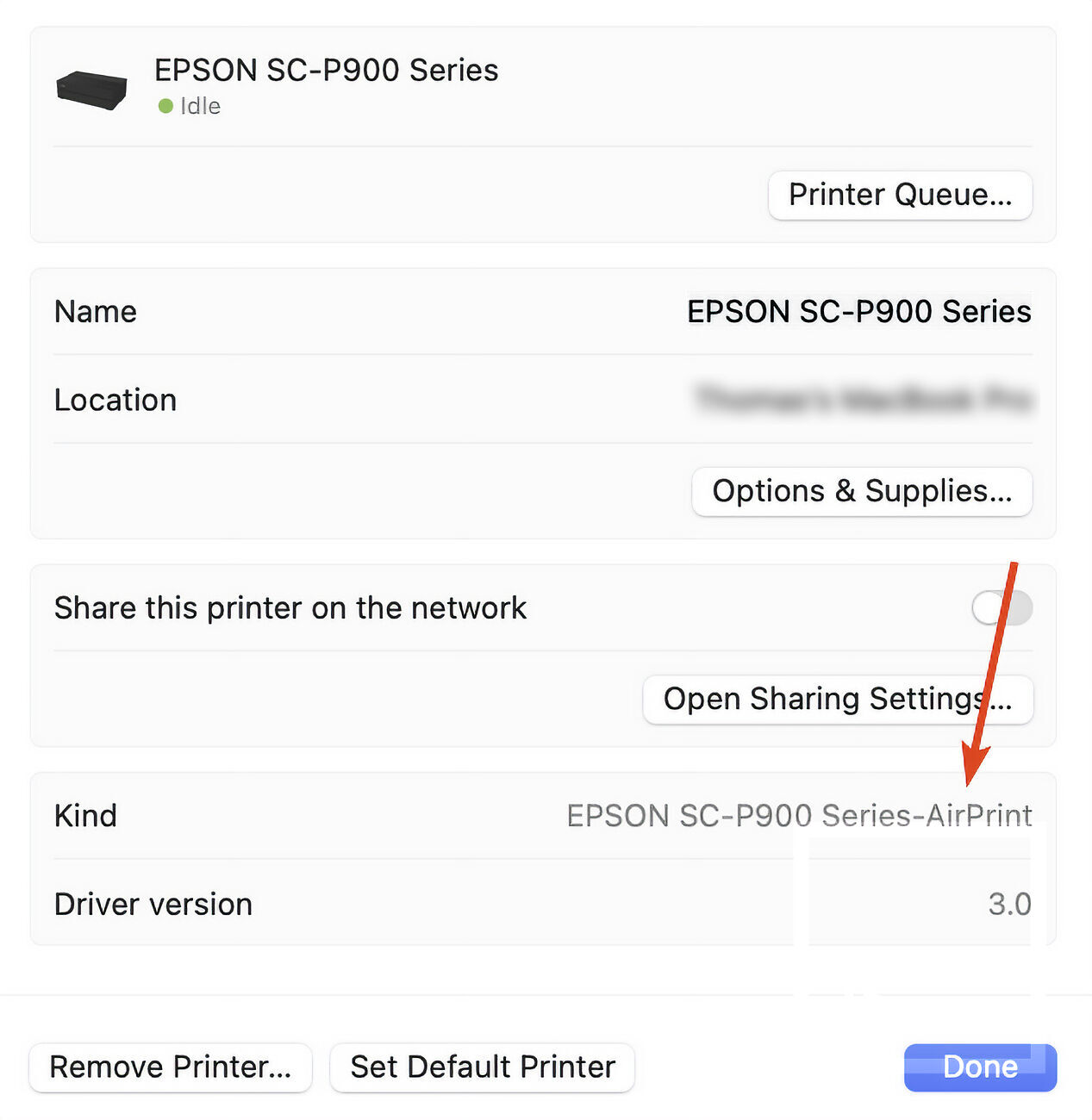

(Note that if you are following our advice and using Mirage to avoid these sorts of issue, then you don't need to worry about this - a huge advantage of Mirage is that it has it's own embedded version of the driver, completely insulating your system from the dreaded AirPrint issues).

Prepare Software
You can NOT print your ICC profile targets from Lightroom or Photoshop. (Of course once you have your profile, you can then use the profile with those applications).
If on a PC:
Use the Adobe Colour Print Utility - hereafter know as the ACPU. Download and extract this free utility from Adobe to actually print your profile target. While the linked page sort of looks like a bug report, the actual download links are a couple of paragraphs from the top. Note there are both Mac and Windows versions are available - make sure you get the Windows .zip version.
If on a Mac:
Currently the best method of printing profile targets on the Mac is through ColorSync Utility - a free and pre-installed application that comes with every Mac which has a special ‘print as target’ mode which applies no colour management. ColorSync Utility will hereafter be referred to as CSU. Also note the American spelling of ‘Color’ in the name.
Target Download
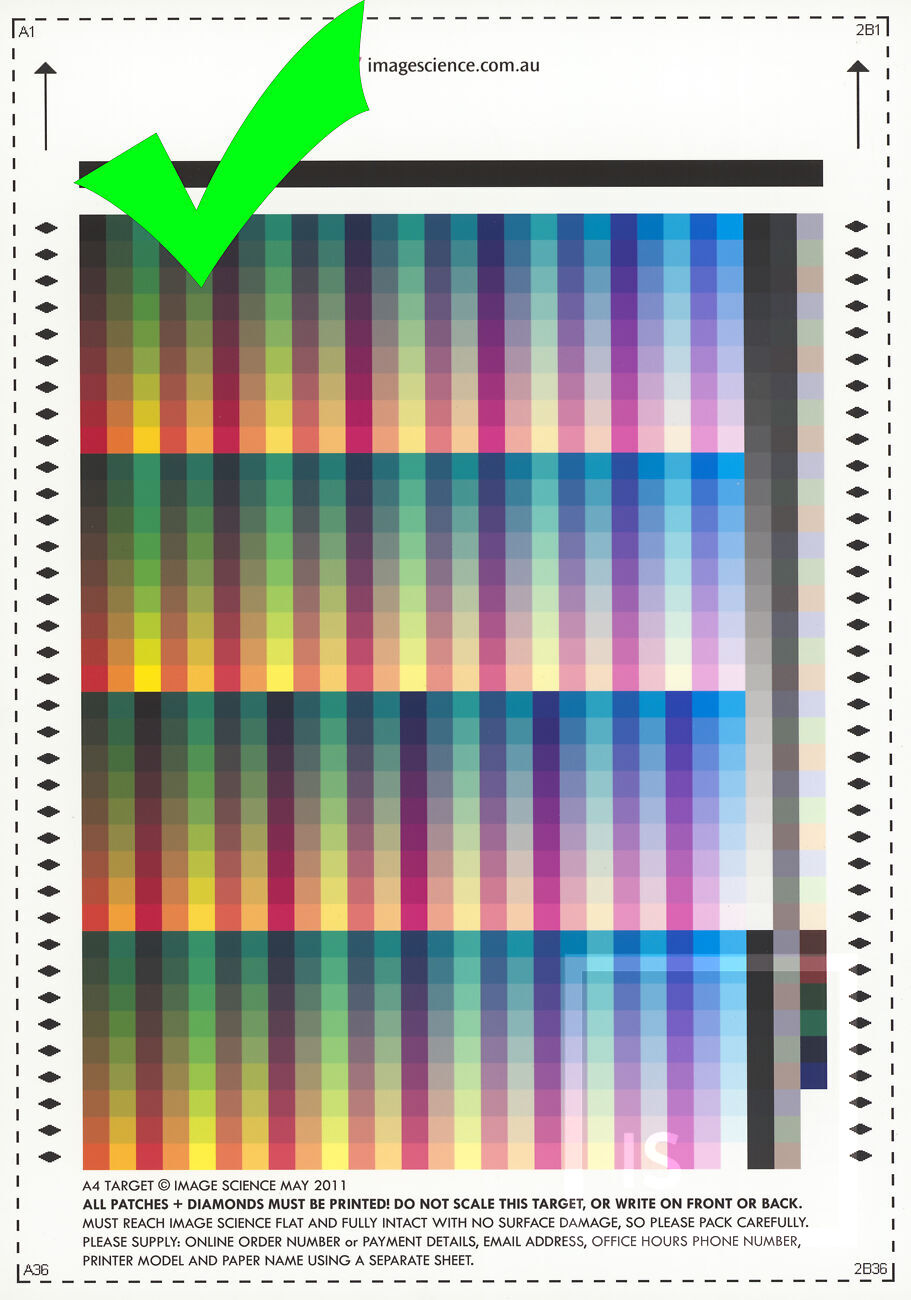
Download the profile target images from our website below
The Next Steps
Provided you have read and followed all of the above, it's time to proceed to our next guide where we explain all the methods of Printing Your ICC Profiling Target in detail, step-by-step.