▪ This item can take up to 5 business days to ship.
Please note that we are open by appointment only (except for click and collect pickups once notified ready).
Dinax Mirage Print V2025 (formerly known as V5) is now out.
Mirage is an excellent solution to many, many printing problems. If you do a significant amount of printing, you will find Mirage a very useful addition to your workflow.
We sometimes call Mirage a 'pseudo RIP' - what that means is that Mirage offers a lot of the workflow benefits of a 'full' RIP system, but with less complexity.
Specifically, it offers excellent settings and colour management control for printing (completely insulating your print processes from operating system foibles/changes and upgrades as well), as well as greatly easing the basic printing processes of sizing and layout. Further, it offers job management features as well - all wrapped in a very easy to use and understand User Interface that is far, far superior to printing through standard printer drivers.
Version 5 adds a host of new functionality to an already powerful product - bringing print templates to the table (think easy and consistent calendar layouts, for example).
This is our overview and evaluation of Mirage V5.0.3, as released in mid-April 2023.
We have also published a Getting Started with Mirage guide.
Mirage Print V2025 (formerly known as V5) has just been released.
Mirage is by far the best and most powerful of the affordably priced printing software solutions. V2025 brings a bunch of exciting new features, and further improvements to the user interface. For typical home and small studio environments, there's simply no better way to run your printing than with Mirage.
This is our look at Mirage in general, and the new features of V2025.
We also have a new Getting Started with Mirage guide, to get you setup and going with Mirage as quickly as possible.
Mirage is 'just' printing software. Software to make printing much easier and more efficient. It runs as a stand alone application, or as a plug-in for imaging applications like Photoshop and Lightroom. All it does is make the task of printing things significantly easier and quicker - so it's only of interest to people doing their own printing, and likely a reasonable volume of printing (although the ease of use benefits apply no matter how often you print!).
It's designed for use with the Epson (and Canon) pigment inkjet printers, from the desktop models through to the large format machines.
It doesn't do anything you can't do in other ways, ultimately - but what it does do is make all sorts of complex and complicated things much, much simpler. It dramatically eases and speeds up the process of complex printing tasks. If you do printing regularly - and especially if printing is a part of the business you're running - you'll absolutely save the relatively small cost of Mirage, in time saved, in very short order.
Printing, consistently, at the highest quality levels, is hard. Really hard! Even now - literally decades into the existence timeline of digital printing and more than two decades into pigment ink fine art inkjet printing - making really excellent, consistent prints, time and again, is much harder than it should be. Even experienced fine art printers that are working through printer drivers regularly find themselves making mistakes and wasting time, ink, paper and money.
We often call Mirage a 'pseudo RIP'. This means it has RIP like functionality, but without the full cost and complexity of a 'real' RIP.
A RIP (Raster Image Processor) - is the type of software that larger printing places use to run printers. It is software to take inputs (images, documents etc.), and produce prints. It is responsible for translating the 'input things' into actual, physical prints (or more accurately, into the signals sent to the printer, which then makes those prints).
RIPS completely replace printer drivers - RIPs talk directly to printers, in the printer's own language - to give complete control over the printing process. They can therefore affect _everything_ about printing. They don't use the operating system's driver at all, and effectively don't use (much of) the computer's operating system even - meaning RIPs are (pretty much) entirely independent of, and thus shielded from, things like driver changes and operating system upgrades. RIPs, since they tend to be used to control expensive hardware in businesses, with a lot of cost implications - tend to be _very_ stable software. This is a huge benefit of RIPs, they're just so much more reliable and consistent that 'normal' ways of printing.
Full RIPs are very low level things, and usually they are full CMYK/multi-channel solutions - that is, they take their inputs and ultimately translate those into actual CMYK halftone dot patterns on a page. This brings _tremendous_ control over printing and print quality - you can control things right down to the tiny little dot patterns on the page - but also brings with it a LOT of potential setup and ongoing complexity - e.g. you usually need to set per channel ink limits, total ink limits, and so on.
RIPs also centralise settings management - in essence, in one place, you define ALL the settings related to a media (including colour management profiles) - and then all these settings are always and automatically used for any print sent to that media. It's a vastly easier and tidier approach than the traditional approach of having settings scattered across the different levels of applications, drivers and the operating system. All settings in one clear place.
In addition to a remarkable level of control over the actual printing, RIPs provide all sorts of features to make handling files for printing faster and easier. Many RIPs do things like automatic page layouts, optimising the use of paper with minimal waste, for example. They typically also offer job management features - so you can save a RIPped, ready-to-print job in its entirety and when you need to repeat making those prints, just load the job and hit start and your are done.
There are several problems with 'Full RIPs' though. They're expensive - usually starting at a few thousands dollars and rapidly increasing as you add more features.
Setup can be very complex. It took me 6 weeks of full time work to get our first RIP going properly setup here at Image Science - and I very much know what I am doing! Many folks are absolutely bamboozled by the RIPs they run and barely scratch the surface of what is possible because they are so complex...
Once setup and tailored to your needs, though, a RIP is by far the most efficient, consistent and reliable way to print.
Pseudo RIPs are RIPs that offer the workflow and efficiency benefits of a RIP, but without the complexity issues.
You get the workflow benefits, such as a much nicer, simpler User Interface specifically designed to make print tasks much easier, plus centralised settings and media management and so on - but without having to do the full right-down-to-the-ink-dots setup that full RIPs usually require.
They achieve this by using the standard printer drivers - but not the ones at the operating system level - rather a special form of those drivers. These drivers are fully embedded into the application - meaning you won't ever have to manually upgrade them, and you won't experience issues with driver version changes etc. This means you also get the stability benefits of RIPs.
Even better, thanks to using the standard driver embedded internally, you can continue to use standard colour management with pseudo RIPs - meaning stock profiles from paper makers will work just fine. Indeed, many paper makers go a step further and supply full media packages you can install that set up for printing on all their media types in just one super easy step - installing all the colour profiles and settings you need to get going, for their entire media library, in just a few seconds.
As with full RIPs, all prints sent to that media definition then always use the same, correct settings, with no further effort or thought required by the user.
So you can see that you get pretty much all the benefits of a RIP - but without the crazy complexity. For home and small studio printing Mirage brings a pretty much perfect combination of ease of use, control, and reliability. Before long you'll wonder why you ever bothered printing any other way!
The common question asked about Mirage is - why would I pay a few hundreds dollars for software just to print with? Printers come with free drivers - so why do I need to spend more on anything else?
There are many reasons you might want to use Mirage - why Mirage, is in fact, a bargain - for anyone who does a lot of printing.
Let's look in a bit more detail at a few reasons you might choose Mirage for your printing.
Without Mirage
If you print with a printer driver approach, then you'll likely be very familiar with what a hassle dealing with settings in print drivers can be.
For each and every print you make, you need to carefully check your application print settings - what profiles are being used for the document and the printer, for example. Then you have to go into the driver and set all the settings the profile was made for - paper type, print quality level, colour management mode etc. Sure, you can save a pre-set for these things to make it a bit quicker, but you still have to remember to bring that preset up, and we all know how issues with printer drivers, over time, can develop - meaning you might lose your pre-sets along the way. And then you have to go back in mental-time to try and remember what the settings you thought you had saved were - and if you can't remember, you'll probably need to get your profiles re-made.
And multiple that out for each media type you use, of course. Each media has different settings you have to stay on top of.
Then, there's the settings for print jobs themselves - the physical layout of the page etc.
All in all, you'll soon find there's a LOT of settings to keep track off, in a lot of different places - the applications you use, the printer drivers, and the operating system, all have a hand in what comes out of your printer.
With Mirage
With Mirage, you create a new media, and in this you define ALL the relevant settings for that media. This includes the colour profiles to use with the media and all the other settings, like print quality level and so on.
From that moment on, all prints sent to that media automatically get all the correct settings applied.
You just choose your media, lay out your print and hit go - there's no more to it than that. If there is ever issue an issue, there's just one place to check the settings - not many levels of inter-related and confusing options to trawl through. It's much, much simpler - and that means the potential for costly, time-wasting mistakes is much lower.
Several times a week we get a certain type of phone call here at Image Science. It's always Apple users - and the report we get is either that all their driver settings have changed, presets or custom paper sizes can not be saved, or the prints they are making have suddenly all started coming out the wrong colours for seemingly no reason and with no change to settings used.
Some issues just seem to be Apple's fault - e.g. presets not being saved seems to be a very common issue across all printer brands, since Ventura.
Other times, once we dig into this, almost invariably what we find is that during a basic Operating System update - it doesn't have to be a major version upgrade, just a point release - the Mac OS has decided, for reasons no one can possibly understand, to swap out the full driver the an AirPrint driver, or an OS in-built driver.
This happens all the time. So often we have a dedicated article (AirPrint Must Die!) about this issue - just to avoid constantly re-answering this same question. And if you do do a major Mac OS upgrade, then God help you - in our long experience, almost anything could happen/break with respect to your printer drivers, settings and colour managment.
It's also very common (again, just for Mac people) - to need have their ICC profiles re-done, as some underlying change they can't explain has occurred, and their output has shifted. Extensive investigations can't solve the problem so it's just easier and cheaper to re-make ICC profiles and move on. But this is something that of course should simply never happen!
I literally cannot count how many support calls over the years I've had from frustrated Mac folk experiencing sudden mystery printer problems - literally tens of thousands of these calls. Frankly, it's an utter shambles. To be fair, at least some of the problems might be coming from Epson, or Adobe, rather than Apple - but in the end, it's irrelevant where the problem comes from. It's a system that is, demonstrably, prone to failure.
Sometimes, Mac printer problems get so bad, that Macs even have a special 'feature' called 'Reset Entire Print System' - this nuclear option nukes everything - all printers, all drivers, all setting and all colour profiles. Usually, once you tediously set everything back up again, this will solve most mystery problems - but it's a whole lot of work to do it, and frankly a pretty ridiculous indictment of the state of printing on the Mac that this even exists.
PCs are just way, way more reliable in this particular regard - but even there changes are not unheard of, and there is certainly still a risk with of things going wrong with major OS upgrades. There's a fair chance printer behaviour will subtly change, or you'll somehow lose your presets and settings along the way.
Over the long term, then, on either platform (but particularly Mac), it is a significant challenge to keep things consistent. And random changes in your output are just not a good way to run a business, or to have fun with your hobby.
If you use Mirage, you experience none of these issues. By embedding a specific version of the driver, Mirage controls everything, and is thus not at the mercy of changes to underlying things like the normal drivers or operating system. You _might_ need to upgrade Mirage after a major OS change, but that is rare (I can only recall it happening once in the last 10+ years of selling Mirage). On the very odd occasion when you do have to do that - all your settings will of course stay completely intact, and the print behaviour will remain perfectly identical after this change.
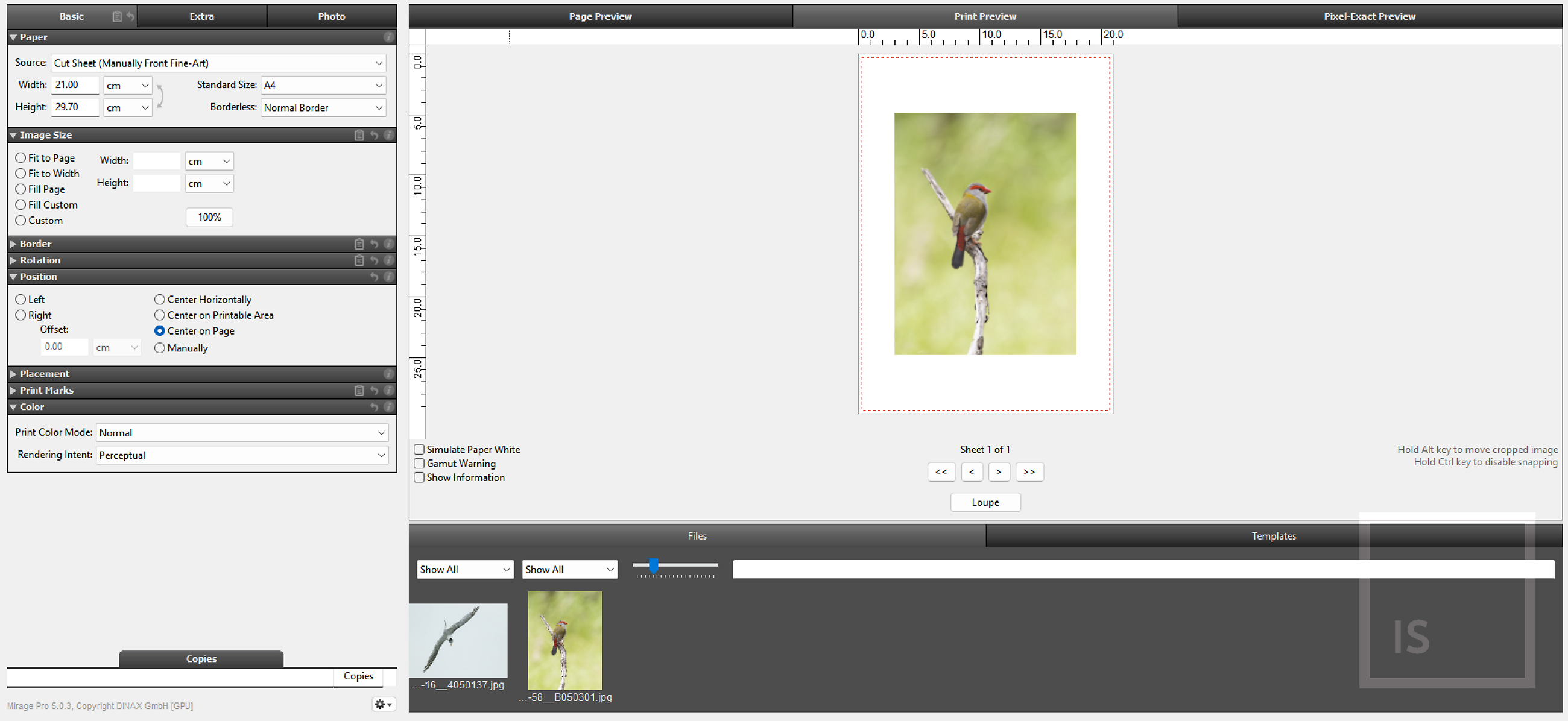
Mirage's UI is entirely designed to make printing efficient and easy. It's very much designed to be What You See Is What You Get.
After you've completed Printer and Media setup (see our Getting Started with Mirage guide for details), for a basic print, you essentially drag and drop your image file, then step down from the top of the UI to the bottom, with all changes you make directly reflected in the preview you get. You can hide the panels you don't use, or use only infrequently. Thus from image to laid-out print is a very streamlined process.
Everything is very explicit and clear, and where you'd expect it to be. Things that are frustratingly hidden deep in driver settings are instead placed right there when you need them. If ever you're confused by a setting, click the (i) icon next to it and Mirage will give you help, right there, on what the controls do.
A very common task is to make the same print on regular occasions. For example, if you're selling edition prints, ideally the process of producing identical edition prints would be reliable and as quick as possible - so you can spend less time mucking about with the printer, and more time on making and marketing your art!
With Mirage, this common challenge becomes trivially easy.
You can archive jobs (indeed all jobs are archived by default, but you can save specific ones to a permanent archive). Archived jobs are really complete packages of your image(s)/layout(s) and all the associated settings needed to make that print. You can then recall those for instant easy printing at any later date - and be sure you'll get exactly the same print as the last time (as long as you make sure all your nozzle checks are OK first, of course!).
The big new feature of V2025 is support for print templates.
Mirage now comes with a bunch (literally, hundreds) of pre-made templates (calendar pages, for example) - which are good examples of what you can use templates for.
Essentially, you can create page layouts with slots for images to go into. Then you can just load a template, add an image (or several), and you've got a full page layout ready to go. You can select multiple templates and images to e.g. automatically create an entire set of calendar pages from a folder of images.
If you're creating products e.g. making things like cards, or calendars, this is an absolute workflow Godsend.
Maybe you're a portrait photographer and you want to sell 'picture packages' (like school photographers do). Or you want to set up for preparing passport/ID photographs.
Templates (once created) make all these sorts of jobs very easy.
In terms of template creation, a basic template editor is included, allowing you to add backdrops, for example, and set up the image slots. Of course each slot can be a different image, or you can set up multiple slots for a particular image - it's quite flexible.
It won't solve everything or do _all_ the work for you - e.g. if you want your own specific calendar page templates, you'll still need to do the initial design work for those in Photoshop or InDesign or similar, and drop that in as a backdrop here, before then adding the image slots. What it adds is the automation layer on top, to take going from a design to a custom filled-in product very simple indeed.
(I'm guessing the Mirage will either be updating these each year and/or selling extras, in time. Or perhaps a market-place for these will form, with creatives selling their templates directly. Time will tell!)
Mirage V2025 is much more flexible than previous versions in terms of layout of images on what they call 'the spread'. You can do things that weren't possible before, like overlapping images - the sorts of things that can really take e.g. photo album designs to the next level.
If you find yourself having made a nice layout - you can turn that straight into a template for re-use too.
The UI has been re-organised and cleaned up.
These are relatively minor things (like adding an undo/re-do) - but they add up to more than the sum of the parts. It just makes for a very easy to use application, as everything is nicely and logically grouped.
(The lack of proper 4K support - see below, on Windows - is a massive fail for a modern product, though, and something we hope to see Dinax fixing shortly).
Mirage has for a while included some image editing tools. There are now more of these. This includes things like Exposure/Brightness/Contrast/Hue/Saturation, as well as Blur and Sharpness.
Personally, I don't find these interesting, as I'd much rather use the much more sophisticated tools in Photoshop or Lightroom, but some folks seem to find these things handy, so worth a mention!
For the first time, Mirage now supports 'actual' proofing - that is, simulating the output of one print process using another.
This is most commonly used to proof potential CMYK output on a modern high quality inkjet printer. Once the exclusive domain of pre-press companies with sophisticated RIPs, its now super easy to prepare a proper proof of an (potentially massively!) expensive CMYK print job on your own system.
Just prepare your work as you normally would, then tell Mirage to produce a simulation, and choose the CMYK profile to simulate. Mirage can also simulate the final paper colour (i.e. use Absolute Colorimetric rendering) if you wish it to.
(If you know what you are doing, you can of course do this in e.g. Photoshop too - as per our article on Cross Rendered Proofing - but, as ever, it's much much easier to do in Mirage!).
Mirage now offers more types of print marks (registration, calibration, crop marks etc), and can place these at both the individual image and 'spread' levels.
As is typical for Mirage, the implementation is simple and effective and covers all the normal print mark situations you might want.
And of course there are lots of other little improvements and new features. The killer new feature though, without a doubt, is the new templates system.
Having personally struggled with trying to e.g. print calendars (in my case just for friends and family) - I know what a massive headache this can be - it just takes a whole lot of work.
Mirage does the same thing in seconds...it's really a bit magical!
Mirage is not perfect.
There are a few (relatively minor) negatives worth bringing up. Mirage as a tool is great, but there are a few quirks/irritants to be aware of.
RIPs are notorious for onerous licensing systems, and Mirage has a long (and frankly pretty ugly) history in this area.
For all versions before V2025, you needed a USB dongle to use Mirage. This often took up to 10 business days to arrange, and of course there are issues with failures of the dongle. This involved then contacting Germany, waiting for a solution etc - and was all just very tedious. (Dongles are _supposed_ to prevent piracy/unlicensed usage - they vary rarely achieve that, in practise - but what they definitely do achieve is irritating legitimate users!).
Version 2025 does away with the Dongle - huzzah! There is still a license code tied to the machine you install on, and (without paying extra) you're still only able to use Mirage from one machine at a time. I would love to see Mirage moving to a more flexible model (without further cost) - letting folks use Mirage on at least 2 or 3 of their personal machines. At the least, creatives very often have both a laptop and a desktop in regular use, so two machines is the minimum any software should offer - anything else just comes across as stingy to customers.
Mirage's license system will also pop up odd messages at times (e.g. warning messages that you have limited days remaining, even when you have a full license - this apparently refers to 'days without being connected to the internet so Dinax can check up on you'). It's confusing, and honestly, Mirage would do everyone a favour by just moving to a simpler system, that does not ever require an internet connection, for people to just easily be able to get on and use the software they have bought.
So - things have improved a bit here, but still lots of room for more improvement here.
To my surprise, Mirage does not seem to run with a high DPI aware interface. The fonts throughout are fuzzy, something I have only seen on much older applications.
It's all perfectly usable, but this seems really very out-dated at this point, and is an obvious area for improvement. I presume they're tied to so some of older GUI code, but in this day and age of increasingly common 4k monitors, this should be updated without delay.
Dinax tell me this does not affect the Mac version, and that a fix for this on the PC will be coming 'in a subsequent version' - which I find a bit too vague for comfort.
Mirage tell me that a PDF manual is installed as part of the standard installation. And if I go looking through the application folders, I can indeed then see it there. But it's not in my Start menu, does not come up in Windows Search, and from numerous phone calls I know a lot of folks do not become aware of the existence of this manual. I have suggested they make it a lot more obvious...
When you do find it, it's very dry - basically just a list of all the menus and controls - and lacks screenshots or any sort of visual guidance - it's just not that useful.
Fortunately, Mirage is very intuitive to use, and there is extensive in-built help available within the application itself (including a link back to the PDF manual). If you're already used to printing, you'll be up and running very easily, with no documentation at all.
But if you're new to printing, it can be hard to get started with - which is why have published a 'Getting Started with Mirage' guide to help full in this gap!
UPDATE: See below for three new very helpful resources:
The only reason, really, to not buy Mirage is the cost - at about $500ish for the version most people need - the 17" version, which covers the Epson 3880/P800/P906 machines (by far the most popular home/small studio printers) - it can seem like a significant extra cost on top of the printer.
But once you factor in the time saved (not to mention inks and paper!) - Mirage pays for itself very quickly. It makes printing remarkably more simple and consistent, when compared to the disaster that is trying to manage settings and stability with printer drivers.
If you're producing any sort of printed product for sale - be it Fine Art Edition Prints, or card, or calendars....the job management and print template systems can save you literally hundreds of hours a year.
Once people try Mirage, they quickly come to regard is as an essential tool in their workflow. With the exception of the licensing system, the feedback on the product itself from our customers is always excellent.
Despite the cost, and the minor flaws we list above, we unhesitatingly recommend it to anyone who does even a reasonable amount of serious printing.