Please note that we are open by appointment only (except for click and collect pickups once notified ready).

The BenQ ideaCam S1 Pro - An Instant Studio for Creatives!

19th May 2023 Product News


Introduction

Something a little different from us today - BenQ have just given us avery  interesting new web camera to play with.

Everyone knows what a web-cam is of course (...only too well after all the lockdowns!). 

We think this one is notable, and has great potential - specifically for visual artists - as  it provides an all in one solution for things like live-streaming and working online with clients.  It can act as a traditional web-cam, a working area camera, AND a macro camera - all in one handy, attractive little unit.  There's even a remote controller included to control all common functions at the push of a button.  Complexity comes along very quickly as you move into video work, and it's great that BenQ are providing a high quality - but still very easy to use - solution.

We know a lot of artists out there have been branching into videos, including live streaming - e.g. for tutorials & paid online workshops, or just for things like Instagram stories.  Video is on a massive growth curve, and is right now one of the most effective ways of building up an audience.

Can the ideaCam S1 Pro help you get started with this, without needing to spend the very significant time and money that a 'proper' studio set up requires?

We think it certainly can.

What Is The BenQ ideaCam S1 Pro?

BenQ describe the ideaCam S1 Pro as a 'dual mode web-cam and workspace camera'.

The BenQ ideaCam S1 Pro comes as a quite complete package.

What Do You Actually Get?

You get the ideaCam S1 Pro itself:

  • A USB powered web-cam with a high quality Sony 8 mega-pixel sensor.
  • The sensor has a much wider dynamic range than typical web cameras
  • The ideaCam supports both auto and manual focus
  • The ideaCam supports 30 fps video up to:
    2448p video in 4:3 ratio
    1836p video in 16:9 ratio
  • The ideaCam includes a built-in noise cancelling microphone.
  • The ideaCam has a small LED that clearly shows when it is in use.
  • The ideaCam has a in-built ring light around the camera unit with a manual control switch (does not require software support)
  • The ideaCam has a dedicated button for taking 'freeze frames' - i.e. stills (this does require the BenQ software)
  • The ideaCam has a high quality, braided, 1.5m USB cord. 
    Way too long for normal web-cam use (there is a Velcro strap to tidy up the excess) - but very handy for when you use the camera in detached mode!
In addition, you also get:
  • A magnetic privacy/lens-cap cover - all web-cams should have one of these!  Trivially easy to fit when your camera is not in use.
  • A mounting clip (with a locking mechanism) - can be very simply mounted to just about any monitor (with a bezel of ~5mm, and thickness of 10mm ~ 75mm supported). 
    (Note, this is unfortunately not compatible when using a monitor hood - but see next point).
  • A standard tripod mounting point is included on the mounting clip as an alternative option for mounting. 
    This opens up the possibility of using a near endless array of camera and microphone stand/mounting options.
  • A magnetic macro lens attachment, for close-up visuals - again, trivially easy to fit.
  • A high quality wireless remote control panel (with a small USB receiver) to control all major functions.
  • An IKEA style Quick Start instruction sheet (=no language, just pictures to follow).
  • EnSpire software (web based software (they say it supports Chrome/Edge) - found at EnSpire.BenQ.Com) - n.b. this requires you to register an account.

It's clear a lot of thought has gone into the design of all the hardware.

Each part is attractive and, importantly, very simple to use as well. You'll have this out of the box, setup, and be up and running in just a few minutes.

Installation

BenQ WiT e-Reading Designer Lamp
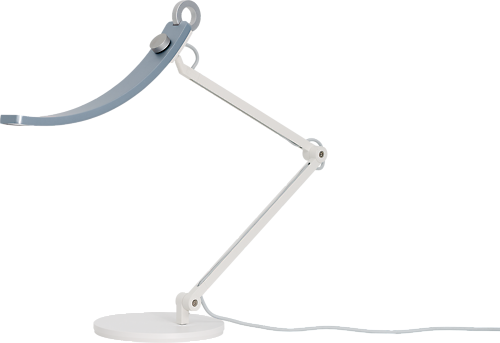
BenQ's elegant WiT lamp lights a broad area evenly, has variable colour temp & works as a desk (default) or floor lamp (with accessories).
Free Courier Shipping to most locations! (See notes).
▪ N.B. Please visit the full listing for important info on some variants.

More info

Basic installation was trivial.   I tested this on both my Windows 10 (home) and Windows 11 (work) PCs, with no issues encountered.

I simply plugged the USB cord in, and the camera was instantly available to all my normal camera applications.

There is also the option to use BenQ's custom software 'EnSpire'.  EnSpire is browser based (works with Chrome and Edge) - and quite powerful.  There also appears to be a Mac app available, but I haven't yet had a chance to test this.

I do note that with basic video recording I did experience some lag/frame-dropping with the EnSpire app itself, and found that, for my purposes, I was able to get better results from other applications when simply using the ideaCam as a classic recording camera.   Indeed, no issues at all except with the browser based EnSpire app.

My PC is reasonably powerful so I found this surprising - but EnSpire is very new so I imagine performance is likely to improve in time.  If you want to do things like annotate your work, apply filters, flip and rotate, take freeze frames, and even live measurements from the stream etc, then EnSpire is well worth exploring - it's quite feature filled.

That said, the key hardware features mentioned below (like the image inverting automatically when you enter the pivot mode) - are all hardware based, and don't require you to use the BenQ software.

Alternative Setups, for Comparison

I'll be comparing the ideaCam Pro against two main scenarios I'm quite familiar with:

  • A basic standard web-cam setup - like e.g. the classic Logitech C922, mounted on my monitor and using the built in microphone.  This is very similar to what most folks will have been using for their Work From Home setups, I imagine.  This is what I have been using for quick web meetings and similar.  The quality is of course low but it's very much plug in and go.
  • A 'Real Camera' mini studio - by which I mean, for example, a modern DSLR or Mirrorless in streaming mode.  Specifically, I now use an OM-System (Olympus) OM-1.  I mount this on a tripod, and for audio I supplement that with Shure MV7 microphone, mounted on its own stand.   I also usually use some some lighting on stands, or sometimes jerry rig a BenQ WiT lamp as a simple side light.  I have used this setup for the recording of a number of webinars.  This is quite fiddly - taking quite a bit of setup, and uses many thousands of dollars of hardware.

Of course there are worse setups (Macbooks with 720p cameras spring to mind!) - and also much better setups than my relatively basic mini studio.   But broadly speaking these are the two end points, in cost and complexity, of simpler solutions to the video making problem - without going 'full studio' - which is considerably more complicated and expensive.

The BenQ is priced much more like the basic web-cam yet comes much closer to the real camera in quality than you'd think - and is dramatically simpler to set up and get going with, for a lot of video scenarios.

The BenQ ideaCam S1 Pro has

Three Easy To Use Modes

The camera offers three major modes, and comes with some simple but powerful software called EnSpire.

Standard Web-cam Mode

The BenQ ideaCam S1 Pro is powered by an 8 mega-pixel Sony CMOS image sensor which offers up to 3264x2448px resolution @ 30fps (not quite 4K, but close enough).

This alone should allow you step up your work-from-home game quite considerably.  Most web-cams use low quality 720p or maybe 1080p sensors, so the jump in quality over those is very noticeable.  Compared to what you're likely to be used to - e.g. your typical Logitech jobs, or the web-cam built into your laptop - the ideaCam S1 Pro offers remarkably sharp and clear video.

But it's not just the sharpness, it's the wide dynamic range and exposure control.  Most web cameras fail pretty badly, pretty quickly, if your lighting is anything less than ideal.  Whilst the ideaCam can't quite keep up with 'real' cameras (more below on this) - it's way better than typical web cameras at handling difficult scenarios like backlit subjects, or dimmer lighting.

The Auto-focus is also a step up from typical web cameras, performing well in all the normal scenarios I threw at it - although again, it's not as quick as real camera.

Workspace Camera Mode

Fixed Pivot Mode

Perhaps the best feature of the ideaCam S1 Pro is the easy way you can swap from filming yourself directly, to filming your workspace.  This is built into the hardware and works with any video application.

With the camera mounted on your monitor, just tilt the camera down.  The camera detects this and automatically changes to workspace mode - take about a half a second, perhaps a bit longer to then focus on correctly.  Importantly, it inverts the picture when it does this, so that your work appears the correct way up - e.g. anything you write will show the right way up.  This magic translates the view [¡¡sᴉɥʇ ɯoɹɟ] -> [to this!!].  Honestly, it's super nifty.

This makes it trivial to switch between conversation with your viewers, and showing your work.  Imagine your a botanical or scientific artist and you're live-streaming the creation of a new work.  Start your stream by having a nice, face to face chat with your viewers, then simply tilt the camera and instantly be streaming your work live, the right way up, and in great quality - without having to fuss with multiple cameras, or changing the camera position.  It's just so easy - you can't come close to this quality without way more hassle with any other setup I've seen.

Handheld Mode

Want to go even further?  You can just pop the camera straight off the mount and you've immediately got a mobile camera - e.g. if you want to show off some other equipment or something about the environment in which you're working. 

When you're done, just pop it back on the mount - it just slides right back in.  Again, super simple and flexible - the only caveat being that you need to keep the camera relatively upright according to the instruction leaflet but in my testing I moved and held it in all sorts of ways without any issues (e.g. no accidental activation of the inverted pivot mode).

Detail / Macro Camera Mode

But wait, there's more!

The ideaCam S1 Pro includes a dedicated macro lens.  This attaches instantly - it's magnetic and just pops on.

Then, take the camera right down to your work and show it off with 15* magnification - just like that!

Very Important Note:

I struggled for about 15 minutes to get good results with this and was about to conclude the macro quality was just pretty dodgy.  I then realised there was a bit of protective plastic over the back of the lens!  There's nothing about this in the instructions and the plastic in questions was mounted so perfectly over the lens that it looked very much to be part of the unit.  So much so I was nervous about trying to remove it - but once I had removed it - boom!  Instant clarity! 

The quality (see note above) - of this mode is amazing.  You'll probably want a bit of extra light for this, so just switch on the ring light.  You'll then see every bit of detail you'd expect, pin sharp.  It is absolutely fabulous if you e.g. want to show off some aspect of brush work, or the texture of the materials you're working with.

Again, there's nothing I'm aware of that will give you these great results without dramatically more effect and expense.

Remote Control

Pretty much everything I've talked about so far work directly (and automatically) with the camera itself - apart from taking freeze frames, everything else is implemented in hardware and 'just works' with any video application you care to use (well, it did for me, but I can't say I've tried all of them, of course!)

But to make all this simpler to control, BenQ also give you a wireless remote control, plus a small USB wireless receiver for this (and batteries to get you going!).  Once again, this is very nicely made hardware (and very similar to the pucks that come with the excellent BenQ SW monitors).  Worth noting that this only works with the BenQ EnSpire software, though.

On this remote you have buttons for taking still images, activating focus, switching from manual to automatic focus, toggling mute/un-mute of the  microphone, plus the whole thing has a wheel control around it for zooming the camera as well.  Again, it's all pretty nifty and, once you're used to it, would let you do a lot of common things, with a discrete off-camera hand, whilst you carry on your presentation.

EnSpire Software

EnSpire is a free download from BenQ.    It's the software that lets you take full advantage of the features the ideaCam S1 Pro offers.

On the PC it's a web app, so just visit https://enspire.benq.com, register/login, and away you go - no installation or updates are necessary.   It's certainly a very easy and fast way of getting going.

There is an installable app for the Mac (I am guessing here, but the stricter security on the Mac probably means the web app can't access the hardware, even if you explicitly grant permission, as you do with the PC app - so likely the app is just a wrapper to get around this limitation).

I have mixed feeling on the software.  It's powerful and can do some very cool things - like measuring the length of something you've drawn on your table, or keystone correction, applying Instagram like filters etc, but I did encounter a few issues.

The first was I initially got a pop in (what I presume was) Mandarin.  I think this was asking permission to access the web camera, but I can't be sure.  Obviously, this message should be localised to the user's language. [EDIT: this is fixed now].

Secondly, I had a couple of performance issues - one outright hang, and a regular occurrence of noticeable frame drops in the video stream (even down at lower resolutions) - making the video jerky (and these jerks also showed up in the recorded video unfortunately). 

The idea is that if you want to use these features in a video chat/stream app (like Zoom), that you do so by doing the video in the BenQ app and then using the screen sharing mode from Zoom to send this over the net.  The problem here is this of course means the video stream has to go through the BenQ software (which it already seems to struggle with) - and then in turn through Zoom.  Cumulatively, this has distinct and noticeable performance impact (even on my fairly up to date work PC).  I achieved much smoother & better results using the camera directly through Zoom.  But then, you do lose some of the more advanced features, and the remote control doesn't work, which is a shame.

Also, the only video format I could get EnSpire to produce was '.webm' - which a lot of things don't yet support.  Give us an 'mp4' option, please!

Suprisingly Good

Audio Quality

Of course the BenQ ideaCam S1 Pro has an in-built microphone - you can't call yourself a web-cam without one!

The video quality is excellent for the price point.  But another very important aspect is the audio quality.  In fact I'd argue this is where your classic web-cams fail even more so than with the video side of things - normally, the audio is pretty awful.

The surprise is that the microphone is actually pretty good.  The recording quality of the timbre of voice is fairly much as you'd expect from a web-cam, but what makes it unusually successful is the very effective noise reduction system.

I found that I could have my music playing in the background, at my normal background level volume - and happily record video with the ideaCam and this was removed completely from the audio stream, really just as if it was not on at all!   I only really discovered this by accident when I started a recording with my music accidentally still on - on playing it back, it was simply not there!  I repeated this test several times and have to say the noise reduction system in this thing is really very effective at isolating the voice the component.  I'd imaging this is a combination of the microphone being quite directional to in front of the camera, along with some clever background noise removal software (I say software but this performance is seen with any video app, not just the BenQ software).

Of course you can do better (specifically, achieve a more attractive/natural voice timbre) - with a 'proper' recording microphone (I use a 'Shure MV7' desktop microphone normally, or sometimes a little Rode shotgun on top of my camera).  But for an in-built microphone you couldn't ask for much more - especially given I am recording in an office with 100% hard surfaces - a very unforgiving, inherently 'boomy' environment.

Improvements?

Honestly, at this price point, you're getting great value.  When BenQ first approached me about taking a look at one of these, I though the whole thing sounded like a bit of a gimmick, but I have to say actually using one has completely won me over.  

It just works, and works really well.  And it's just so much simpler than anything else that generates the equivalent sort of quality.  It's actually quite difficult to think of any improvements - it's one of those rare things that come along that you don't realise you want or need, but once you've used it - you feel like you can't live without it (and how as no one made one of these before?!).

I'd love it if the remote control functioned in other applications, and when they do a second version of this I'd recommend they move the ring light activation button off the top of the device, as I did find myself activating it by accident more than once - but that's very minor and easily solved.

The Software, EnSpire, is quite slick, but it seems as yet to struggle with performance.  For me that's the least successful part of the system, so far, but to be honest I would probably be tempted to use other video apps I am more familiar with, anyway, unless I really needed a particular special feature from EnSpire.

I'd also recommend they provide a bit more in the way of instructions, although realistically these days that's mostly handled by websites and videos.

Conclusion

BenQ have a great product here.   I'm genuinely surprised about how enthusiastic I am about this thing.

But I do think it's going to be a challenge for them to get this product out in to the market - just because it's a bit harder to explain than some things, and it really helps to spend a few minutes playing with it to realise just how good and useful it is.

If you're looking for an easy path into producing more content, you'll find that path with the BenQ ideaCam S1 Pro.  With very little preparation and jsut a small amount of imagination, the BenQ ideaCam S1 Pro can be used to make high quality video content with a minimum of fuss.  I think it's particularly likely to win the hearts of live streamers and collaborative online workers - it's really just about perfect for those scenarios.

I suspect if you're going to the effort of shooting video for a more polished result - i.e. with later cutting together & grading, you'll probably still be tempted into a 'Real Camera' sort of setup - perhaps only up until you remember what a bother all that is to set up, though!   Even in that context, the BenQ ideaCam S1 Pro will probably prove itself surprisingly useful.

My only reservation, really, is the software.  There's still room for improvement there, although it is feature rich, it does need to get the performance aspects right to be really useful.  And you get almost all the key functionality with any video recording app anyway, so it's not a big issue.

We have one here in our office, so feel free to make an appointment for a quick demo.