Please note that we are open by appointment only (except for click and collect pickups once notified ready).
Executive Summary: [Updated June 2023]
In 2023, Calibrite have released a new software platform for their Calibration tools - Calibrite Profiler.
It's fair to say that, traditionally, calibration software has been less-than-wonderful. There have been some really odd-ball user interfaces along the way, and neither of the major brands (X-Rite, now Calibrite, and DataColor) - have come close to producing anything that could fairly be described as genuinely good. Here, I would define genuinely good as being both easy to use (particularly for new users) - and yet still offering sufficient control for people who want to delve more into the nitty-gritty of colour management.
That said, X-Rite's former calibration software, i1Profiler (later renamed ccProfiler when Calibrite took over the X-Rite calibration products) - was actually pretty functional, once you understood the UI model behind it. For many years now, people have been following our extensive guide to this software and successfully calibrating their monitors.
Calibrite Profiler is Calibrite's attempt to bring the software up to date, and make it a lot easier for new users to get started with. At it's core is the same, excellent colour engine made by X-Rite that has been driving the i1 family of devices for many years. But Calibrite Profiler seeks to wrap that core in new, significantly easier to use package, dressed in a modern user interface approach.
Please note: the guide below was updated using version 1.1.5 running on Windows 11, and we're calibrating a BenQ PD2705U. Nothing is specific to that platform or monitor, unless noted - you should be able to follow this guide with any similar monitor, on Mac or PC.
This new software is free, but only if you specifically have a Calibrite branded calibrator.
However, if you have an X-Rite branded version, Calibrite are charging for this new software upgrade (which we think is a disappointingly cheap decision).
2023: The introductory price is £8.99 apparently (~ AU$20).
Late 2024: The pricing is now more like $70 apparently.
The upgrade is purchased by downloading the new software and 'upgrading' your device from within there. The price is not high, and we do think the upgrade is worth it - as operating systems tend to change a lot with time, and the older applications are no longer being updated, you will generally find it worthwhile to stay current. Free would have been better, but a small price to keep your older devices current is a reasonable compromise.
Before you follow the guide below, make sure you first follow our guide on preparing your system for monitor calibration.
Please, please DON'T SKIP this bit - it really is important, and if things are not set up correctly before you start, you may well end up wasting a lot of time!
You also want to have a clear idea on what you're about to do, and why. All that is covered in the following guide:
(Start here, but only after you've followed our guide to getting ready for monitor calibration!).
Unboxing a modern calibrator is pretty simple - just open up the box and inside will be your calibrator, and (if you bought the Display Plus model) a USB-A → USB-C dongle. That's all you get - but also all that you need!
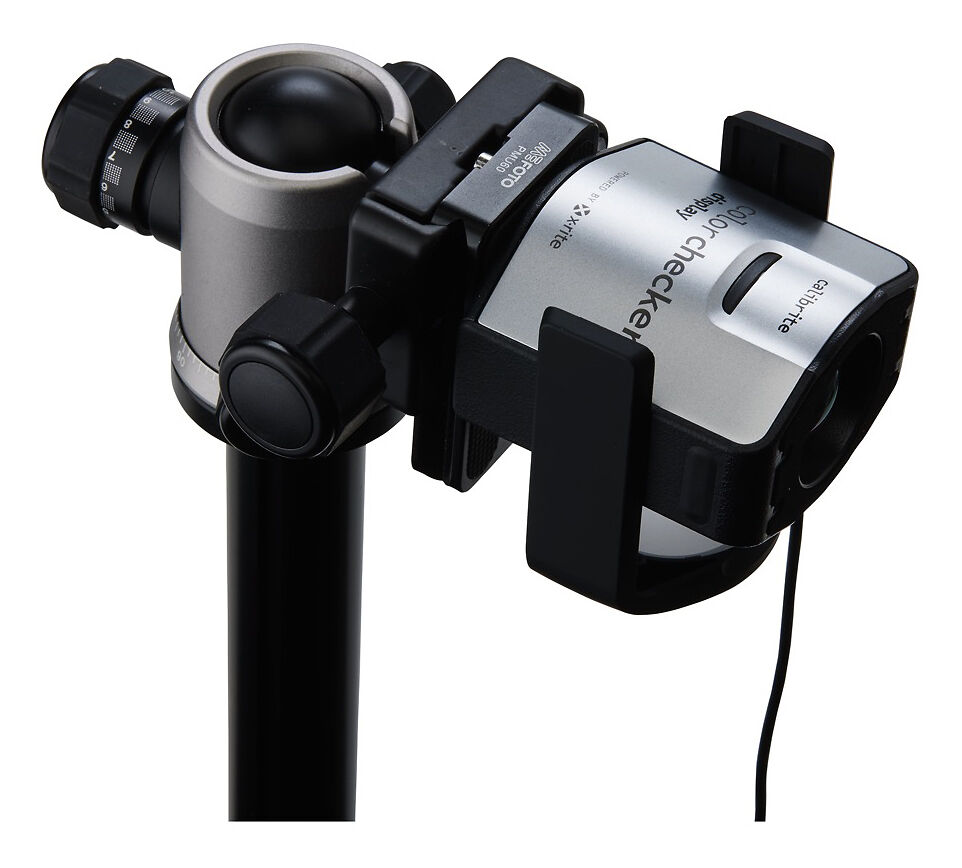
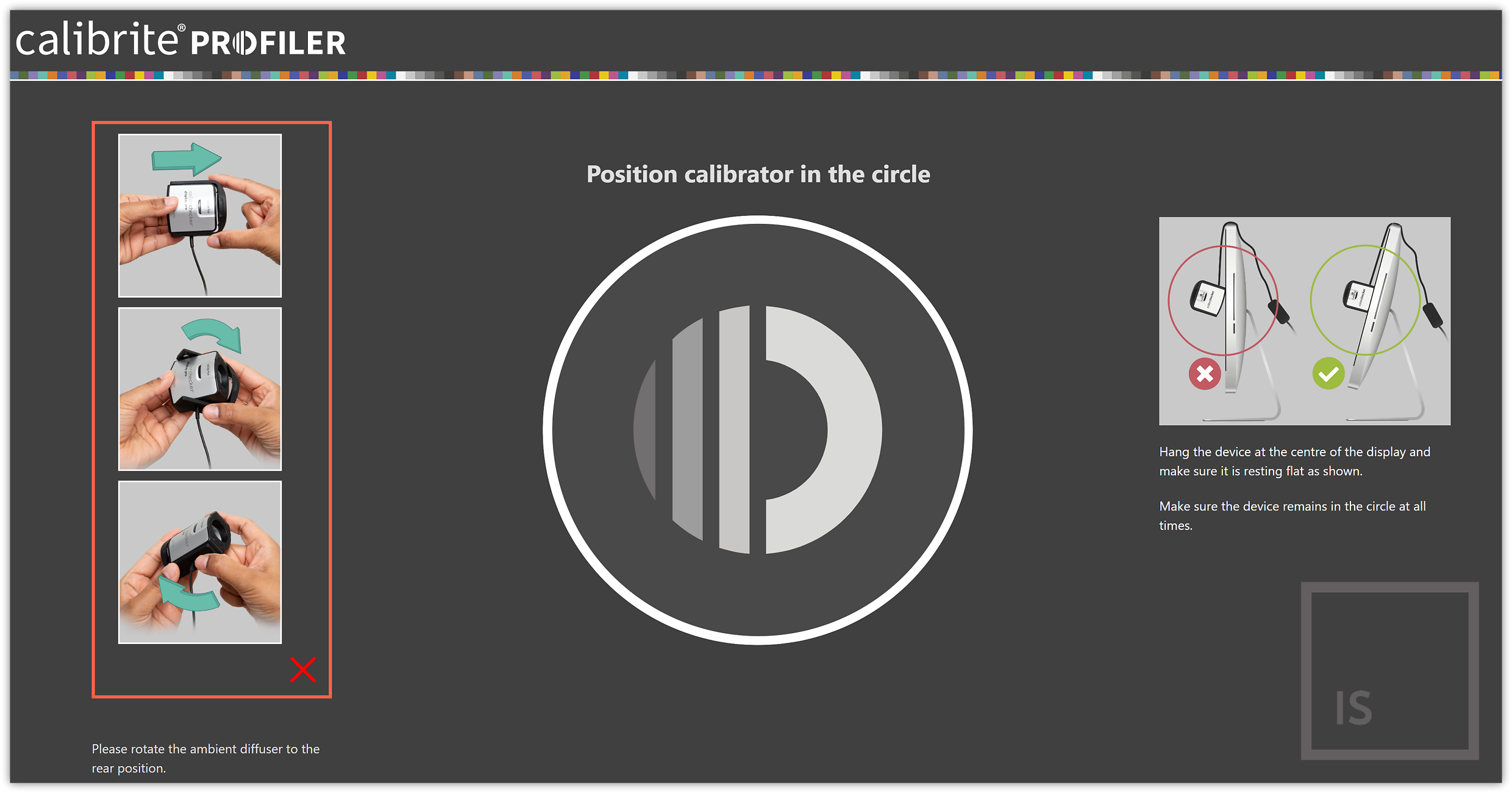
Examining your new calibrator, now is a good time to note there is a white, light diffusing flip-top lid. To expose the calibrator's lens, pull this up slightly and rotate it 180 degrees (when the software prompts you to, but you can try it now to get a feel for it of course). Note there is also a counter-weight on the calibrator's cord - which can be moved up and down the cord as needed, just give it a gentle squeeze and slide it along. The counter weight is hung behind the monitor when you mount the calibrator on the screen, and just helps achieve balance, so the calibrator won't move or fall off during calibration.
(The final thing to note is there is a tripod hole at the bottom of the calibrator - which is handy when calibrating projectors, but we won't discuss that here).
On the back of the box are instructions to visit calibrite.com/downloads to obtain the software. Choose Calibrite Profiler for you platform, and download it. Then, as usual, just double click to install the software.
We strongly suggest you install the software BEFORE plugging in your calibrator. It shouldn't matter, and indeed mostly doesn't, but with older PCs it can cause issues if you do this in the wrong order.
Once the software in install, plug your calibrator in to any full-powered USB port. Calibrators can be power hungry devices, so if you have any device recognition issues, it's probably an under-powered USB port. Make sure you try the main ports on your actual computer in this case (or a properly powered USB hub) as they tend to reliably supply the full power amount the USB specifications indicates they should.
PC Note: Note in Windows Device Manger these devices will usually be listed as an 'i1Display 3'...this is normal.
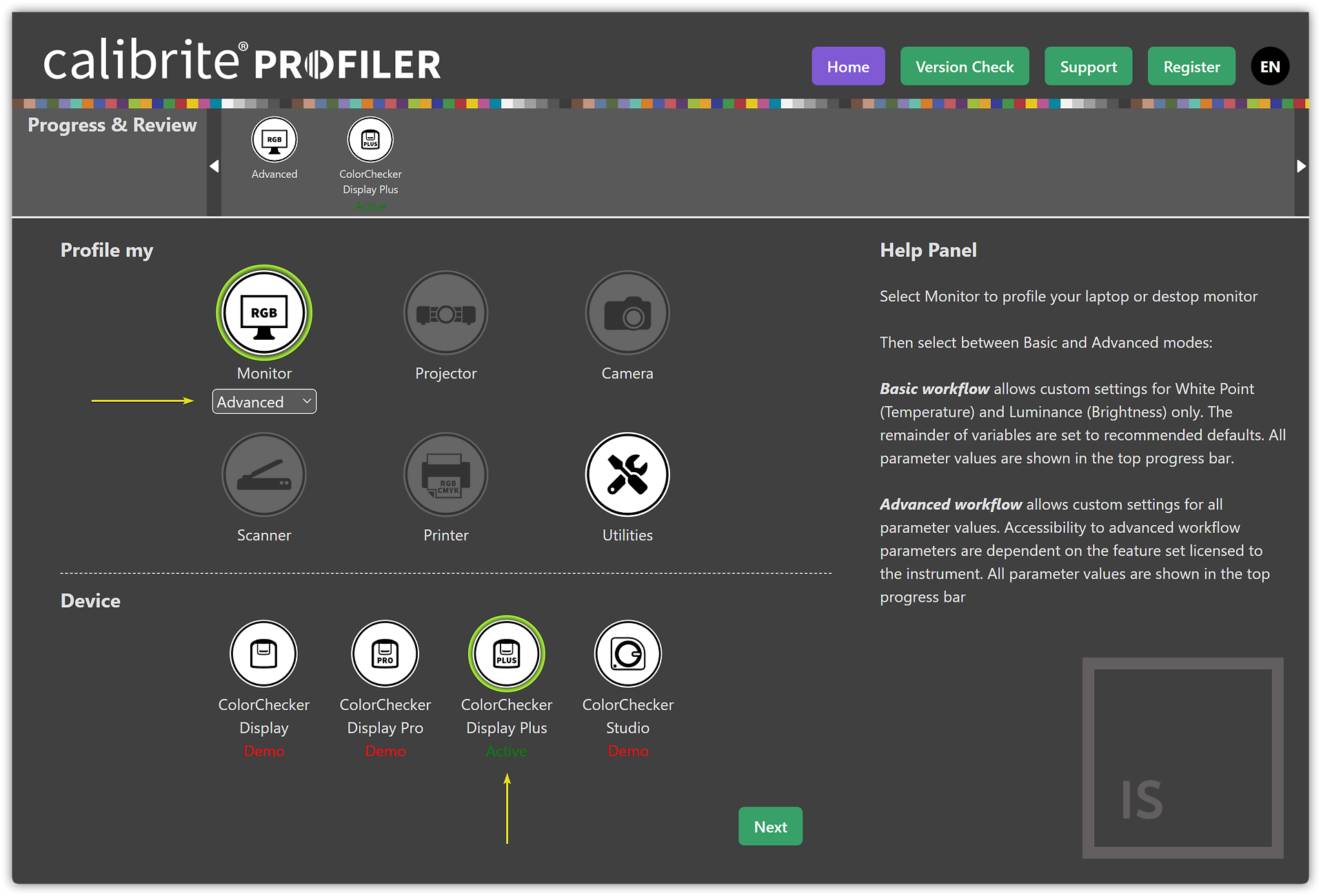
Calibrite Profiler has a simple home page that clearly shows you what you can do, and the device you have connected to your machine.
Note, the device itself acts as a dongle in this context - that is, the device you have determines which parts of the software will be activated. One nice feature is you can explore the rest of the software - like printer profiling - even if you don't have a device that licenses this section - you just won't be able to take measurements and save the resulting profiles.
You can see in this screenshot that we have a Calibrite Display Plus plugged in, and we're about to begin doing 'Advanced' monitor calibration with it. It would be nice if this main screen had the version number on it, but that can be found using the 'Version Check' button, which opens a separate page:
This shows the version (1.1.5 at time of our last update), and also the current monitor profile in use, and the serial number of your device (should you ever need that!).
There are also buttons for 'Support' and 'Register' which both open browser windows and take you to Calibrite's site. I'll let you explore those on your own (although personally I don't actually bother registering things, unless required, as it mostly just results in a bunch of spam I can do without!).
Bug 🐛/Poor UI: One immediate issue I have noticed - if you're calibrating a second monitor in a dual monitor setup, Calibrite Profiler only showed the profile for the primary monitor in the Active Monitor Profile area, which is confusing, initially. I had to move on to the next stage, choose my second monitor there (which makes the app auto jump between screens as you choose each monitor, which makes sense but is rather jarring), then go back to the first page, at which point it did then show the correct profile for the secondary monitor. It should just be able to work this out from whichever monitor the application has been moved to, or even better just enumerate a list of all connected monitors, with their currently active profiles.
Anyway, make sure you've set chosen Monitor Calibration and changed the dropdown to 'Advanced', then hit the green Next button to move to the next stage.
This opens the core window of the application and initially it all seems a bit complex. But don't worry, we're going to step through it and once you're used to it, it's pretty clear and powerful.
Let's ignore the rather complex strip at the top initially, it will make more sense soon.
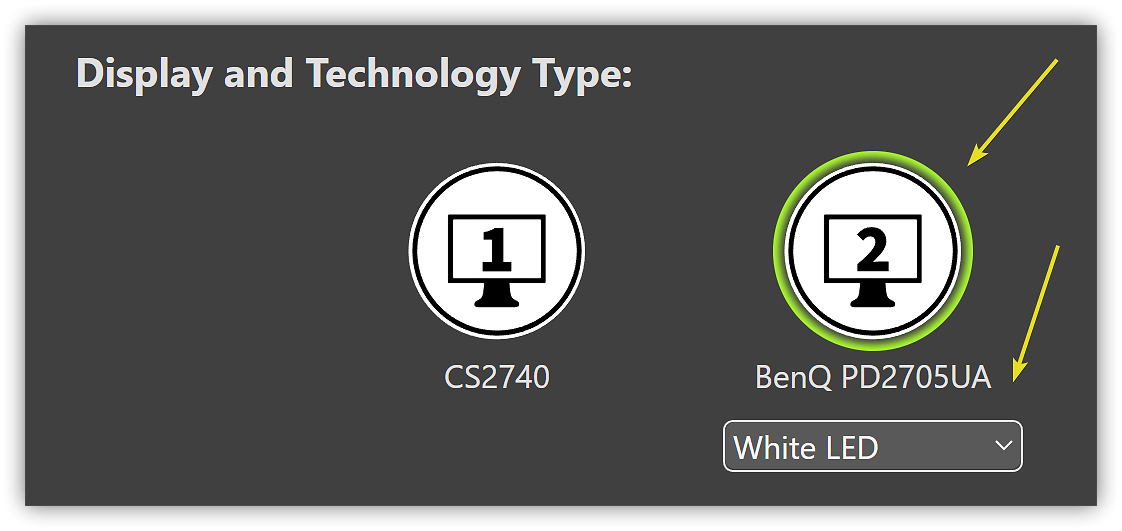
The first thing to do is choose your display, and tell Calibrite Profiler what sort of technology it uses. We do that in this section:
Yours may look different, perhaps only showing one monitor, or maybe showing more than two! The first thing you do is choose the monitor you want to calibrate.
(If you do have multiple monitors, and haven't already dragged the software over to the monitor you want to calibrate, it will automatically jump across when you select the monitor in question).
(N.B. The following advice on Technology Type only applies to Colorimeters (like the Display Pro and Display Plus), not Spectrophotometers (like the Studio or i1 devices) - if you're using the latter, you won't need to choose a technology type).
Choosing which monitor you're calibrating is easy enough, but the harder part is to then choose the correct technology type for your monitor.
This step is very important, as it is the base of everything to follow and the decisions the software will make during calibration, so do take care here.
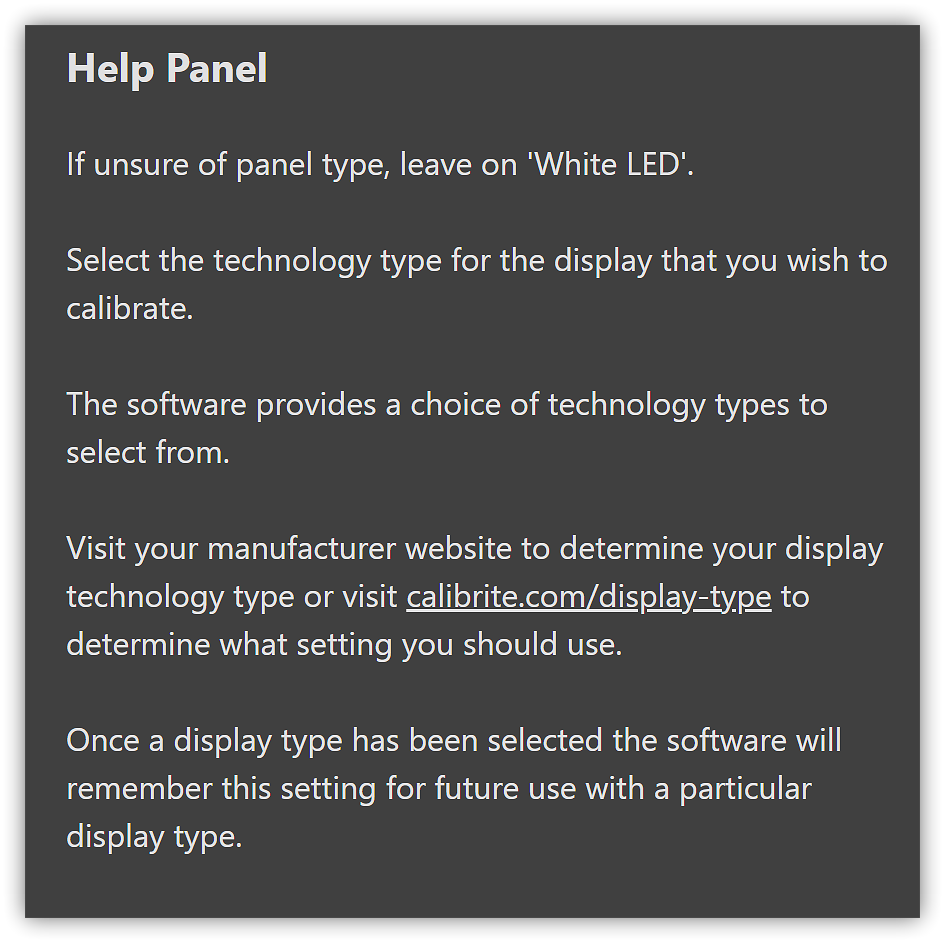
The default is White LED and this is certainly the most likely correct option. The vast bulk of modern LCD monitors use White LED back-lighting. If you really don't know, this is the safest option to choose.
Calibrite also have some guidance on this - and notably on Apple monitors of various eras. Or, to be more sure, go to the specifications page for your monitor, and the back-lighting / panel technology is often listed there. If so, go with that. Another good site for checking is Display Specifications.
Here are the other options that might apply to your monitor
Please see our full and comprehensive guide to calibrating these new Liquid Retina XDR displays below:
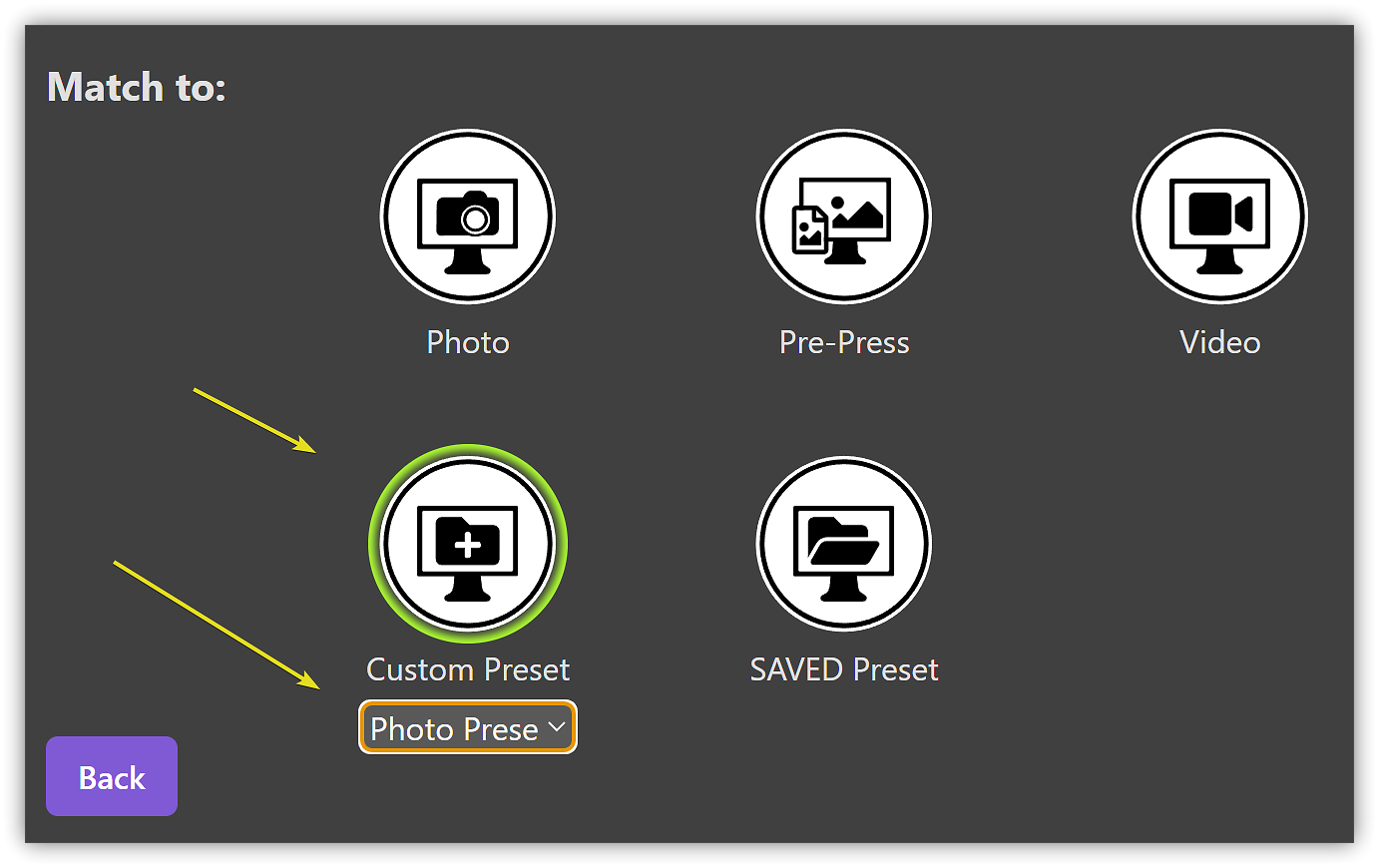
The next section to look is (somewhat oddly) - labelled 'Match To'. This is where you choose what you're going to calibrate your screen to, and where the real power in the system is to be found.
If you just want to get going quickly, you can choose one of the provided pre-set options - Photo, Pre-Press, and Video. Each of these has fairly sane defaults, and you can just jump straight into the actual calibration stage if you wish - just hit Next and away you go.
This is fine if you're just setting up for simple work - like just editing family photos for display on the web, or a bit of light You-Tubing, for example.
But, generally speaking, it's better to create your own target, with consideration of all the possible settings, so that you get the best possible calibration for your actual workflow.
Once we have created a new calibration target, we'll save it as a preset, and next time we'll just be able to choose that preset and move straight through this section into calibration.
The way to create your own calibration target (i.e. preset), is to base one off an existing preset. So go to 'Custom Preset' and choose the one that sounds most like your scenario.
Choose your base preset to work from (here, we've chosen the Photo preset) - then hit next to continue.
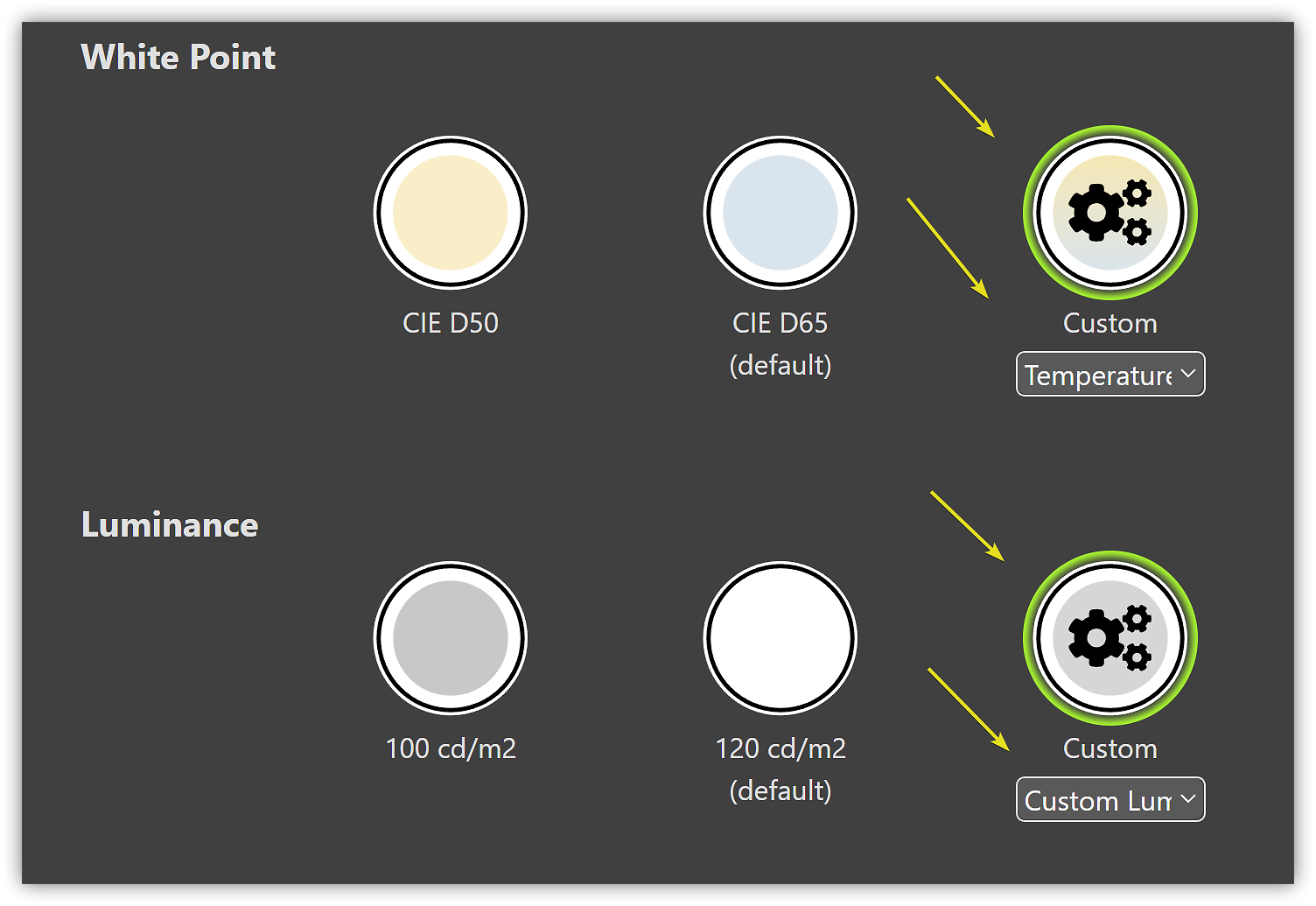
You'll now see a new window. This window gives control over two key aspects of your monitor calibration - the colour of your whites, and the brightness of your screen.
These are both critical to making your monitor useful for colour work, and you should carefully consider what you are aiming for when deciding on the values to choose here.
Here are some thoughts on white temperature:
Say, for example, you're working only on images destined for web display - then you'd likely choose CIE D65 as this is the industry standard for desktop displays (and indeed, most TV scenarios too).
But what about if you're printing your work? Then, again, D65 is fine if you're using labs and not doing your own printing - and this is generally what your lab will likely recommend. If they do have another recommendation, then it's likely best to go with that (many labs (including us) - have started recommending 5800K, for example).
If you're doing your own printing however, we definitely suggest starting with a whitepoint of 5800K, which is usually a better match for current inkjet printer papers.
You can experiment with different white points for the best possible matching - lower values for warmer papers, higher values for cooler papers - there really is no right and wrong here, it's up to you to try different values to find what works best in practise for your particular scenario.
Here are some thoughts on luminance:
Again, there is no absolute right and wrong figure here. The best luminance level depends on your ambient light level, so we can't give you an exact figure that will, for example, always give you the best screen-to-printer match.
That being said, almost everyone in print work finds that a figure in the 80 to 120cd/m2 range works best. Here in the office, we use 90cd/m2.
If in doubt, try 100cd/m2 at first. You can (and should) tweak your calibration target over time, if needed, to improve your results, based on your actual experiences - e.g. if you start at 100 cd/m2 but your prints are always darker than your screen, then you should try re-calibrating the screen to a lower figure, like 90.
Here, I have used the Custom → Temperature and Custom → Custom Luminance options to set the white point colour temperature goal to 5800K, and the luminance target to 90 cd/m2.
Now is a good time to tackle that complicated looking strip at the top. It's labelled Progress and Review. It's not particularly good at showing your progress, as far as I can tell, but it does let you review the settings changes you're making.
Here you can clearly see the software confirming the key target settings we've tackled so far:
Here, and we think this is poor user interface design, the software changes the way you move through the stages.
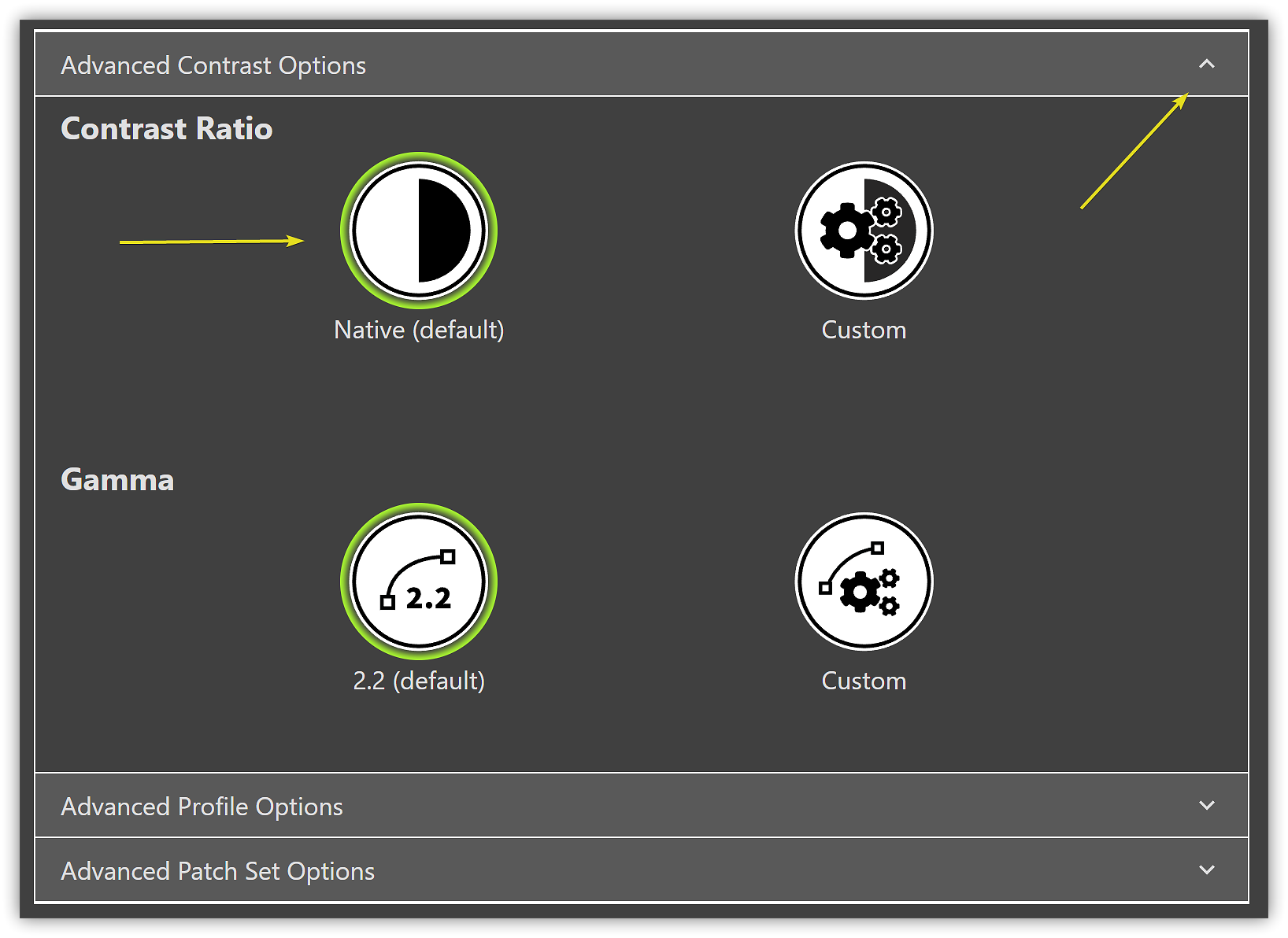
You'll now see a screen which uses a three section approach, each section containing important settings. Use the arrows on the right of the title bar to change sections, and do check each before you continue.
Very few LCD monitors respond well to contrast adjustments - so we recommend pretty much always using Native for the contrast ratio. The only exception is if you're struggling with matching multiple monitors, it may be worth trying a contrast adjustment to improve the matching - but the side effects (like banding) can arrive swiftly and severely, so proceed with caution!
Gamma is also, generally, easy - you almost always want a figure of 2.2 for photo & print work. For video work (1080p/SDR/HDTV) work, you might want to use the BT.1886 preset, or use a custom gamma.
The defaults here are mostly sensible.
We strongly recommend you turn off the 'dynamic adjustment' features - Ambient Light Auto Adjust and Flare Correct. These are novelty features at best - there's genuinely nothing more distracting and difficult to work with than a profiling system dynamically adjusting your monitor as you use it.
(If your light varies so much in your working area you think you need this - fixing your lighting is really the only sensible solution!)
For Chromatic Adaptation, Bradford is correct.
For ICC Profile Version - ICC V2 profiles are much more generally compatible, and V4 profiles offer no practical benefit here, so leave this set to Version 2.
The only change we recommend you make here is from Matrix profiles to Table Based (LUT) profiles - which generally result in better quality results.
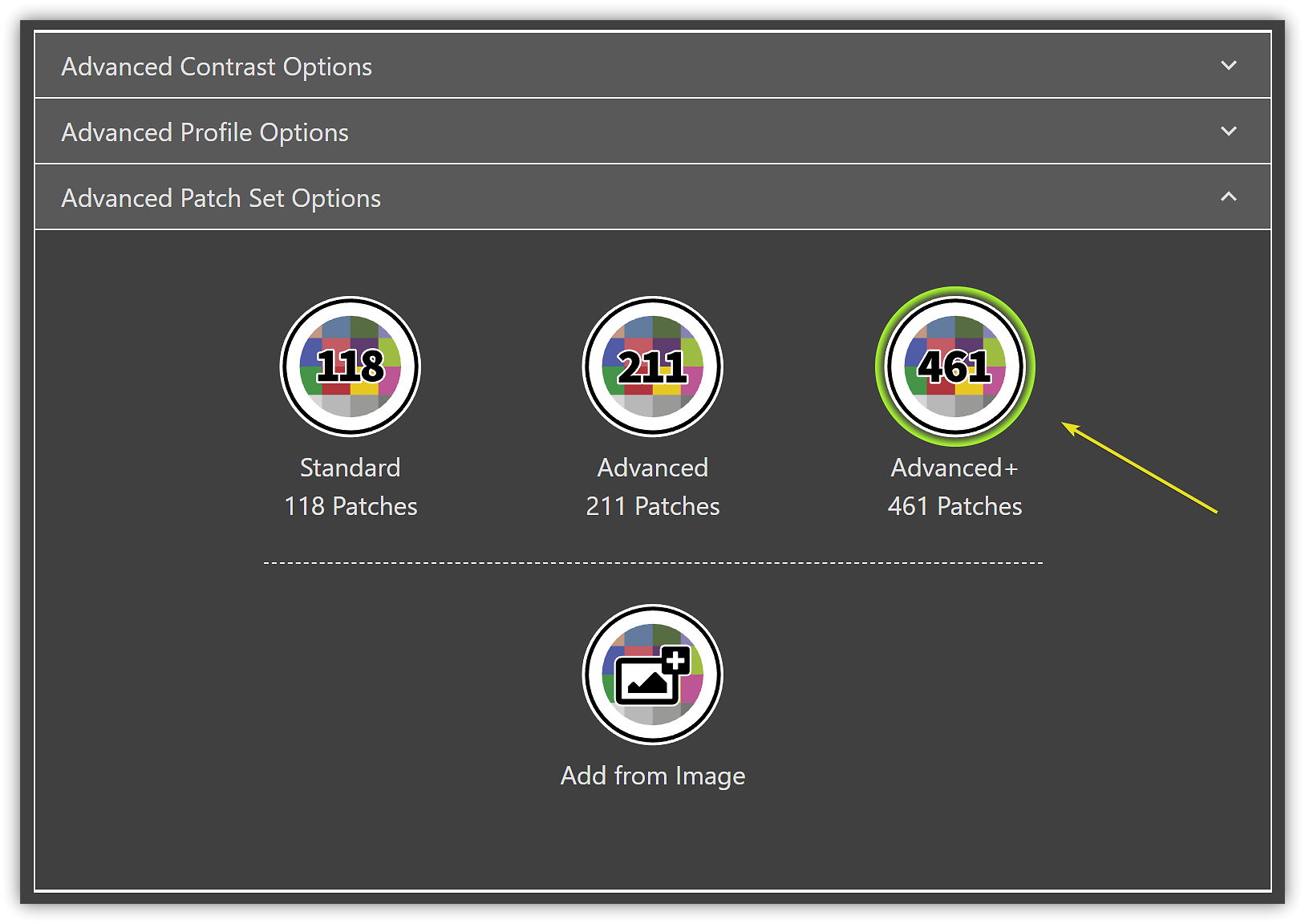
Finally, we come to the Patch set options. This is where you can control what colours are actually measured and corrected for during the profiling stage.
If you're bothering to do this, you might as well do it properly (unless you're just testing) - so choose the largest 'Advanced +' Patch Set (461 Patches). Modern calibrators are fast, so might as well sample a high number of tones for best results.
You can, if you wish, load in a specific image at this point. Calibrite Profiler will analyse the image and choose the most important tones from it, and add these to the measured patch set.
Most of the time you likely won't do this, but this is something you might do if, for example, specific logo colours are very important to your work.
That completes the creation of a your profile target.
Now, click 'Next' to continue. Calibrite Profiler will now give you the opportunity to save your new calibration target - do so, and give it a meaningful name that will help you recall later when you should use this preset. You can even add some notes here, which is a nice touch.
(I've missed this saving step a couple of times in haste - that massive 'Start Measurement' button is so tempting!).
After saving your preset, you're ready to move on to the actual calibration and profiling stages. If you're not yet clear on the difference, have a read of this:
Click that enormous 'Start Measurement' button to begin the process.
Calibrite Profiler will expand to full screen size, and you'll be given the choice to define which hardware controls your display has, to be used for the calibration. As a rule, most adjustments are best done in hardware if possible (calibration) rather than in software (profile corrections)
Just about every monitor on the planet has a brightness control, so you'll almost certainly want to leave that option ticked.
A lot of monitors have RGB controls - often found under the Colour Temperate / White-point adjustment options (e.g. BenQ PD monitors), and sometimes labelled 'gain' (e.g. Eizo EV monitors). If you do have the option to adjust the RGB balance, then tick that box as well.
In general, we recommend leaving Contrast unticked. See notes on this in the Contrast & Gamma section above.
We're using a high quality BenQ PD monitor, which has brightness and RGB controls:
Next, you'll be prompted to mount the calibrator. The software gives you a great visual guide on opening the 'lid' and mounting it on your monitor - tilting back the screen, and with the counter-weight at the back of the monitor.
Pictures are better than words here, really!
Once you've positioned your calibrator over the circle, hit 'Next'.
If you left the RGB controls box ticked, you'll now be prompted to adjust your RGB controls such that you're as close as possible to your target whitepoint.
Generally, this will involve turning down the blue - LCDs are inherently very strong in blue. You might have to begin by taking all of R, G and B down a bit, to give you a little head room for adjustment (as these controls are usually set to 100, 100, 100 by default).
You'll also notice that adjusting one colour affects the others - particularly Red and Blue. Not surprising. It means that the trick is to make small adjustments to each, to find the right point of balance.
Here's a a photo where we are using the monitor menus to adjust the RGB of our BenQ PD2705U (that I am at this moment evaluating as a secondary monitor).
Moving on, you'll then be asked to make the same sort of physical adjustments for Brightness (and Contrast, if you did leave this ticked).
Again, just adjust your controls to get as close as you can to the line, and to achieve the green tick. If you're unable to get a tick, get as close as you can, then continue.
Once you're finished doing the calibrations, Calibrite Profiler will move on to the profiling stage.
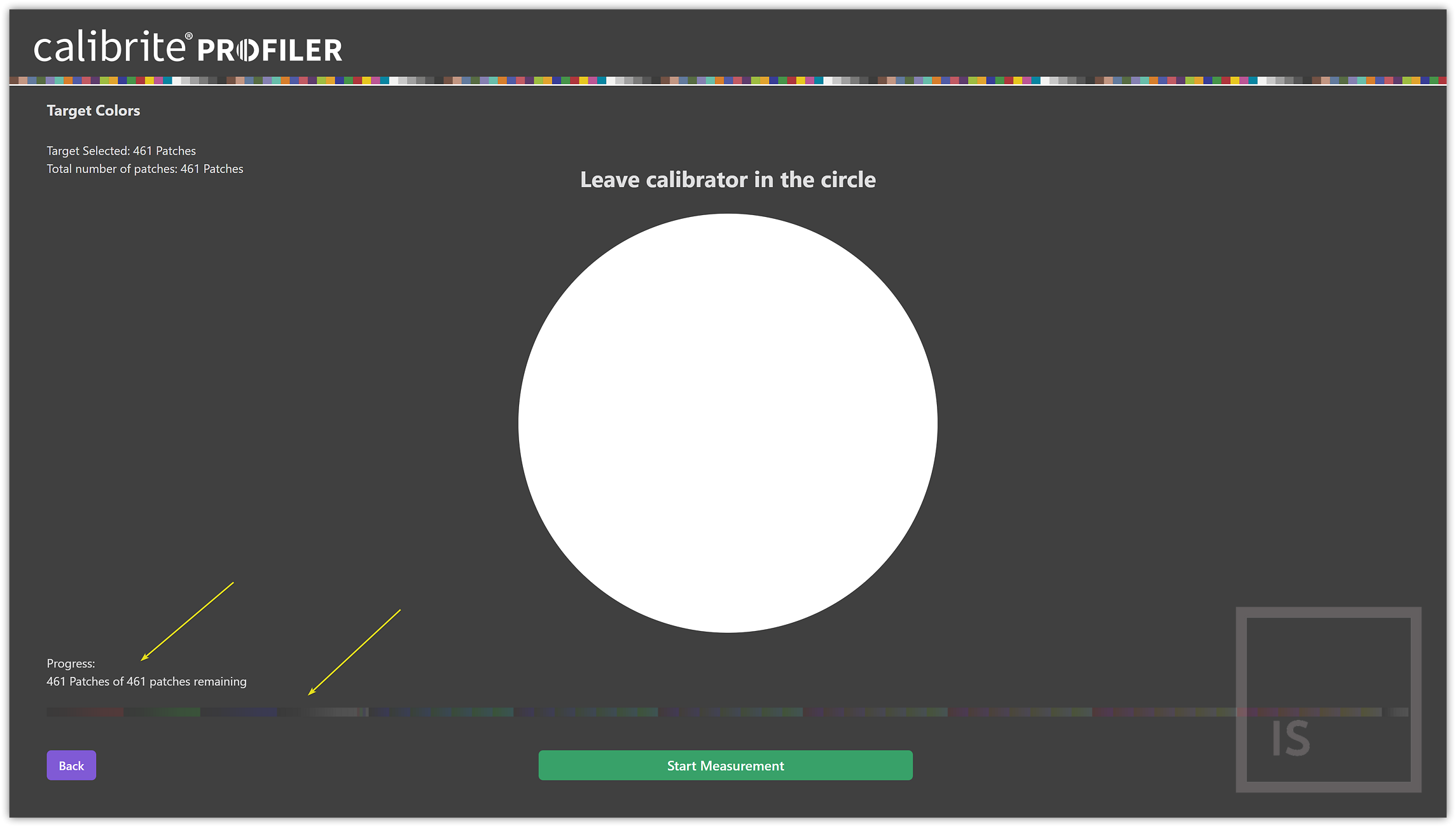
During this stage, the previously chosen Patch Set will be shown, patch by patch, on your screen, and your calibrator will measure each of these. It does this to build a table of expected vs. measured values, from which it will then calculate a correction profile.
This new software is very good at showing the progress - with a count of the patches remaining, and a nifty visual progress bar that lights up, from left to right, with the colour patches as each is measured.
Measuring 461 patches with our Calibrite Display Plus takes about 5 minutes.
IMPORTANT:
There is an extra stage at the end - after it appears to be finished - when a white patch is displayed, and in the top left the text changes to 'Validating' - do NOT remove your calibrator during this stage. It lasts about 30 seconds.
You will then be prompted to remove your device, and hit 'Next' when you have done.
Name your profile, and save it.
This is actually the profile calculation phase, so it can take a couple of minutes for this to complete.
The hard part is over!
From here all you need to do is review the results, and proceed to validation, if you wish (we don't normally bother with validation once things are working ok - it's really just to confirm things broadly worked).