Please note that we are open by appointment only (except for click and collect pickups once notified ready).
How to correctly colour calibrate Apple’s newest miniLED based Liquid Retina XDR displays such as the 14” and 16” Macbook Pro.
Apple’s newest XDR Liquid Retina displays, such as is seen inside the new 14” and 16” MacBook Pro (and the XDR Pro Display) are a completely different ball game when it comes to calibration.
The new XDR Liquid Retina displays (hereafter referred to as XDR displays) are different than their predecessors in that they employ a full array local dimming miniLED backlight.
The issues at play here are essentially two-fold. Because of Apple’s decision to implement:
…both the required calibration technologies and the process for calibrating them is completely different to ALL older Apple displays (including all older external displays, any iMacs, any Intel-based Laptops, any Macbook Air’s, and even the newer Apple Silicon based 13” and 15” MacBook Pros).
Because of Apple’s decision to implement a miniLED backlight in the new XDR Displays, ALL previous generations of Calibrite or X-Rite/Datacolor calibrators are, unfortunately, not capable of correctly calibrating and profiling these displays, as they simply were just not designed to calibrate screens using this backlight technology.
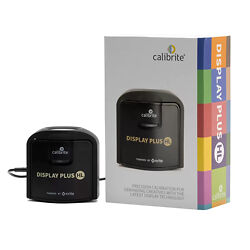
Currently the Calibrite Display Pro HL and Display Plus HL are the best available options for correctly calibrating and profiling miniLED backlight displays, although the new Datacolor Spyder X2 Ultra is apparently able to also.
You’ll have a hard time understanding these notes if you’re not clear on the difference between calibration and profiling. Please have a read of:
…to make sure you’re on top of that, before continuing.
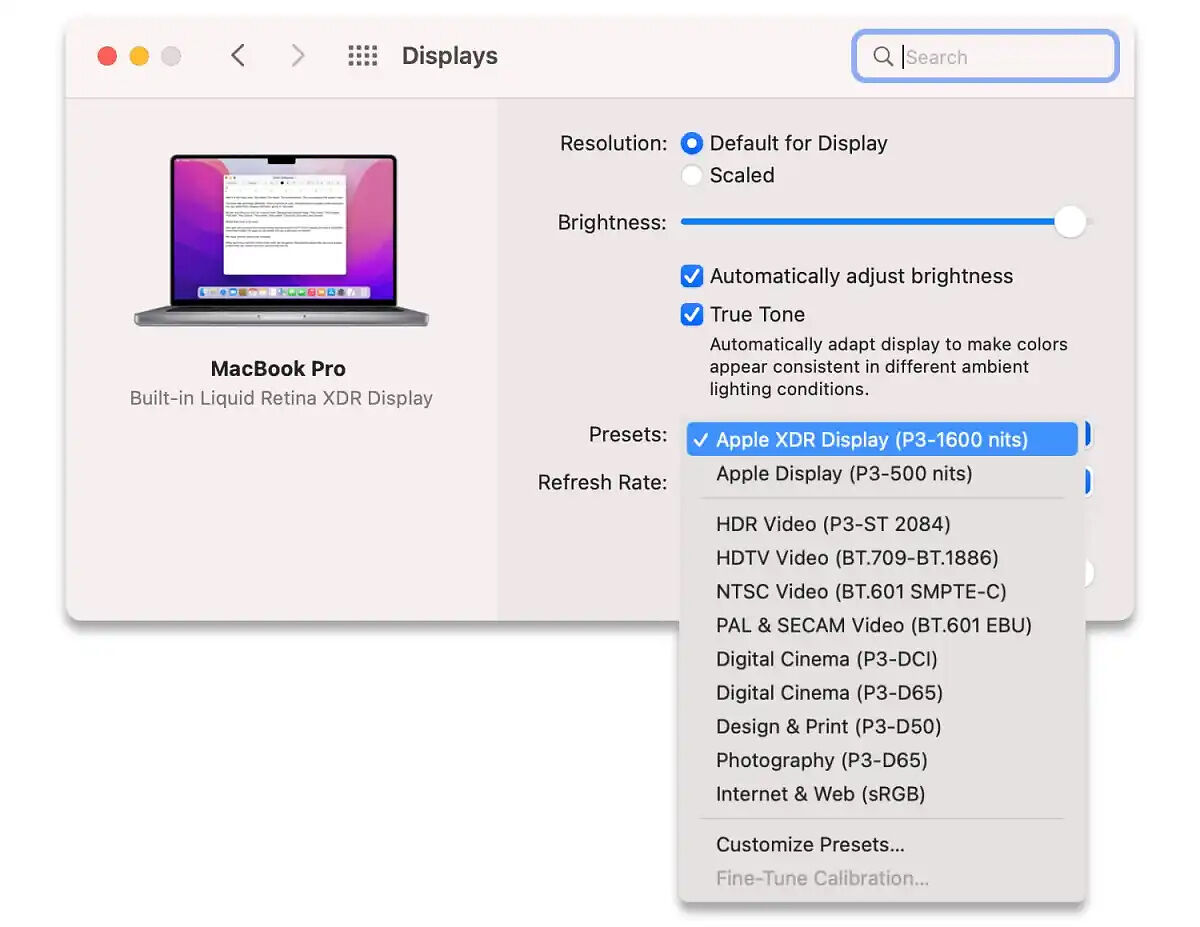
Apple’s implementation of Reference Modes do further complicate things somewhat in terms of calibration.
Reference modes are essentially different preset display modes that are meant to be used to tailor the display’s parameters for particular workflows or production requirements. Each reference mode sets the colour space (gamut), white point (colour temperature), gamma and brightness of your display for a particular purpose.
It is important to note that when we are talking about reference modes, in this context, that these are distinctly different to most monitor’s ‘preset modes’. Almost every monitor out there has preset modes, but when we calibrate them we don’t use those - instead, we put the monitor into its fully adjustable user/custom preset mode and build the calibration on top of that. This is so that we can make physical adjustments to things like brightness, contrast and RGB channel values first, and then build a profile on top of that. That is not the case here, as all of these adjustments must be done through software with the aid of a calibrator to ensure accuracy in creating a custom set reference mode.
Unfortunately, Apple’s implementation of Reference Modes is very clunky, and there is no way to disable them and not use a Reference Mode.
In the case of these Liquid Retina XDR displays you are forced to either use one of their presets (which, like all factory calibrated things, will get less and less accurate over time), or one must go through the clunky process of creating a custom reference mode and fine tuning it to actually match the prescribed settings (with the use of a calibrator).
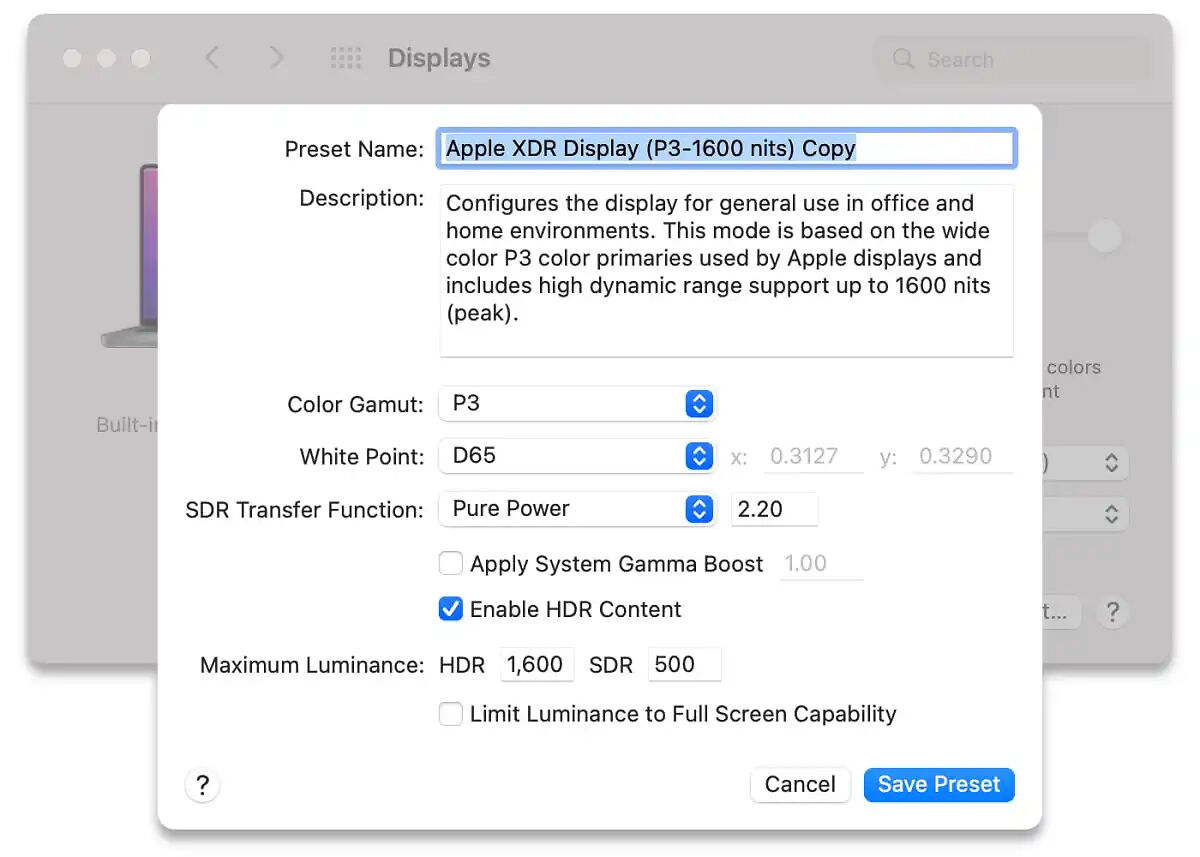
To properly create a colour-calibrated custom workflow you do need to first create this custom reference mode specific to your needs that exactly define the parameters you are calibrating to and then you create a profile ‘on top’ of that preset with the exact same settings.
Apple have a guide to using reference modes here.
Depending on what exactly your workflow is aiming for will determine your exact settings.
For example, print web and video all have very different goals and hence different calibration settings are required.
For fine art printing, for example, our starting point recommendation is:
This should however be tweaked to meet your exact environmental conditions and also over time after proper experimentation.
These figures are covered more in detail in these two articles:
Firstly just a note, if you are intending to calibrate the external XDR Pro Display, do make sure that your display settings are in extended mode and NOT mirrored mode. You cannot colour calibrate in mirrored mode.
The process is broadly as follows:
While they are often used interchangeably it’s important to note the distinction between calibration and profiling here. In terms of the traditional external monitor process calibration is akin to physically adjusting your monitor’s brightness, contrast and RGB channel values when prompted by your calibration software, while profiling is what happens after - with measurement of colour swatches and the table of corrections built as a result.
At it’s heart this is still the same two stage process as typical monitor calibration, but the calibration is seemingly somewhat more complicated by being measured separately and adjusted in software instead of physically on your monitor.
You will need Calibrite Profiler installed. This can be downloaded from Calibrite’s website. Setup and preparatory steps are covered in our article here.
Let your display warm up for 30 mins.
Reset panel to factory colour profile - Open Colorsync Utility > Go to the Devices tab at the top > Go to the Displays line in the sidebar > Expand the section and select Color LCD > From the Current Profile dropdown > Set to factory.
Establish correct calibration settings for you. It is very important that you decide on the correct settings beforehand, know why you’ve chosen them, and stick to the same figures throughout this whole process.
Create a custom reference mode with these settings. From System Preferences > Displays > Preset dropdown > Customize Presets > Choose a starting point reference mode to customise (Photography P3 is a good starting point) > Click Plus Icon. This is where you input your calibration settings. Make sure you annotate the preset name with the settings you set.
Click Save. Screen will flicker and you will notice that you are locked out of brightness adjustment, true tone and night shift (this is good, as all of those will affect calibration).
Under Preset dropdown, select Fine-Tune Calibration, a window will appear where we can input very specific figures from our calibrator itself. Leave this window open in the background as we will need to enter values here after measurement.
Plug in Calibrator and launch Calibrite Profiler, make sure the window is visible on the display you are wanting to calibrate.
Your calibrator should show a green circle indicating it is connected and communicating correctly.
Profile Monitor > Advanced > Next > select miniLED Display Type > Preset: Photo > Next.
At the top of the window we need to set our correct settings as per reference mode settings we previously set. Click the colour temperature circle (should be default labeled CIE D65). Under White Point > Custom > Measured k > Measure second screen luminance > Next. Tilt screen back and place calibrator (with ambient diffuser rotated to rear) in the middle of your screen. Click White Patch > Click Measure. After measurement has completed removed device.
From the measurement result window that has popped up in Calibrite Profiler, enter these values into the Fine-Tune Calibration window in System Preferences from before. Enter the measured x value into the measured x value box. Enter the measured y value into the measured y value box. Enter the measured luminance value into the measured luminance value box.
In the Target values section of the Fine-Tune Calibration window, we want to enter the white point coordinates for our specific chosen colour temperature. For sRGB, AdobeRGB or P3 spaces:
(If you are using a different colour temperature than D50, D65 or 5800k, you will need to calculate your own white point coordinates using a CCT to CIE 1931 xy calculator).
Note: When it comes time for you to do a full recalibration, you will need to click Restore Defaults to reset this fine-tune calibration before you can enter a new one.
Go back into Calibrite Profiler, back out of your luminance measurement window, and go back again to your settings page. Under White Point > Custom, you can either choose Native, or Temperature (and input your 5800k, or whatever, temperature). Under Luminance > Custom > Choose Native (or enter custom 100cd, or whatever, luminance). Click Next.
Contrast Ratio > We recommend choosing Custom > 250:1 for best paper match for printing, but if you are wanting to specify your own contrast ratio, do that here, or leave set to native. Gamma should be set to 2.2 by default, if it is not then change it to 2.2. Advanced profile options should all be set to default. Patch set options: Advanced 211 is a good compromise for most people, but if you have the time and want a more accurate result you can choose Advanced+ 461. Click Next. Click save preset and give it a good descriptive name.
Click Start Measurement. Double check that all of the boxes (Brightness, RGB, Contrast) are unchecked. Click continue. Place your calibrator back in the middle of your slightly tilted-back display.
Once completed remove your calibrator and click next through your results swatches window.
Now give your actual profile a name. Including a date can be helpful to keep track of things. You can optionally set a re-calibration reminder to be emailed to you if you would like.
Now click Validation to begin a profile validation. From the Industry Standard Targets dropdown, we recommend choosing the 96 patch SG target if you have the time as this will give the most accurate result (but you can choose 24 for less of a time commitment). Replace calibrator, click next, click start measurement.
Once finished, remove calibrator and click next. This will display the measured patch deviation figures. The All Patch Average should be around 0.6, and most importantly if you have done everything correctly the All Patch Max Delta E figure should be 3 or below (around 2.5 is excellent). If you have done anything incorrectly this figure will be above 3, although an acceptable but non-ideal range can sometimes be as high as 3.5-4.
Provided that is all okay, click finish.
Now launch Colorsync Utility in order to verify our profile. Devices > Displays > Color LCD > Current Profile should be set to the one you have just created in Calibrite Profiler.
Our recommendation for most people is that they reprofile their displays every 200 hours of use (which usually equates to every 1-2 months for most people).
When it comes time to reprofile/recalibrate, in theory you should just be able to reprofile without going back and recalibrating, however, these panels are so new that we simply don’t know how they may drift over time.
Our recommendation is that if you have the time and want the absolute best and most accurate result then go back and recalibrate as well as reprofile every ~200 hours of use (all the steps above).
However, for most people this will probably be a bit overkill, so a reasonable tradeoff of complexity/time and effort is to reprofile every 200 hours (or 1-2 months) and only recalibrate every 6-12 months say.
It may require a bit of experimentation on your part: If the next time you do a full recalibration you notice that the panel has drifted from your target settings quite a bit then it’s reasonable to increase the frequency of your recalibration. The inverse is equally true.