About Monitor Connectors
Over the years there have been many standards for the cables and ports that connect computers and monitors. Below is an explanation of the most common connectors for both analogue and digital and a basic outline of which connections to use with your computer.
If you want to determine what monitor outputs your computer has the best approach is to refer to the manual/specifications of your machine. All our monitor pages have a specifications page listing the available monitor inputs.
If you do need help with this, the best thing to do is take some quick but clear photographs of both your computer's outputs (all of them) and the monitors inputs (all of them!), and we can then tell you your best connection options. Also, supplying full model numbers for both your monitor and computer can be very helpful for us! Then send these to us.
Notes:
We deliberately don't get into versions of the connections below (Thunderbolt 3 vs 4 or HDMI 1.4 or USB-C 3.2 Gen1 or whatever) - as we're trying to keep thing as clear as possible below.
This is an evolving article, updated every year or two - so the information about older connections (DVI, VGA etc) - is likely a bit out of date, but left here for those folks still using legacy equipments
But...
Which One Should I Actually Use?
The connections below are listed in the order of most desirable to least desirable - that is → work your way down this list from top to bottom, and use the first connection type that is available to you.
Of course, you'll need to check both what outputs are available to you (at the computer end of things) and what inputs are available to you (i.e. on your monitor).
If at all possible, and especially when initially trying to get things working, use a direct connection from the computer to the monitor - i.e. this means do not use adaptors or docks unless this is absolutely necessary.
The signal between monitor and computer is a LOT of complex data - being sent across the cable 60 times per second (or more!) - so it's really best to keep things as simple as possible.
(Something like 50% of all reported monitor issues are in fact cable issues, so getting this right is important for everyone's sanity!).
Thunderbolt

Digital Video, Data & Audio Connection
Thunderbolt and USB-C (see below) - look identical in terms of the physical connector.
But, looks are deceiving here - electrically, they are NOT the same thing.
Fortunately, Thunderbolt ports and cable connectors are usually (but not always!) specifically labelled as such - with a Thunderbolt logo and often also a version number (we're up to V4 in 2024).
At any particular point in time, Thunderbolt tends to be superior to the current version USB-C - offering faster data transfer and more power delivery, for example. So if you have a Thunderbolt option (and specifically this means at both the computer and monitor end) - then you should use a direct Thunderbolt connection.
Fortunately, most Thunderbolt monitors come with such a cable in the box. As ever, use the cable in the box if you can, as this will have been tested with your particular monitor.
Note, though, a special case → if you only have Thunderbolt on the computer end, and not at the monitor end (e.g. you have a Mac from about 2012 to 2017 era, and a monitor with a DisplayPort input) - then you actually should NOT use a Thunderbolt to DisplayPort cable, as these often don't work - specifically you want a USB-C to DisplayPort cable in that case. See:

USB-C
Digital Video, Data & Audio Connection

If your computer has a USB-C output, and your monitor has a direct USB-C input, then connection is in theory very easy - but make sure you take care to use a display compatible USB-C cable (some usb-c cables are data/charging only). Check the listing to make sure it explicitly mentions display compatibility, and up to the resolution and speed you need (normally 3840 by 2160 @ 60Hz). This has become such a quagmire, we have a separate article on what to look for in USB-C cables.
If your computer has a USB-C output, and no other video output, and your display does not have a direct USB-C input, this means you must use an appropriate USB-C to video adaptor for your needs. You should check the specifications of your machine to see what forms of video output it offers from this port - for example, Mac specifications typically say something like: 'Thunderbolt 3 (USB-C) with support for DisplayPort.
The best option is then usually a USB-C to Display Port direct cable, although depending on your monitor, you might need a USB-C to HDMI (and again, only if your USB-C output supports this).
DO NOT BUY A USB-C TO THUNDERBOLT cable/adapter (as the Apple 'Geniuses' will probably advise you to!) - these adapters/cables are NOT display capable & will NOT work.
We have not one but two further dedicated articles on this:

DisplayPort
Digital Connection, Video and Audio
(Found on most Macs circa 2012 to 2017ish (in the form of a Thunderbolt/Mini-DisplayPort port), and most modern PC Video Cards)
(See blow for Mini-Display Port)
DisplayPort is the most common connection to use with Macs from ~ 2012 to 2017 or so, and also newer PC video cards.
Note: SOME Thunderbolt Ports also accept Mini DisplayPort connections (basically all those on Macs to about 2017 before USB-C was added).

PC's:
Full size Display Port is most common. It's the best physical connector
- can only be put in one way thanks to the notch in the corner, has no
bare and thus breakable pins, and a simple squeeze locking system (i.e.
no screws) - which means it's easy to plug in, and robust.
Any version of DisplayPort
can support 10 bit transmission - and
resolutions up to 2560 by 1600 @ 60 Hz with no issues. Later DisplayPort versions support things like 4k@120 Hz. Full details on what versions support what are on Wikipedia.
Mac's:
You generally use a Mini DisplayPort to DisplayPort cable, plugging the MiniDP
end into a Thunderbolt port (if your Thunderbolt port supports this, as most Macs prior to those with USB-C ports do) - or an actual Mini DisplayPort port.
Any Mac from about 2012 on will be fine with monitors up to 30 inches / 2560 by
1600 resolution.
Macs from ~2016 on are usually fine with resolutions 4K and beyond.
If you want proper 4K support at 60Hz, do check the specification of your machine as 4K @ 30 Hz is very juddery. One other thing to note is that the ports on the cylinder Mac Pro are not very well designed and it is unfortunately possible to insert the Mini-DP end in upside down (!) - so please check your cable orientation carefully.
Mini DisplayPort can also be found on other smaller gadgets like Mac
Laptops, Netbooks, iPods etc., as well as Mac and PC Desktop video cards.
This is a digital only connection that can carry both audio and video.
Big Media have added annoying copy protection mechanisms, DHCP, that
allows copy protected content to be sent over the DisplayPort cable.
Macs can be very temperamental with video cables and they must be fully VESA 1.1a compliant for them to connect properly (read more about this here).

HDMI
Digital Connection, Video and Audio
HDMI is a combined video and audio connector that is popular in the TV world. You will find it on some monitors made for video work which directly accept connections from, for instance, Blu-Ray players. It's also popular on laptops and other media oriented machines like the Mac Mini.
With HDMI, the version is important. Many older HDMI ports are
limited to 1920 by 1200 as the maximum resolution and thus these can not
output correctly to 27 and 30 inch monitors. You should check this if
you're planning on connecting a bigger monitor to your laptop. It's
usually listed on the specs page for your laptop under maximum
resolution for external displays.
HDCP is an accompanying standard that allows copy protected content to
be sent over the HDMI cable. It causes no end of problems and is simply
an annoying protectionist mechanism developed by large media companies.
Still, if you need it you need it, such is life.
One other important thing to note about using an HDMI cable is that your video card may automatically engage a mode appropriate for TV display called 'limited colour range, 16-235' or similar. You MUST disable this mode if using a proper computer monitor, i.e. use Full Range (0 to 255).

DVI
Analogue or Digital Connection, Video Only
Until around 2015 or so, the most popular digital connection was DVI, and almost any
PC of that era will easily handle a 24"
or smaller monitor, using a DVI output.
If you're buying a 27" monitor, or bigger - you will need to check your video output can handle the high resolution of these monitors. This will be listed in the specs for your machine/video card. These monitors usually connect with a Dual Link DVI cable or via DisplayPort.
Almost any modern PC video card from the last 4 years will also drive up to a 30" monitor at 2560 by 1600. It's generally only laptops and all-in-one machines that can have limitations still, although most models now do support larger external monitors.
DVI comes in a few different forms, so check your specs in your manual for the supported resolutions of the external video output.
DVI-A
Analogue only version of this connector. Not very common at all.
DVI-I
Can accept an analogue signal or a digital signal, so you can plug a cable with a VGA end into your laptop and a DVI-I end into your monitor. These exist for backwards compatibility.
DVI-D
Supports ONLY a digital connection (up to a maximum practical resolution
of 1920 by 1200), so your video card must output a digital signal for
this to work. You would use a DVI-D to DVI-D cable.
Dual Link DVI (I or D)
Needed for monitors with a resolution above 1920 by 1200. Despite the
name, only one cable is still used, it just has a different number of
pins, but it looks much the same. For this to work, the video card must
have a dual link output, support the appropriate high resolution for the
monitor, and the monitor must have a dual link port. Of course it will
have one if it supports that high a resolution otherwise it would be
pretty pointless! Both Analogue and Digital versions of this exist.

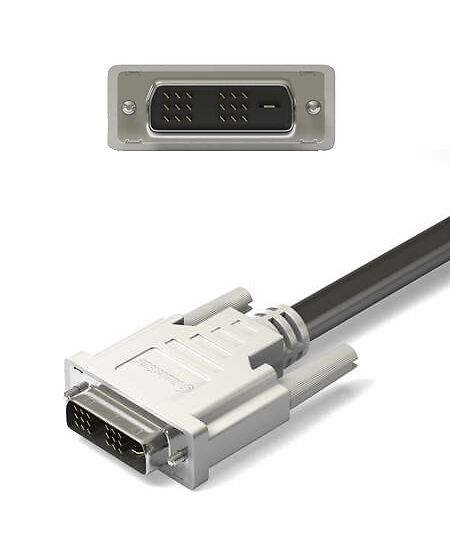


DVI connectors are typically, but not always, white, and are a little bigger than VGA connectors. Almost all modern video cards have at least one digital DVI output and many modern laptops do now too, If you only have VGA in your computer it is worth considering upgrading the video card to get at least a DVI digital connection for the best quality of display.
VGA
Legacy Analogue Connection, Video Only
For a long time, the situation was simple - the computer sent out an analogue signal, and the connection of choice for pretty much everyone was a VGA or D-SUB 15 pin connection. Almost all older computers/video cards have one of these.
Usually these connectors are blue, but not always.
This type of analogue connection is still popular on laptops, netbooks
and the like, so it's still relevant. It can offer decent quality if the
video card in question is good, but it's now out of date and modern
monitors are at their best when connected digitally.

Want to know more? There is an article about Analog and DVI Connections on How Stuff Works here