Fundamentals Of Digital eBook
The Fundamentals Of Digital in downloadable eBook form (PDF, ePub and Mobi included)
▪ Free Shipping - this product ships free!Please note that we are open by appointment only (except for click and collect pickups once notified ready).
Understanding how resolution is defined and controlled in digital imaging and print
Image resolution is an often misunderstood but important aspect to grasp when working with digital image files – editing and printing especially. In this article I hope to demystify the various terms and give you both a theoretical and practical understanding of resolution.
In the world of imaging, PPI and DPI are used almost interchangeably, yet they are two quite different things. The misunderstanding of these two terms leads to more confusion than almost any other single thing in digital imaging.
- Jeremy Daalder
It's first essential to understand some terminology relating to the specification of resolution, and that is the difference between PPI and DPI.
Dots Per Inch (DPI) refers to the number of printed dots of ink contained in one inch of physical printed image.
Pixels Per Inch (PPI) is instead used in the digital realm. It refers to the number of pixels contained within one inch of an image as displayed digitally (in a file, or on a monitor).
Even though we are making or modifying images in a digital world, we are doing so for print, so it's almost always best to use PPI.
Jeremy covers this in-depth in the below article.
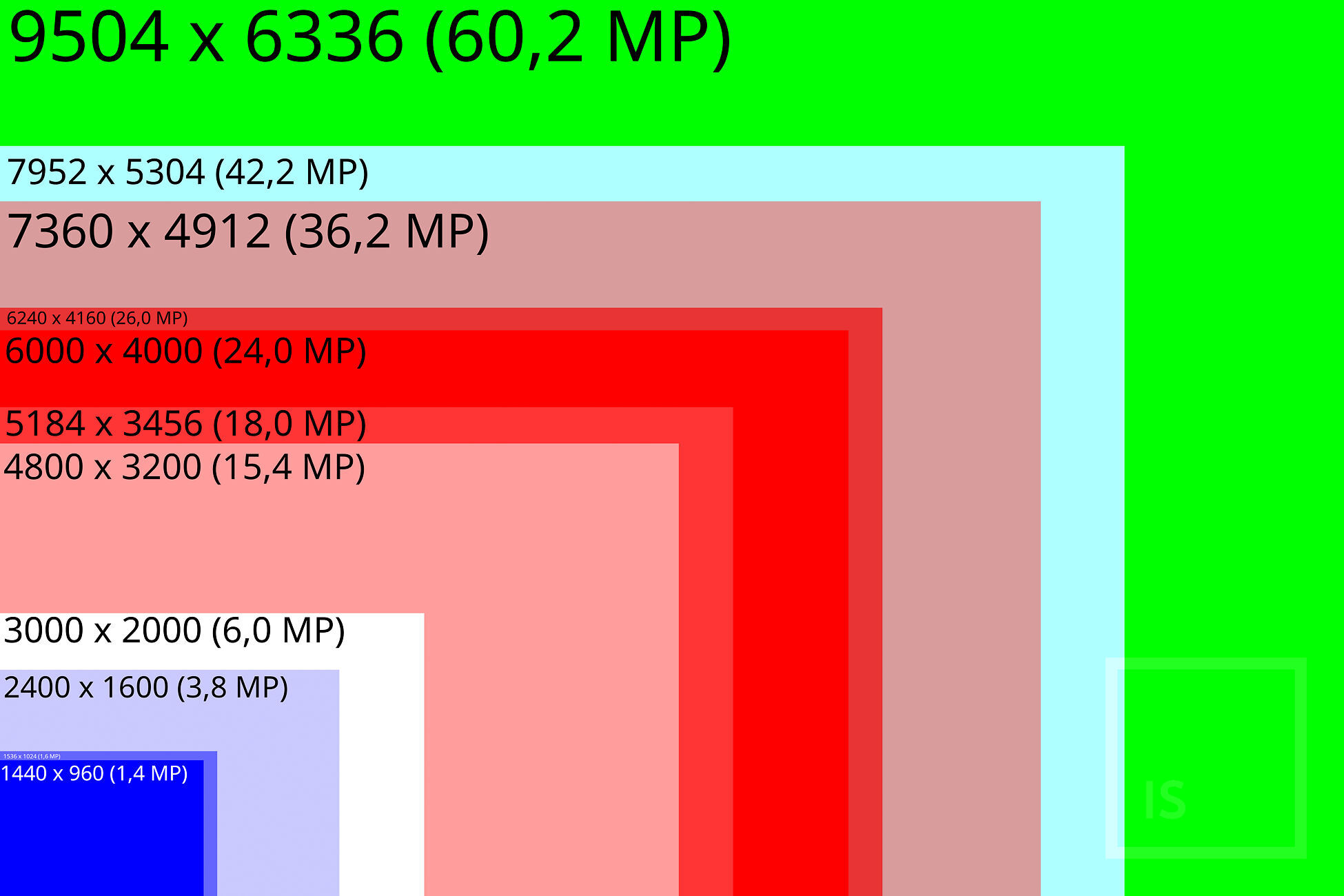
Pixel Count quite simply is the number of pixels that make up your image. This is expressed in two dimensions, a width and a height.
For example 4500x3000 is 4500 pixels wide and 3000 pixels high.
It gives us information about the level of detail contained within an image, but no information about its physical attributes - size and density.
In more familiar terms the pixel count can be expressed in megapixels. In the above example - an image 4500 pixels wide and 3000 pixels high, this results in 13,500,000 total pixels. That's a bit of an unwieldy number to wrap your head around, so is usually divided by a million to convert into megapixels. 13,500,000 / 1,000,000 = 13.5 Megapixels.
Again, this is a good descriptor of the potential level of detail in an image, but tells us nothing about size or density. And of course, you might have 13.5 megapixels of out of focus shot, so it doesn’t tell the whole story about image sharpness, either.
A pixel by itself does not have an inherent size or unit, it's just an individual colour sample, but when taking your image into the physical world, whether through printing, scanning or otherwise, then you really need to have two attributes to properly define the whole picture of resolution. You need a pixel count (pixels wide by pixels high), but you also need a figure that describes the density or arrangement of pixels in relation to physical size. This is where pixel density comes in, usually expressed as PPI (Pixels Per Inch), it determines how the total amount of pixels are distributed.
For clarity in the below example we're going to be working in inches (as PPI is Pixels Per Inch).
The final physical size of your image depends on the resolution (combination of pixel count and pixel density).
Following on from our previous example, if an image is 4500x3000 pixels at a density (or resolution) or 300PPI, it means that it will print at 15x10 inches.
To clarify, in the above we're saying that a resolution of 300PPI contains 300 pixels in every inch of physical image; if we had a pixel width of 300px, that would give 1 inch of print. If we had 600px width that would be 2 inches of print, and so on and so forth. 4500px / 300ppi = 15".
Where many people get really confused is when you start resizing images to different physical sizes...
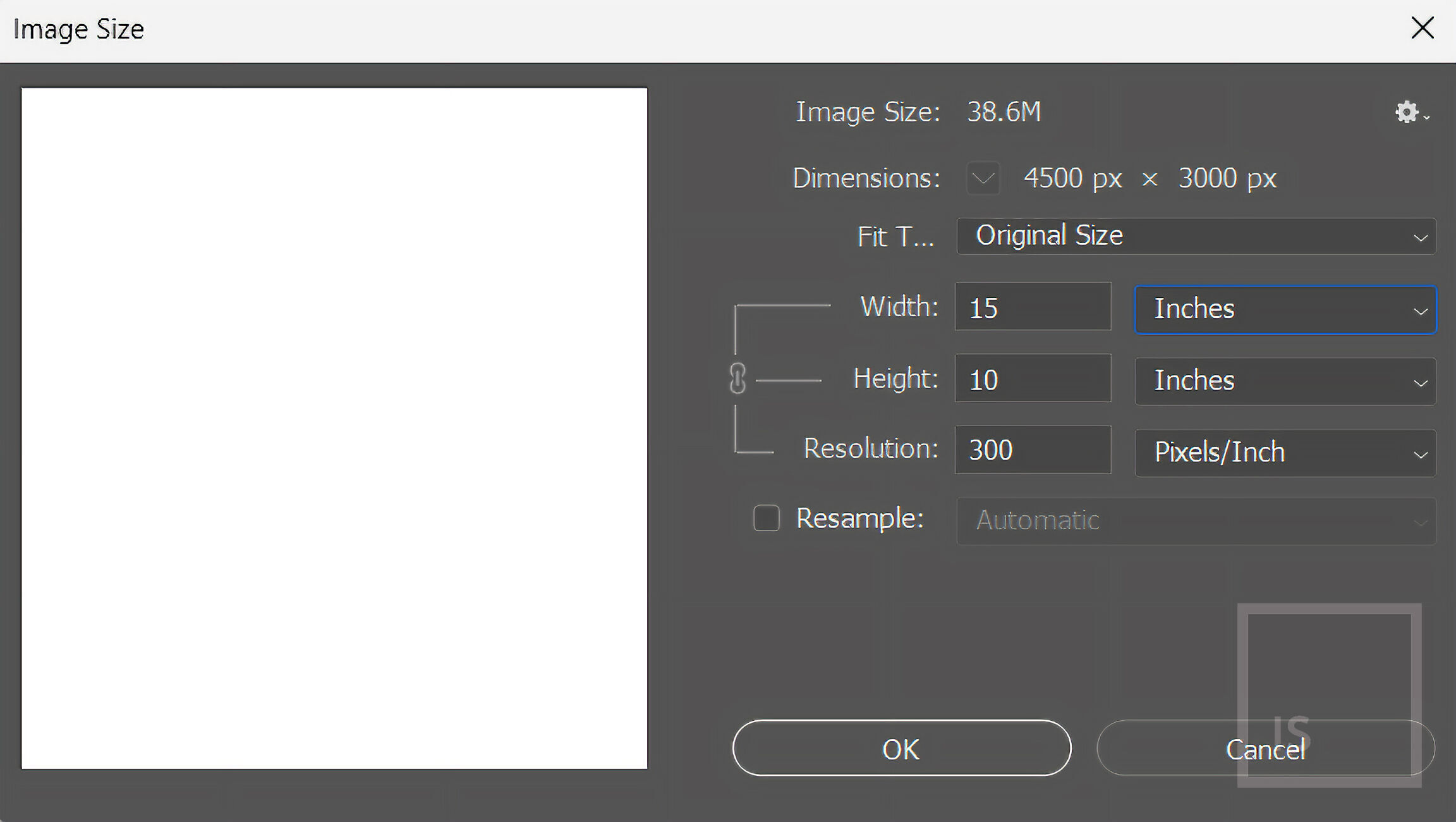
...the 'resample' check box ... is the single most important, and also dangerous, control in Photoshop.
- Jeremy Daalder
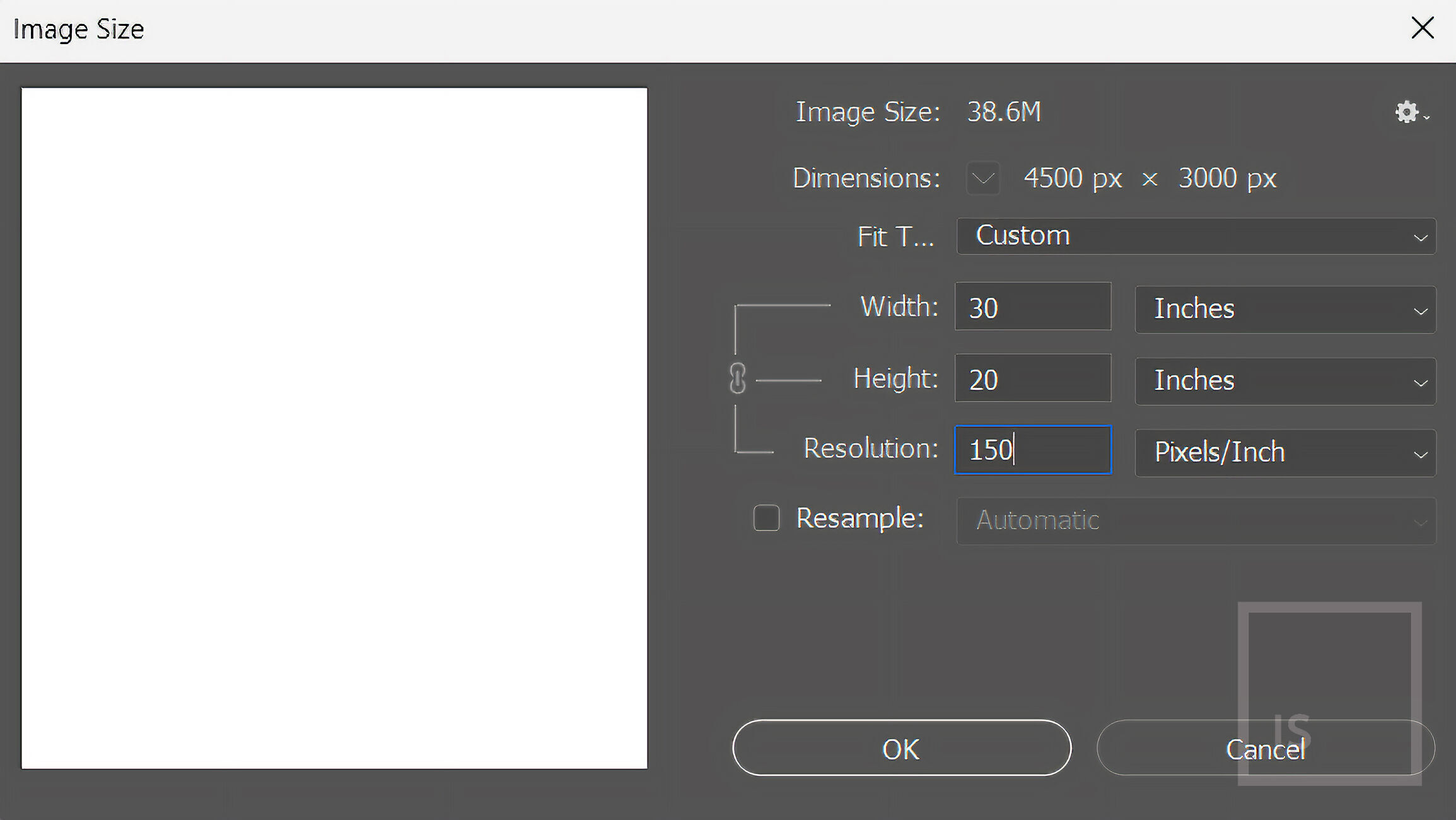
When resizing an image (changing the physical size) you do not want to resample the image. Resampling an image is a destructive process that discards information. Instead you want to resize by redistributing the pixels by changing the pixel density (with resampling turned off).
Following on with our example above, if we were to take our 4500x3000 pixel image at 300ppi (which gives us a 15x10" print size) and were to change the pixel density from 300 to 150ppi we're not actually changing the pixel count (the image is still 4500x3000px), but we are changing the final print size because we're changing the distribution of the pixels in the image. Changing to 150ppi would give us a 30x20" print. 4500px / 150ppi = 30". Halving the PPI doubles the physical size (in both dimensions). By the same token doubling the PPI halves the physical size (in both dimensions).
It works both ways though, by altering the physical size, you will also in turn be changing the PPI. Take an image that prints at 300ppi on A4 and you want to print it at A2 - your PPI drops to 150ppi. Yes, going from A4 to A2 halves the PPI, A4 to A3 does not. This may seem counterintuitive at first as an A3 is twice the size of an A4, but going to an A3 only doubles one of the physical dimensions. An A2 contains 4x A4s - a doubling of both physical dimensions, hence a halving of the PPI.
Imagine a rubber band, you can stretch it or shrink it - you’re not changing the composition of the rubber band, you’re not adding or cutting any of the rubber, just changing how thinly or thickly it is stretched out to a given distance, and in turn how tightly or loosely packed the rubber in the band is.
Resampling an image allows you to change the physical size independently of the pixel count/density relationship, it is a destructive process that discards information, and unless you really know what you are doing and how and when to use it, can result in a great loss of quality.
When you resample an image, you are actually changing the number of pixels in your image, either adding some or throwing them away. You should only do this if you are making an explicit and informed decision to do so, as no single other thing will affect the quality of information available to you from your file as this.
- Jeremy Daalder
For more information about print sharpness, see:
For much more on all this, and to develop a solid an understanding of the fundamentals of digital imaging from the ground up, see: