▪ Get $200 off BenQ PD3225U and PD2725U monitors for a limited time only! See details here.
▪ Get a FREE Ergo Arm worth $169 when you purchase an eligible BenQ monitor! See full details here.
Please note that we are open by appointment only (except for click and collect pickups once notified ready).
The promise of USB-C / Thunderbolt was one universal, well designed connector, for connecting just about everything. No more worrying about cable orientation! One cable for video, data, audio AND even power delivery as well - huzzah! Sounds great, doesn't it?
In practise, though, it's become a bit of a mess (as every-one-agrees) and a lot of people run into issues specifically when it comes to getting the right cable to connect their Thunderbolt or USB-C computer to their monitor.
In this article, we'll go through a few scenarios and then point you at the key things to look for in cables when buying them. We'll even provide some links to cables we've tested or had positive reports about.
The first thing to understand, and especially in the context of connecting monitors, USB-C and Thunderbolt are definitely NOT the same thing.
USB-C and Thunderbolt cables look identical in terms of the physical connectors, but are electrically different. Looks can be deceiving - USB-C and Thunderbolt are NOT the same thing when it comes to hooking up monitors.
So the first thing to get clear on is - do you actually need USB-C or Thunderbolt? Both your computer and monitor specifications should list what they offer.
If you have the option of Thunderbolt, then you should specifically use Thunderbolt. With each generation of USB-C and Thunderbolt, Thunderbolt offers more advantages, so if you have that option, use it. To be crystal clear - to qualify, this means both that your computer outputs Thunderbolt and your monitor accepts Thunderbolt, specifically - if so, use a Thunderbolt cable as this will give you the best performance and reliability.
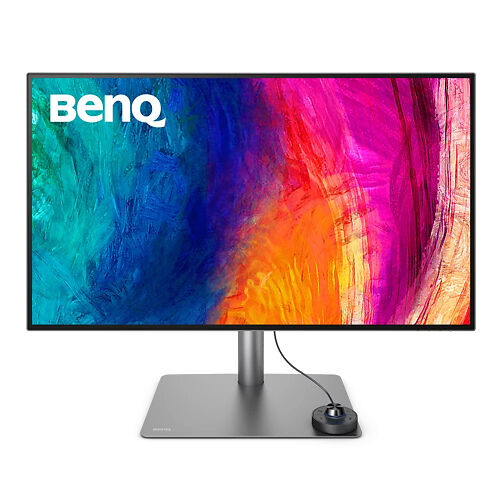
Recently I was evaluating the BenQ PD3225U monitor. This monitor is, specifically, a Thunderbolt monitor. But I review so many monitors, and along the way I test obviously try to test them with a few different machines.
Most machines I use are desktop PCs with full size DisplayPort outputs - so that is easy, I just use a fill size DP to DP cable.
I also usually try screens with laptops and/or a NUC machine (PC equivalent of a Mac Mini). These tend to have smaller ports - usually USB-C or Thunderbolt these days.
Even with all my experience with this, I recently took the BenQ in question home and attached it to a mini PC with what I thought was a USB-C output. Before this, there was a 4K 27" monitor attached by USB-C working perfectly (giving a faultless 4K at 60Hz signal).
To my surprise and bewilderment, plugging in a monitor with exactly the same resolution needs, using the same cable, I simply could not get a stable signal going on - I could only achieve 4K at 30hz (i.e. half the refresh rate) - 60Hz was simply not listed as being available, and the computer also kept raising weird USB errors.
At some point in trying to solve this, I remembered the port in question on this NUC is actually a Thunderbolt port, not a USB-C port. By disabling Thunderbolt in the BIOS (effectively turning the port back into a USB-C port) - I could at least get rid of the constant USB error messages. But this still only gave me a stable 4K@30Hz connection - no 60Hz option! Remember - just before this I had a USB-C monitor plugged in doing 4K@60Hz, so this was very surprising!
It took me a few further minutes to realise that the cable I was using was the one that was just there already. A USB-C cable (high quality), from the previous monitor installation. A cable that with the other 4K monitor had no issues at all with 4K at 60Hz. However, when using this port/cable with a Thunderbolt monitor, suddenly the USB-C connection/cable did not offer the same level of quality! It's bizarre, really.
Swapping to using a proper Thunderbolt cable (that came with the monitor!), and re-enabling Thunderbolt in the BIOS, instantly solved all the issues - 4K @ 60Hz, and no weird USB errors.
So it just goes to, again, show, what a quagmire this USB-C / Thunderbolt situation is, and how important it is to be clear on all three key aspects - the computer's output ports, the specifics of the connecting cable, and the monitor's input ports.
Monitor makers know, from long and bitter experience, that more than 50% of all reported monitor issues are in fact monitor cable issues. (Indeed, some suppliers have told me it's more like 80%!)
By far the easiest way of avoiding these issues is, if at all possible, to use the cable that came in the box with the monitor.
Monitor makers specifically provide these cables to give you the best chance of success - the best connection options, and cables they know work well with their monitors.
Unfortunately, they often provide several options for connection cables, and this confuses people. We have an article explaining the various connectors:
The short version is to use these connections, ranked from top (best) to bottom (worst) - if you have the option (i.e. both a computer output and monitor input) :
When using Thunderbolt or USB-C to attach most monitors, you are in fact using DisplayPort-protocol-over-USB-C (or Thunderbolt) - AKA DisplayPort Alt mode. This connection is functionally and electrically equivalent to a more traditional DisplayPort connection, but the physical connector is USB-C / Thunderbolt.
What you are specifically looking for, then, is a video-capable USB-C cable that supports up to the video throughput you need (usually these mention 10 Gbps (or faster) speeds, explicitly mention video support, AKA 'alt-mode' support).
The other aspect to consider is the charging side of the cable. You definitely don't want a 'charging cable' that only supports USB-2 speeds (480 Mbps), and power charging. These look identical, but are really much simpler cables, are usually the cheaper options, and are not suitable for video connections. I.e. they will NOT work as video cables.
On the other hand, you might want a cable that DOES support charging in addition to video. Some support 3A/60W, others now support up to 100W or more.
One thing worth noting is that 'docks' are notoriously problematic for higher end video connections and also routinely interfere with monitor calibration. They are fine for other purposes but if at all possible attach your monitor directly to your computer and not a dock. And certainly if you're having any monitor issues - see how things go with a direct connection instead, as there are very high odds your dock is the issue, no matter what it claims its capabilities are...
Important - again - 'Thunderbolt Monitors' are NOT the same thing....
Do note though, a few monitors are actually 'Thunderbolt USB-C' monitors.
For those, you will definitely want an explicitly labelled Thunderbolt cable (Thunderbolt 3 or 4 generally).
As a hook-up, USB-C to USB-C can be ideal - you can have just one cable carrying the video signal, data (e.g. for the calibration side of things, or to enable downstream USB/ SD card ports on the monitor, audio (if your monitor has speakers, or an audio output) - AND even power.
To get this working, though, you need to be very careful with cable selection. If your monitor comes with a USB-C cable, then this is the obvious choice of cable to use, and should 'just work'. However not every monitor comes with every cable.
Things you should look for in your USB-C to USB-C cable purchase:
As usual, the awfully branded but very reliable Cable Chick have a good option. 1.8m, 100W power delivery, and 4K video support.
This option from Amazon should also be a good choice - Anker USB-C / 40 Gbps / 100 W ...but note it is very short at ~ 50cm. ~$50.
We also like these inexpensive USB-C cables from Radio Parts Group (RPG), just around the corner from us in West Melbourne: 1m version (LC7962) or 2m. These work fine for 4k/60Hz with all the monitors we have here, and support charging too.
This remains a very common scenario (e.g. Macbooks from the 2012 to ~2017 era) - and a lot simpler to understand and get working than a direct USB-C connection - ironically.
Both USB-C to Display Port and USB-C to HDMI cables are, in 2020, readily available from Officeworks, JB-HiFi, most computer stores etc. All should in theory work okay for up to 4k/60hz.
Of the two options (DisplayPort and HDMI), use USB-C to DisplayPort by preference if possible. The DisplayPort connector is more physically reliable, and in theory DisplayPort offers slightly higher bandwidth. In practise the two are usually functionally equivalent, but note, if you are using a direct hardware calibration monitor, then in addition to your USB-C to DisplayPort cable, you will also need to attached he standard USB cable (that comes with all the monitors we sell). This cable is used to carry the calibration data side of things, and to enable any downstream USB ports on your monitor.
The best one we know of is the Moshi USB-C to DisplayPort 5k/60hz 1.5m cable - but these cost about $100-$110 and can sometimes be hard to get hold off (JB often have them, MacGear too). These seem to be particularly reliable and are the most compatible cables we know - even the notoriously fussy iMac Pro video cards will happily use these for reliable output.
- Jocie C -Just wanted to say thank you as I received the prints last week by mail, and again was very impressed with the quality of work that Cameron has produced. Thank you Cameron for being so patient & professional with your service & skills.
This has been a new, interesting, & sometimes "scary" project for me. I did not know if I should or could make the investment to engage with your company. I'm VERY pleased that I chose Image Science. My current exhibition in Malvern is going really well, people like the work - the originals you scanned have sold! And now I can market & share my work in different ways!