Checking USB Device Connections
USB is a protocol replete with issues. Particularly on Windows, unfortunately, which has a notoriously finicky USB/driver implementation.
Calibrators in particular tend to be problematic because they tend to be power-hungry devices - so e.g. if you have an unpowered USB hub, or perhaps an under-powered port on your machine, you may experience odd and intermittent issues with your device.
Here's some general advice about success with USB devices, and some methods for confirming your computer is successfully recognising your USB device.General Advice on USB
Here's a few basic things you can do to make it much more likely your USB device will work, and work reliably.
The first thing to do, if having issues with a device, is to simplify your setup.
Start by rebooting your computer, unplug all other devices you don't absolutely need (just temporarily!) - and in general make things as simple as possible - e.g. open only the software you absolutely need for testing, to avoid potential software conflicts.
(Once you have your device working correctly and have established the reason for the issues, you can then re-integrate the device into your normal setup of course!).
More specifically:
- Avoid hubs, if at all possible - and particularly un-powered hubs. Hubs bring with them all sorts of potential complications.
- Connect the device to a port directly on your computer (and if a desktop, ideally a port on the rear of the machine)
Do not e.g. use a downstream port on your monitor or similar - these may have connection issues of their own. - Avoid USB extension cables - even shorter ones will regularly cause issues.
If you, later, MUST use a USB extension cable, make sure you get a high quality cable, and if it is longer than 2m, get one with a USB repeater in it. - USB is vulnerable to sleep issues - reboot your machine with the device unplugged, and then plug it in immediately on boot up (and then check the computer recognises the device using the methods below). Do not let the computer sleep during your testing.
If you're still having issues, then verify your computer is successfully recognising your USB device using the guides below.
Checking USB Devices on a Mac
To confirm that the Mac OS detects your USB device, complete the following:
- Click the Apple icon.
- Click About This Mac.
- Click More Info or System Report.
- Under
the appropriate heading, confirm that your USB device is listed and
that there isn't an error.
(If you don't know the heading, then of course simply look under every heading!)
You may need to refresh the System Information page after you plug in your device. To do so, press Command + R with the System Information page open.
Checking USB Devices on a PC
You can use PowerShell, a free program called USBDeview, or the classic Windows Device Manager.
We recommend PowerShell (available on every Windows since V7), or USBDeview for this - as Device Manager is a bit clunky and can involve a lot of searching around.Using Powershell
The best and most reliable way is to use PowerShell
- Launch PowerShell (or Windows Terminal with the 'PowerShell' profile).
(E.g. just click on the search icon in the TaskBar and type 'powershell') - Enter the following command (cut and paste it to avoid typos!):
Get-PnpDevice -PresentOnly | Where-Object { $_.InstanceId -match '^USB' }
You will then get a list of detected and working USB devices, something like this:

Using USBDeview
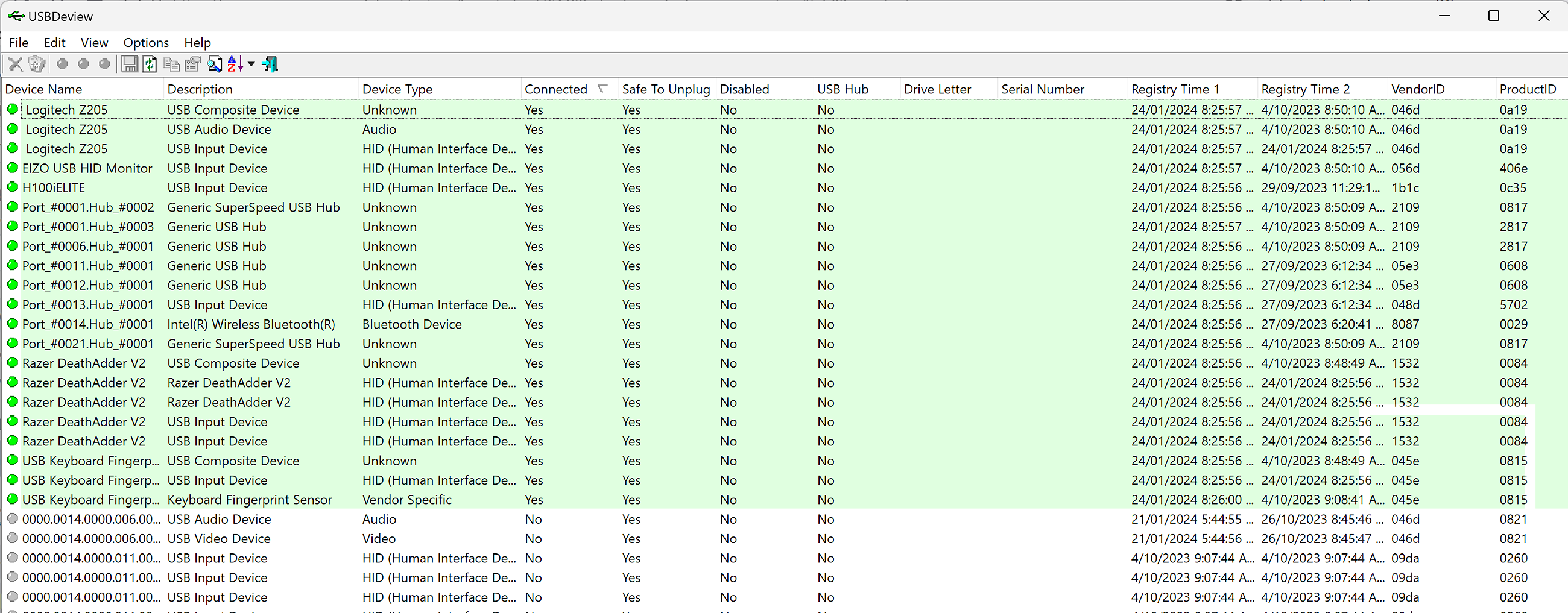
NirSoft have a very handy free program called USBDeview to show USB devices. It's free and you can get it here.
USBDeview shows all USB devices connected, and (in theory) even those previously connected. It's all most too comprehensive in the information it provides!
We suggest sorting by the 'Connected' column - that will group the currently connected devices (highlighted in green).
Using Device Manager
Device Manager is the long standing way of seeing hardware devices on Windows machines - it's been around pretty much for as long as Windows, and unfortunately, that shows a bit.
In a nutshell, you need to know what type of device you're looking for - but often where a device appears can sometimes be a bit abstract - meaning you often have to look in several (or, worse, all places) - to find your device (which is not really helpful when you're trying to determine IF a device is being properly detected...)
To open device manager, just start typing 'Device Manager' into the Windows search tool and it will come up in the list.
As you plug and unplug your device, you should see the Device Manager view flash as the list changes.
Unfortunately, you might have to search through all the nodes to actually find where your device is being listed (and to e.g. check for any issues reported with the device) - as Device Manager is notoriously inept at Device Placement...e.g. here is my mouse coming up under the Keyboard section:
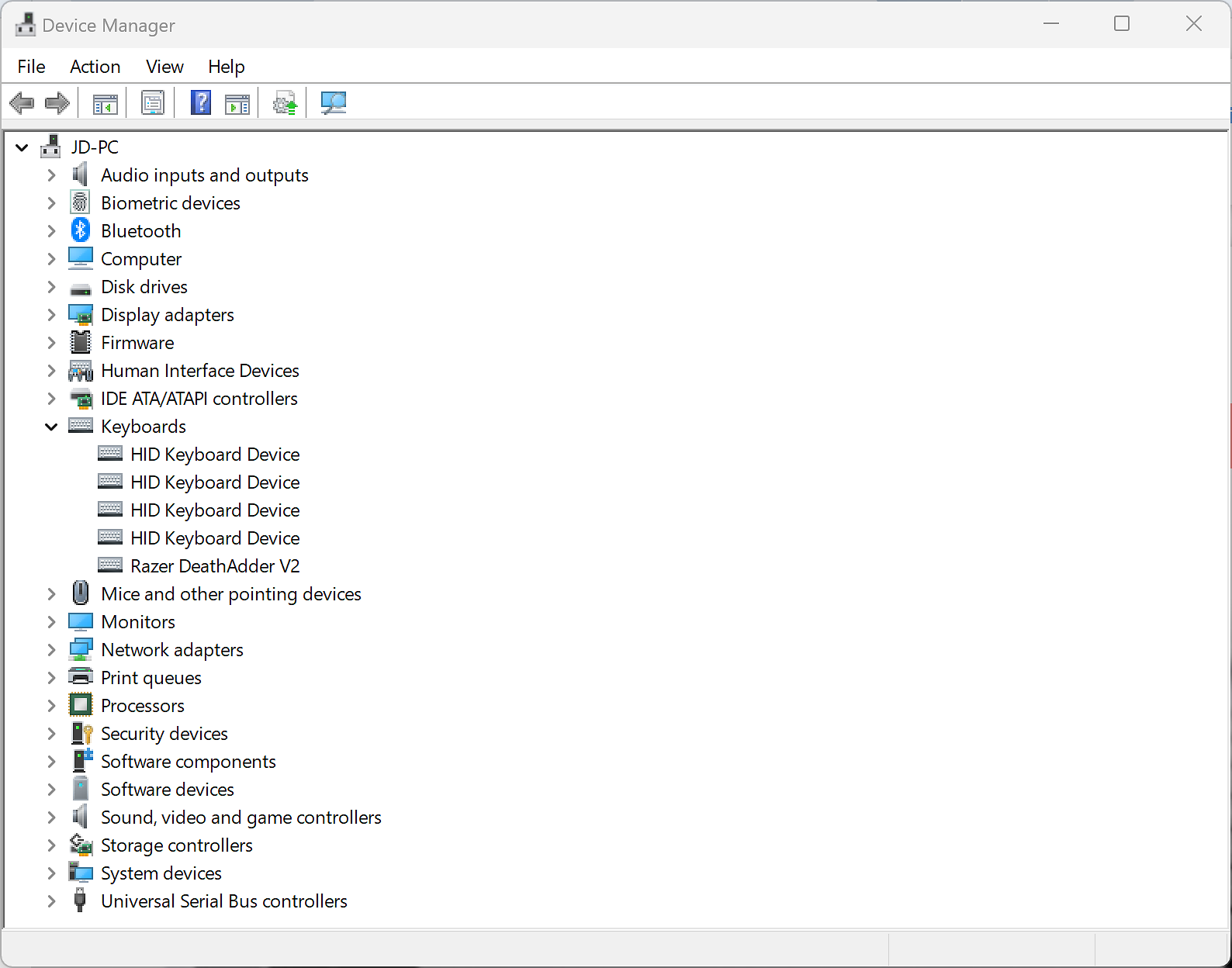
Look for categories like 'Imaging Devices' or 'Digital... (whatever)' - as well as, of course, looking through any 'USB ...(whatever) entries.
Send Us Screenshots...
If you're after help with hardware bought from Image Science, and you can't work out what these tools are telling you, then please send us screenshots of the output to review: