Backup and Storage Overview
An overview of backup strategies and storage solutions.
Introduction
In this article I’m going to give you an overview of backup strategies and storage solutions – including physical technologies. While it is a very factually grounded topic, it’s precise implementation in your workflow is very idiosyncratic so it’s vital that you develop a system that makes sense to you and is something that you can maintain over time using the principles and best practices that I will discuss.
For a more in-depth dive into the specifics covered in this article, please see Jeremy's fantastic article Setting Up Effective Backup Systems for Digital Images below, where he talks more about his workflow and the specifics of different solutions.

Don't say it won't happen to you! Learn from the example of Olegas Truchanas, one of Australia's most famous 20th century photographers, who lost the bulk of his images to bushfire in 1967 - a lifetime's work lost in minutes.
Given any luck, bushfire won't be an issue in your life - but almost everyone these day will be effected by media failure at some point - whether it's the all too common dead hard drive, a virus infection, or simply cheap burned CDs that start to rot away after just a few years, it will almost certainly happen to you at some point.
A good backup system will have four features:
- It must be safe – i.e. truly redundant.
- It must be easy to use or you won't use it.
- It must offer fast access to your files when you're working on them, and if you need them again several years down the track.
- It must be affordable.
Backup Strategy – 3-2-1
Redundancy is the name of the game!
You need to have 3 separate copies of your data: 2 different drives/medias locally, and 1 in a geographically separated location.
At a minimum.
If you don’t have at least this, then you don’t have a backup.
By having two local copies of your data, you are guarding against hardware failure (drive failure, controller malfunction, some firmware bugs), corruption (data rot, software bugs), and some human errors (deleting or overwriting by mistake - use file system journalling). However you can have a million local copies to guard against these things, but you still don't technically have a redundant backup. A cataclysmic event like a bushfire or flood, or even a burglar stealing your drives can completely render multiple local copies useless. This is why you need to have a geographically separated copy of your data elsewhere - to guard against something happening to your local copies.
For photographers, not only should you (definitely) backup your images immediately when you arrive home from a job, but another important consideration is that your backup strategy should extend a far back as capture. You should be shooting and writing to dual cards for an in-camera backup, keep one of them in your pocket coming back from the job just in case your gear gets stolen or you’re involved in a car crash – at least you’ve got a copy on your person should the worst happen.
We have a whole article on Building the Ultimate Backup System below.
RAID
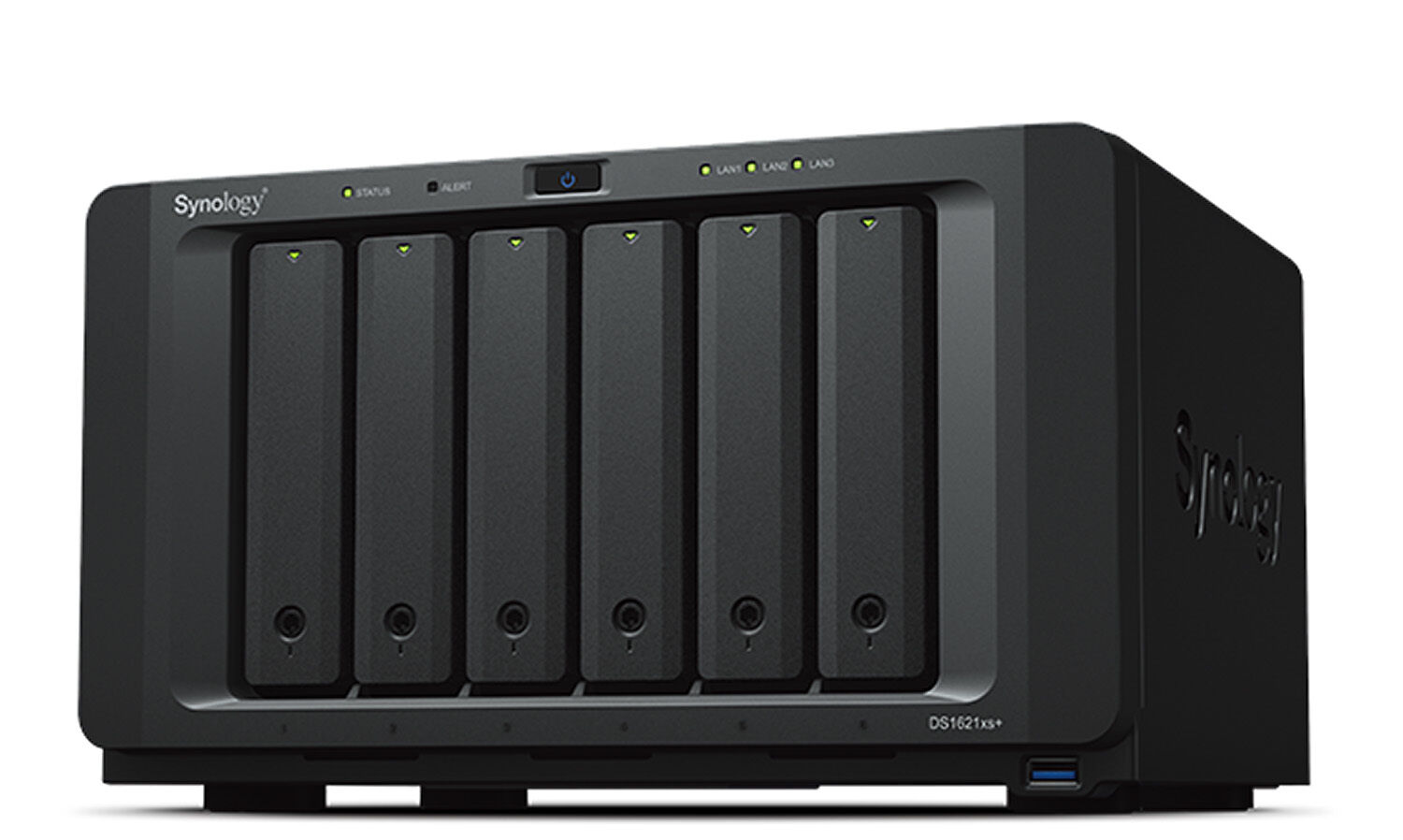

RAID is not a form of backup! RAID (redundant array of independent disks) guards against one type of hardware failure. There’s lots of types of failures that it doesn’t prevent. These can include file corruption, human error (deleting or overwriting by mistake), catastrophic damage (fire, flood, theft), viruses and malware, software bugs, other hardware issues (controller malfunction, voltage fluctuation, firmware bugs), and drives can fail when trying to rebuild.
The Cloud

‘The Cloud’ in it’s many forms and iterations is going to be the most viable option for most people to form part of your backup system – the geographically isolated one. It’s an excellent (mostly) safe, reliable, robust and generally cost-effective option, and while I do use it, I personally don’t consider it a viable enough of a solution to be classed as my only part 3 - ‘geographically separate’ backup, I have other ‘cold’ offsite backups for redundancy (and protection against malware/viruses).
Like anything it’s important to consider if it is the exact best option for your use case - particularly if you’re a working pro, have large volumes of files, or in particular do video work then you need to consider bandwidth/internet speed and restoration time (and hence business downtime). If you’re a pro then having a lengthy restore time and hence large downtime because of bandwidth limitations, because you have the cloud as your only offsite backup may be unacceptable to you.
For most people the cloud is a wonderful and cost effective option for offsite backup, and we do wholeheartedly recommend it as the most important first step to build a fantastic and proper backup system.
The Problem With Synchronisation

Synchronisation is not the same as backup! The problem with synchronising data from one place to another is the risk of propagating erroneous changes. If I am syncing drive A to drive B and I accidentally delete a file off drive A, then the version of the file that exists on drive B will be deleted also. It’s far too easy to accidentally spread file corruption or human errors (deleting or overwriting by mistake). Please don’t sync – at the very least use a journalled file system to give a record of changes and keep track of the data structure if you must.
Data Rot
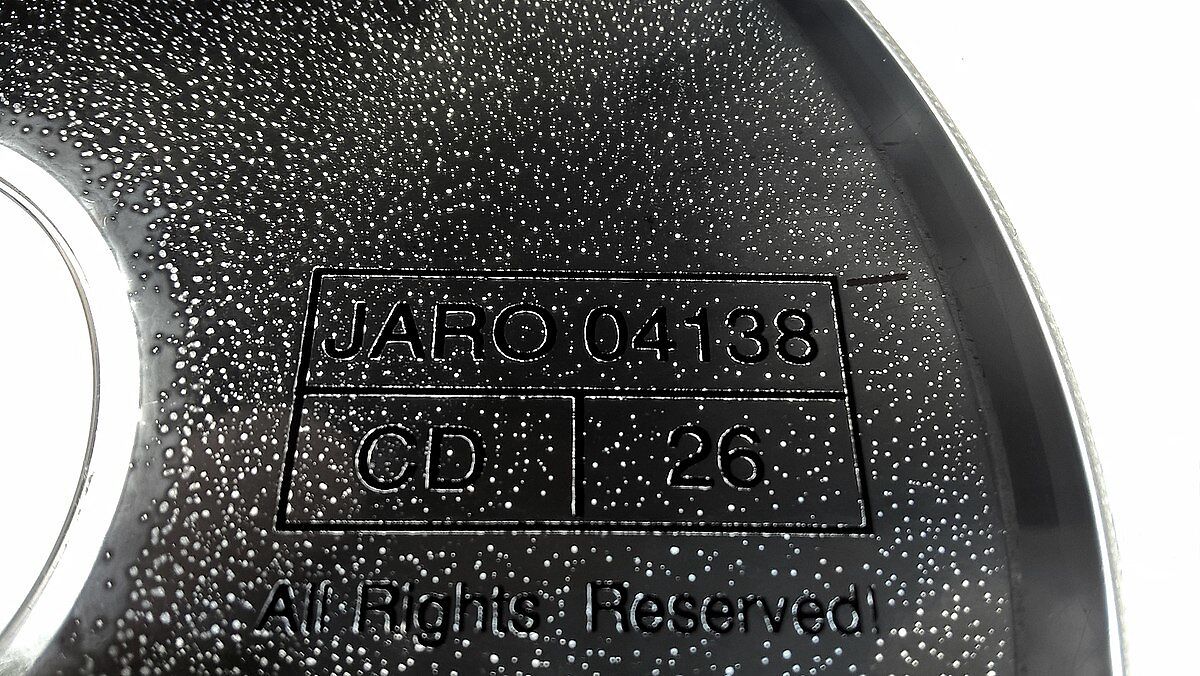

That leads us nicely into talking about data rot. ‘Data Rot’ or Data Degradation is defined as the gradual corruption of data on a storage device due to an accumulation of non-critical failures. To guard against data rot you should periodically go through your stored data and compare it to a known good copy (compare initial checksum hash of original know good vs current copy) – there are programs designed to detect and guard against various forms of data rot available which may be of help to ensure this is frequently done. ZFS and BTRFS are filesystems specifically designed to guard against various types of data corruption issues, popularly used in NASs like Synology (BTRFS) and Qnap (ZFS).
Physical Technologies
Let’s talk more about the actual physical drives and solutions to use and how to set it all up. The idea is that this is all scalable to meet your needs. Keep in mind your 3-2-1 backup strategy – you need a minimum of 3 copies of your data, 2 copies locally on different drives (and preferably medias), and 1 copy geographically-separated offsite.
At the moment, there are 5 broad categories of media/technologies that are used – each with their own pros and cons. Here's a quick summary of the major options:
Removable Hard Drives
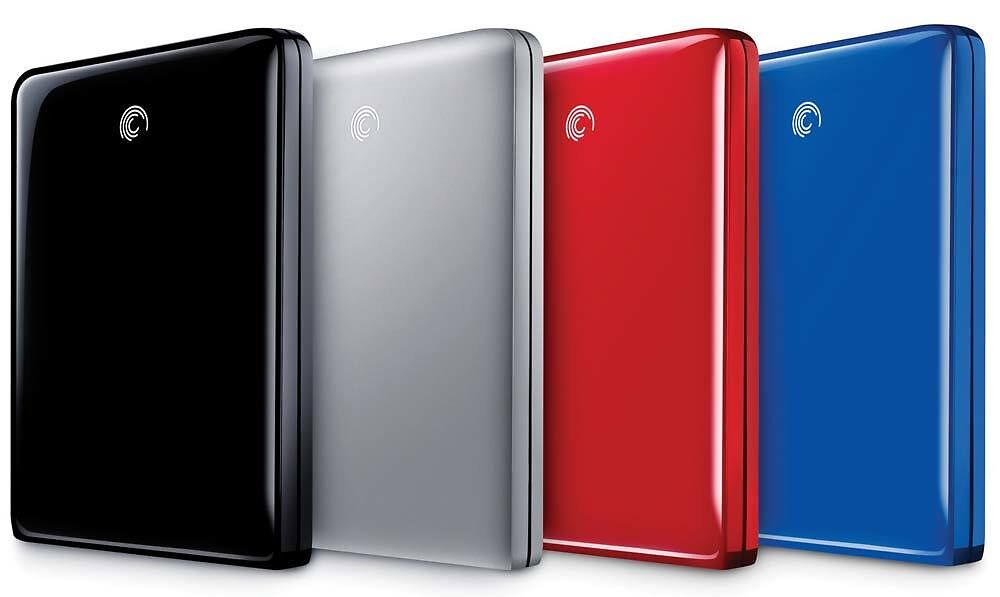
These are fast, and can actually be a surprisingly cheap option in the long term. However, HDDs are based on moving parts, and MTBFs (Mean Time Between Failure) for single hard drives is measured in years, not decades. Leaving hard drives unused for long periods of time tends to affect their reliability, so do keep this in mind. Good for your semi-regularly accessed local copies of data for example.
Online Storage
In many ways an ideal solution to the problem of backup for many people. Keep a local copy (or two) and upload another copy to the other side of the world, for storage on a massively backed up, highly redundant disk farm. Recent developments in the Australian internet marketplace have made this a very attractive option with cheap unlimited internet plans readily available. A good option for the majority of people for a reliable geographically isolated offsite backup.
Multiple Disk-Based Servers
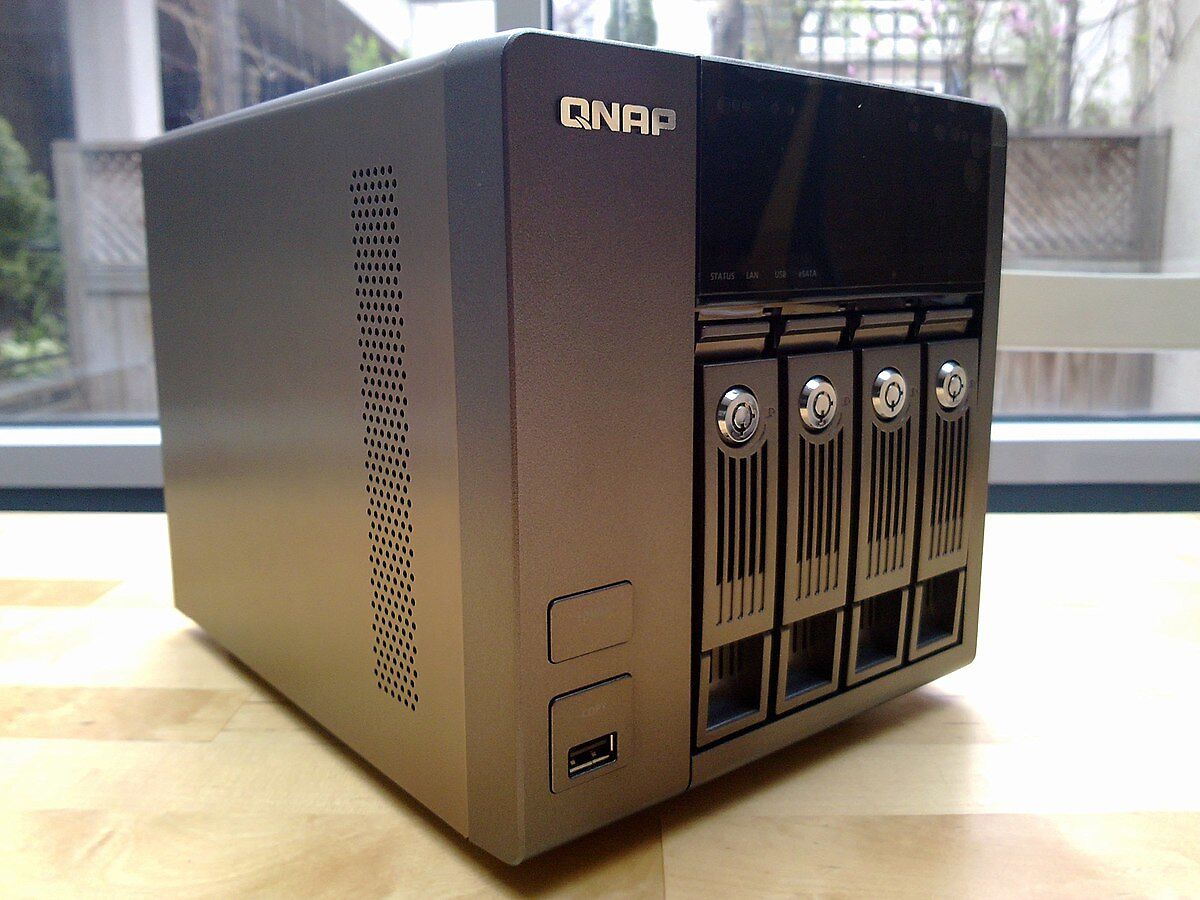

Often called RAID machines, or NAS 'Network Attached Storage'. Can be effective, fast and relatively cheap. But it can also be complex. However modern NAS systems can now offer ease of use, excellent data reliability, very high storage capacities and fast access.
Burnable Media
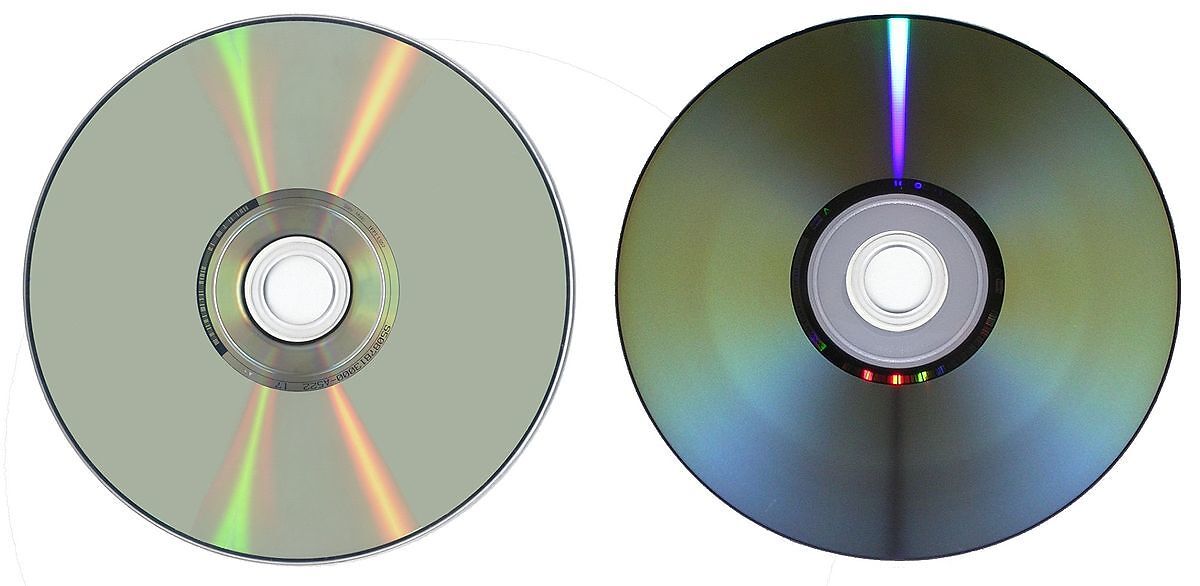

Burnable media is not recommended anymore as a viable backup solution (remember our point about your backup needing to be easy to use, or you won't use it). While burnable media use to be cheap, easy and common, today you'd be hard pressed to find a modern computer that comes standard with a CD/DVD burner installed. Availability and cost are negative factors here also. A major issue you'll run into here is media quality. Cheap CD and DVD media will often only last for a year or two. However, high quality media should last upwards of 100 years. If you must implement burnable media as part of your backup solution, select a good brand of media, such as Taiyo Yuden, and be a bit disciplined with your processes.
Tape Drives
The classic corporate approach to data backup is to use tape drives. Old, slow, and notoriously unreliable over time, this is generally a bad idea these days. It can take ages - hours and hours of tape spooling - to retrieve a specific file you have lost.
My Approach (as a Photographer)
I take all this a bit further by having more layers of redundancy, call me pedantic or paranoid, but before becoming so invested in good backup strategies I’d lost photos that can’t be replaced due to hardware failure – so I go a bit over the top so that I don’t ever have to experience that horrible feeling ever again. Having slower spinning HDDs as your deep storage archive is a lot less of an issue when you have a very fast SSD as your primary drive to edit off – you don’t have to have a sperate drive, you could utilise your computer’s internal SSD for this also. All of this is scalable up or down depending on the amount of data you have and are working with. I have an internal computer SSD, an external 4-bay drive enclosure (not RAID), a cloud drive, and two separate offsite backups. My external 4-bay enclosure contains a Live File SSD, a HDD Time Machine backup of my computer, and two large identical HDDs that form my Archive and Archive Backup (deep storage).
Internal Computer SSD – Contains a master folder (called ‘FINAL MASTER’) of all my final edited exported jpegs from both Personal and Business sides of my workflow. They are sorted by project folder.
Cloud Drive – I use OneDrive, and I’ve got it setup to sync my internal SSD’s FINAL MASTER folder to it periodically.
External TM HDD – In my external 4-bay enclosure I have a dedicated HDD that utilises Apple’s Time Machine feature to maintain both incremental/versioned backups and individual file version history to combat human error. It also means that I’ve got a copy of my internal SSD’s FINAL MASTER folder on another drive.
External ‘Live File’ SSD – In my external 4-bay enclosure I have a dedicated SSD for super quick access to edit my RAWs from and export my FINALs back onto. As the name suggests it’s optimised for speed and only what I’m currently accessing and working on. When ingesting my camera cards, all my RAWs get copied to here first. When I’m done editing I export all my JPEGs back to here first. Of course everything is organised by our already established project folder naming and structure. This drive does also have a copy of my FINAL MASTER folder for redundancy.
External ‘Archive’ HDD – This is a very large capacity HDD that is my primary store of all my captured RAW files. In the root of this drive I have two folders, one for all my Personal project folders, and one for all my Business project folders. When ingesting my camera’s card, all of the RAW files go into a ‘RAW’ folder in the project folder at the same time as my editing copy goes to my Live File SSD.
External ‘Archive Backup’ HDD – This is a manually managed backup of my Archive drive above (no RAID mirroring here) and offers redundancy due to drive failure for my RAW files. It is identical in every way to my main Archive drive, but is maintained a step behind in my workflow until the previous step can be verified okay.
Offsite Cold Finals HDD – Technically I have two different drives that are stored in two different geographically separate locations from my local storage, giving me 2 layers of redundancy due to catastrophic events. As discussed previously I choose not to backup all my RAW files offsite, and only maintain a copy of my FINAL MASTER on these two drives (my final edited exported JPEGS). These two drives also have the advantage of being cold (offline) they are impervious to malware and viruses while stored – so if something of this nature ruined your local copies, you can restore from a clean source that can’t have been infected.
Offsite RAW Backup NAS – This is an option I don’t currently implement, but I am currently evaluating the potential of, and is essentially the one recommended in our Building The Ultimate Backup article for your offsite backup. Despite potential limitations due to internet bandwidth and possible vulnerability to viruses and human error it is rather appealing to have a redundant and geographically isolated backup of my RAW archive.
My Methodology
Technically I keep six separate local copies, plus three offsite copies of all my final edited JPEGS. I know this is overkill. I choose to keep all my captured RAW files, even my ‘rejected’ or non-shortlisted ones, but I only keep two separate copies locally. My reasoning is that I know that realistically I’m never going to need to look at 95% of them ever again, but as a just in case type safety net if there’s ever any issue with copyright, or a client really needs an image for a specific purpose (i.e. a funeral – this has happened to me). I choose to only keep them locally (still two separate redundant copies though), and not off site, partly because of hardware and hosting cost, but mainly upload speed of vast amounts of RAW data and the associated time this takes. I have weighed up the pros and cons, for me, and having a remote offsite backup of my terabytes of RAW files is not quite currently justifiable for my use case. For my RAW files I’m guarding against drive failure etc, but not a cataclysmic bushfire destroying everything locally (for example). What I’m mainly guarding against with my backup solution is full and thorough protection of all of my final finished exported JPEGS. Whether this be guarding against drive failure locally with multiple separate copies, to virus/ransomware protection through ‘cold’ air-gapped drives, to a major catastrophic event like a bushfire or flood through geographically separated drives.
Hedge.video
Hedge is a wonderful piece of software that has revolutionised my image offloading, ingestion and organisation workflow. It’s an incredibly powerful, fast, and secure copy, backup and archive solution that was born out of the taxing needs of the film industry and its Digital Image Technicians. Hedge is born of a simple premise – to safely copy large amounts of data from one place to another fast. And it does it spectacularly well. Every transfer done through Hedge is checksum verified to ensure that every byte of data made the journey safely with no corruption or losses. It does multiple simultaneous transfers lightning fast thanks to its Speed 2.0 Engine. In testing Hedge can be 20% faster per discrete transfer over Finder, Explorer or competitors like Shotput Pro or Silverstack. It employs Checkpoint 2.0, a full source integrity engine – not only destination checksum verified (XXH), but with a full source integrity engine to verify your source data as well as look for faulty source hardware. It also gives an MHL list of verified checksums for accountability. Importantly it does batch renaming, filtering, and labelling, and has complex folder structure support to automatically sort source media in a user defined way (through elements and presets) into a user defined destination folder structure. It is extremely flexible with NAS, SAN, RAID and thunderbolt support. It also has full integration with finder and explorer for ease of workflow, usability and speed.
Summary
Redundancy and consistency is the name of the game!
You need to have 3 separate copies of your data: 2 different drives/medias locally, and 1 in a geographically separate location. At a minimum. If you don’t have at least this, then you don’t have a backup.
At a most basic level, for most people this would look like 2 separate hard drives locally and a cloud drive for the offsite solution. It doesn’t have to be as fancy or extreme as some of what we’ve talked about here, if you’ve got no backup then something – anything – will be better than nothing. Start small and build up over time.